
There are many websites that sell domains, such as Name.com and Namecheap. However, this guide from BettaMax will show customers how to buy a domain at Name.com to ensure the process is easy.
Once completed, the store will run on its own domain name instead of the platform’s default subdomain. This process takes approximately 30 to 45 minutes, including the time needed for DNS updates.
Before we begin:
- I already have a BettaMax account and the store is active.
- You already have an account with name.com (or another domain provider). This guide uses name.com as an example.
- The desired domain name has been prepared (for example:
yourstore.com).
Part 1: Buying a domain name on name.com #
If you don’t already have a domain name, follow this section to purchase one. If you already have a domain name, skip this and move on to Section 2: Connecting your domain name to BettaMax .
Search and select a domain name. #
- Visit www.name.com and log in to your account.
- Enter the desired domain name in the search box and press Search .
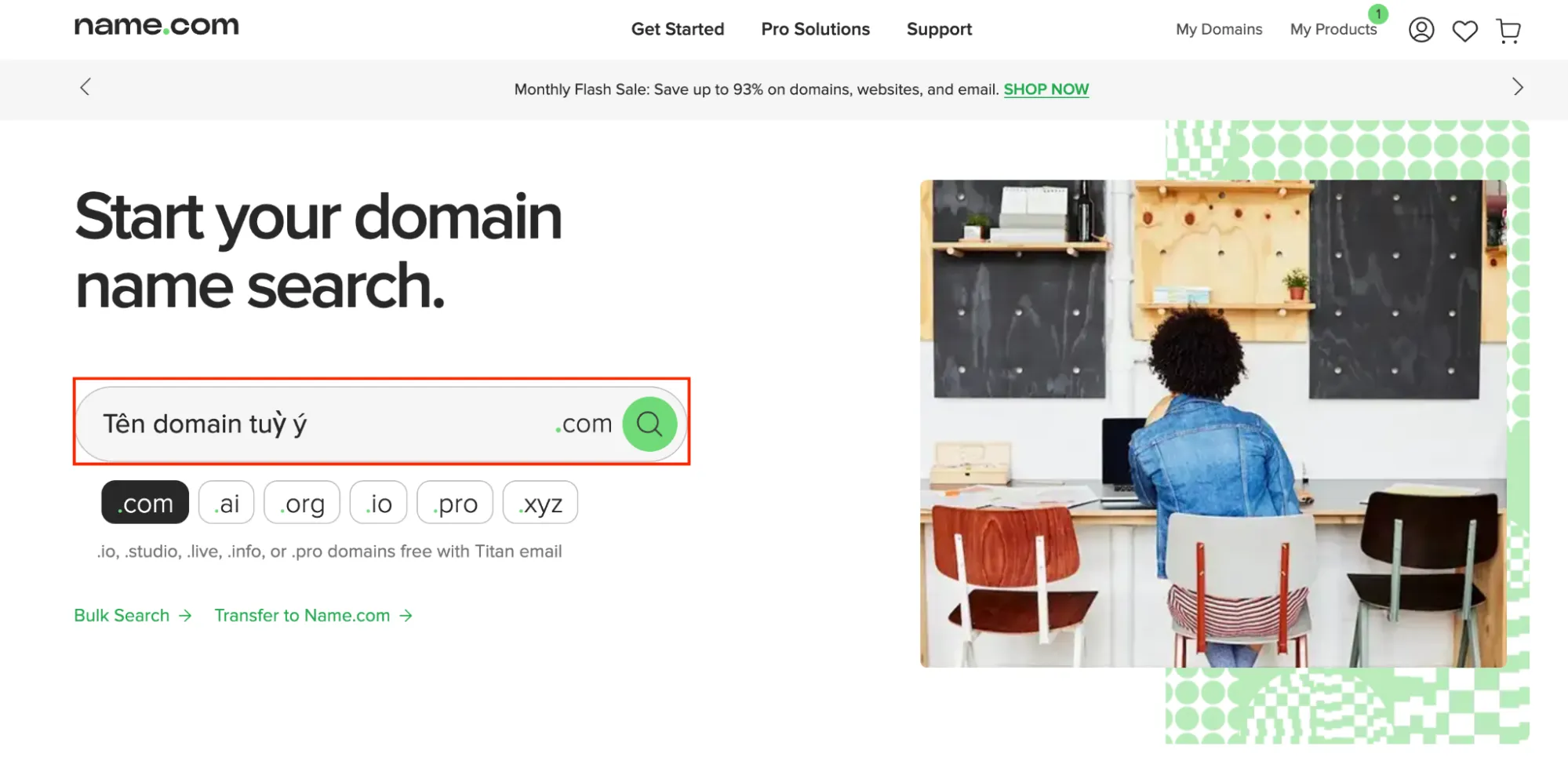
- View search results.Tip: Prioritize using the .com domain extension to increase credibility with international customers. Avoid using less common extensions (.xyz, .shop) if selling in the US/UK/CA market.
- Choose your payment method and complete the transaction.
- After successful payment, the domain name will appear in your name.com account.
Part 2: Obtaining DNS information from BettaMax #
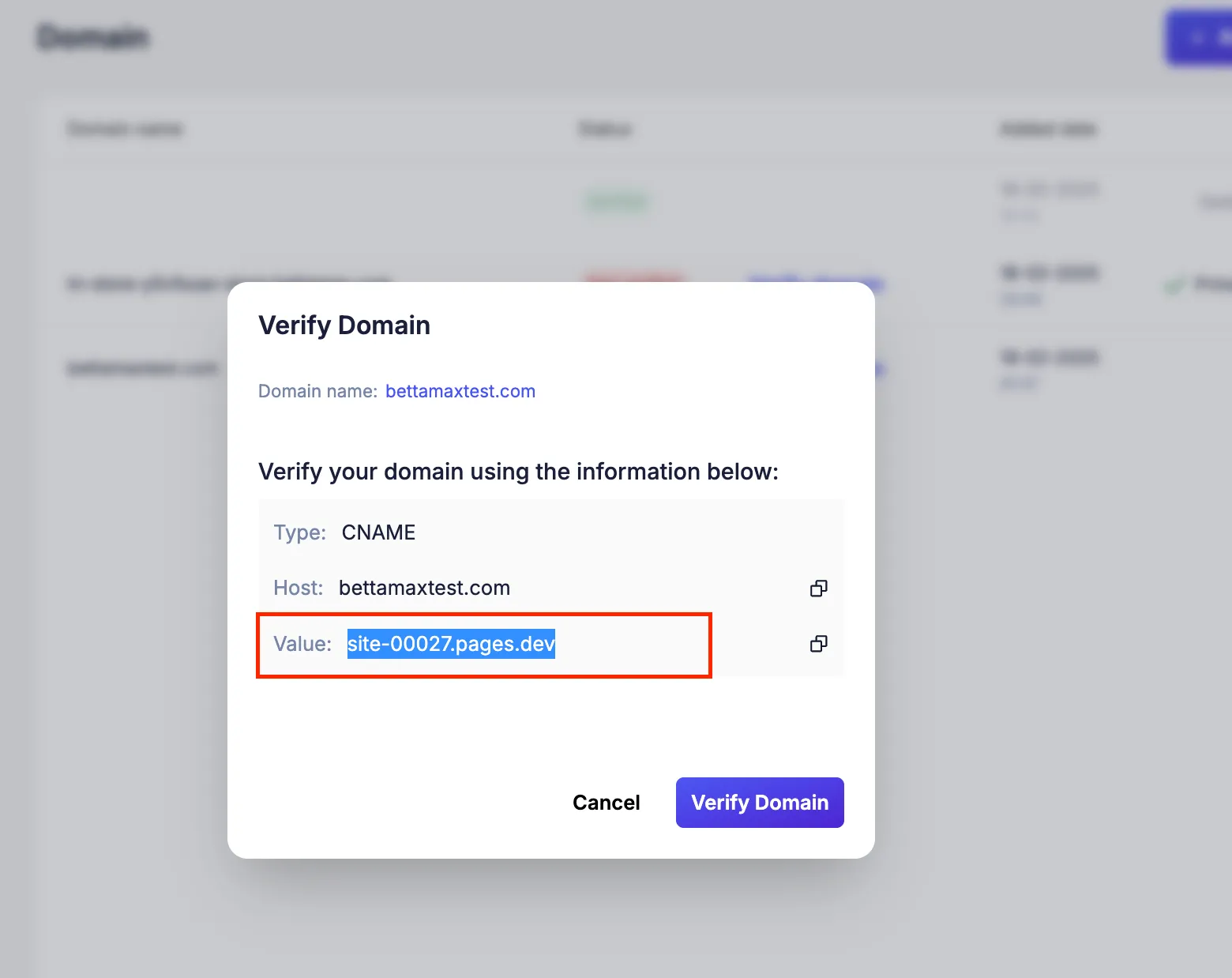
Before configuring on name.com, you need to retrieve the CNAME value from BettaMax. This value is used to point the domain name to the correct server for your store.
- Log in to admin.bettamax.com .
- From the left-hand menu bar, select My Store > Domain .
- Click Add Domain .
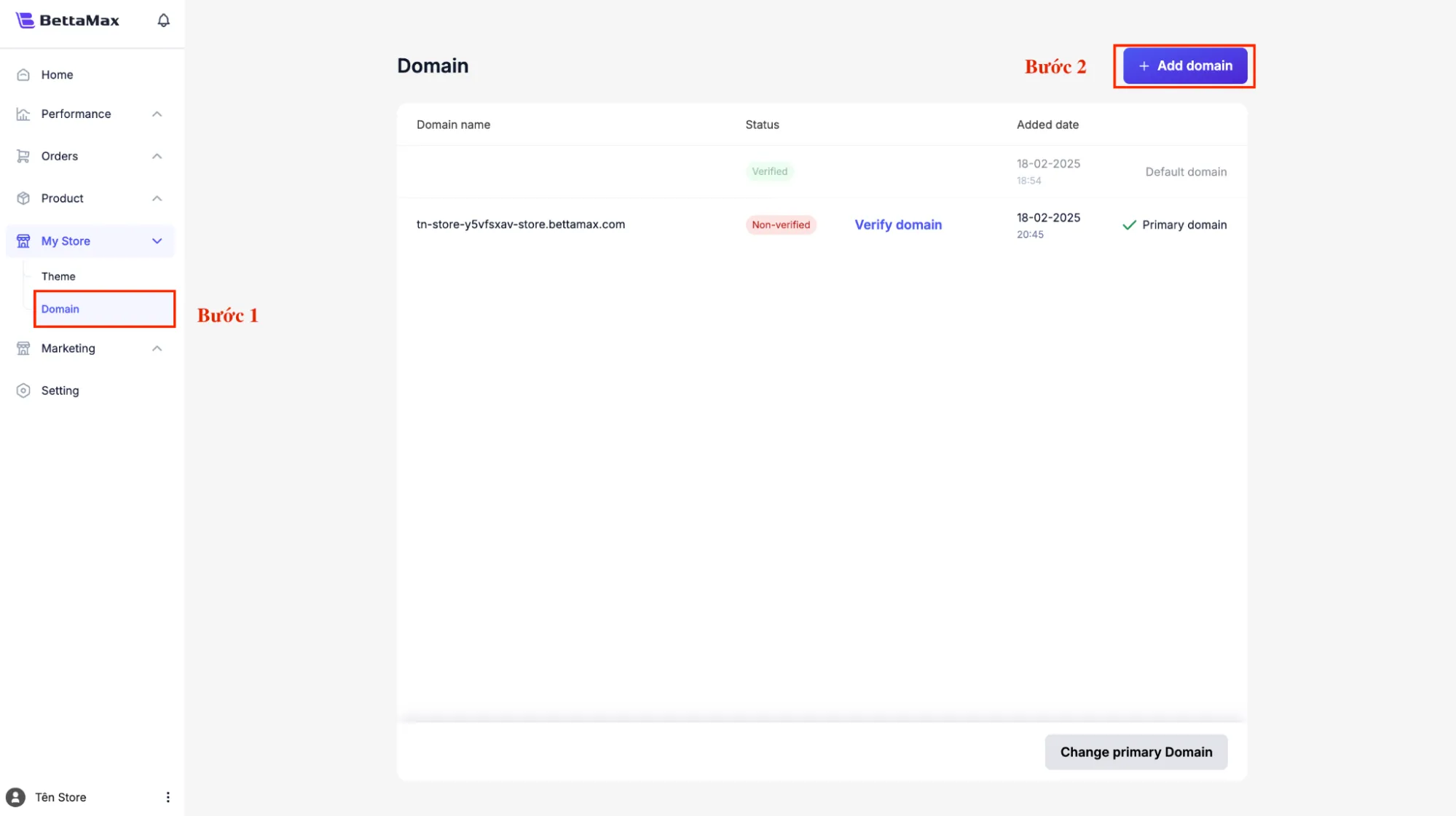
- In the dialog box that appears, enter the domain name you just purchased in the Domain name field (for example:
yourstore.com), then click Add Domain .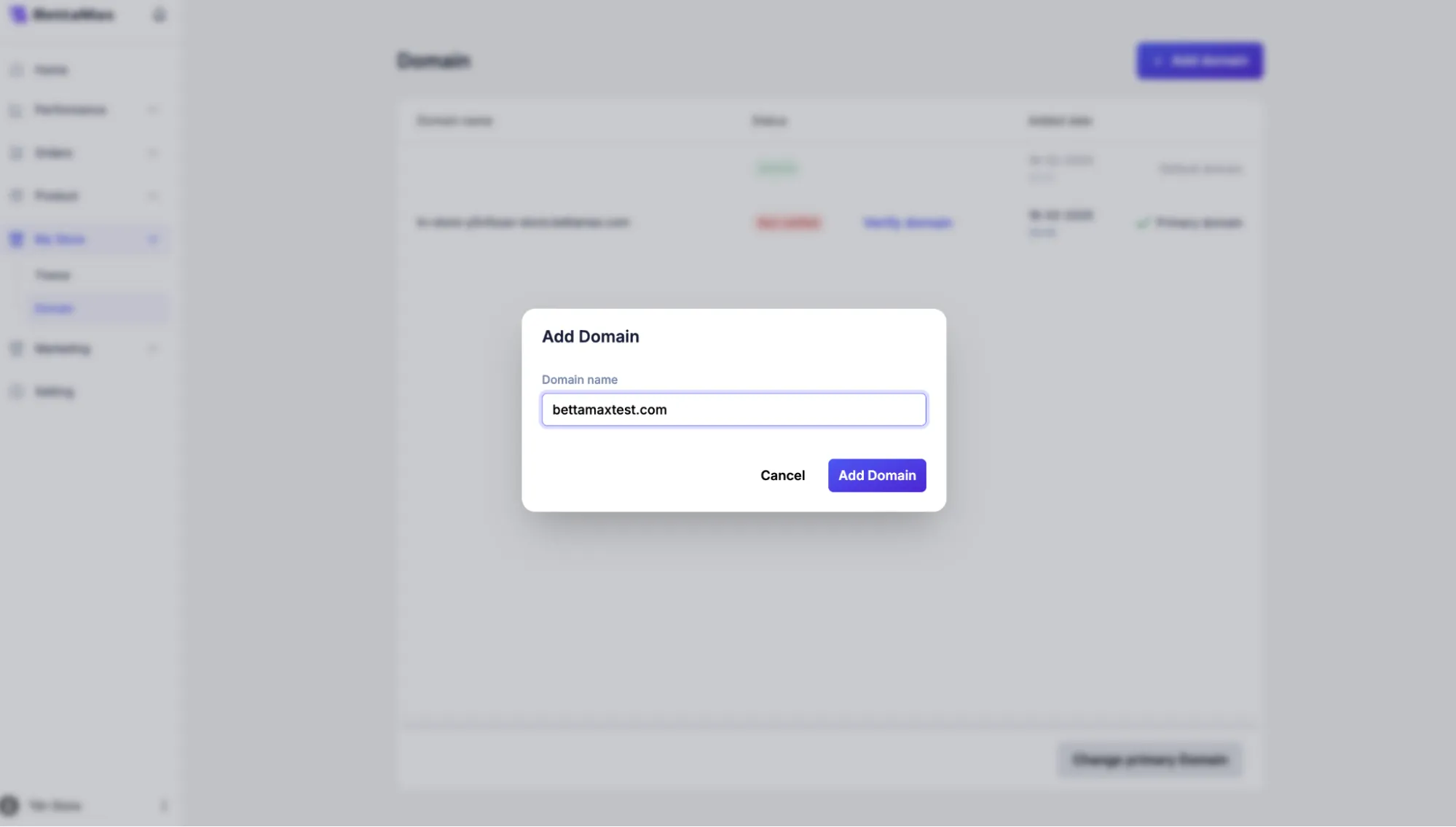
- The Verify Domain dialog box opens. Copy the entire value in the Value field . This is the CNAME address you need to enter into name.com.
Part 3: Configuring DNS on name.com #
This step points the domain name from name.com to the BettaMax server using a CNAME record. This operation is performed on the name.com DNS management page.
- Go back to the name.com tab. Go to My Domains , find the domain you just purchased, and click Manage .
- Nhấn Manage DNS Records.
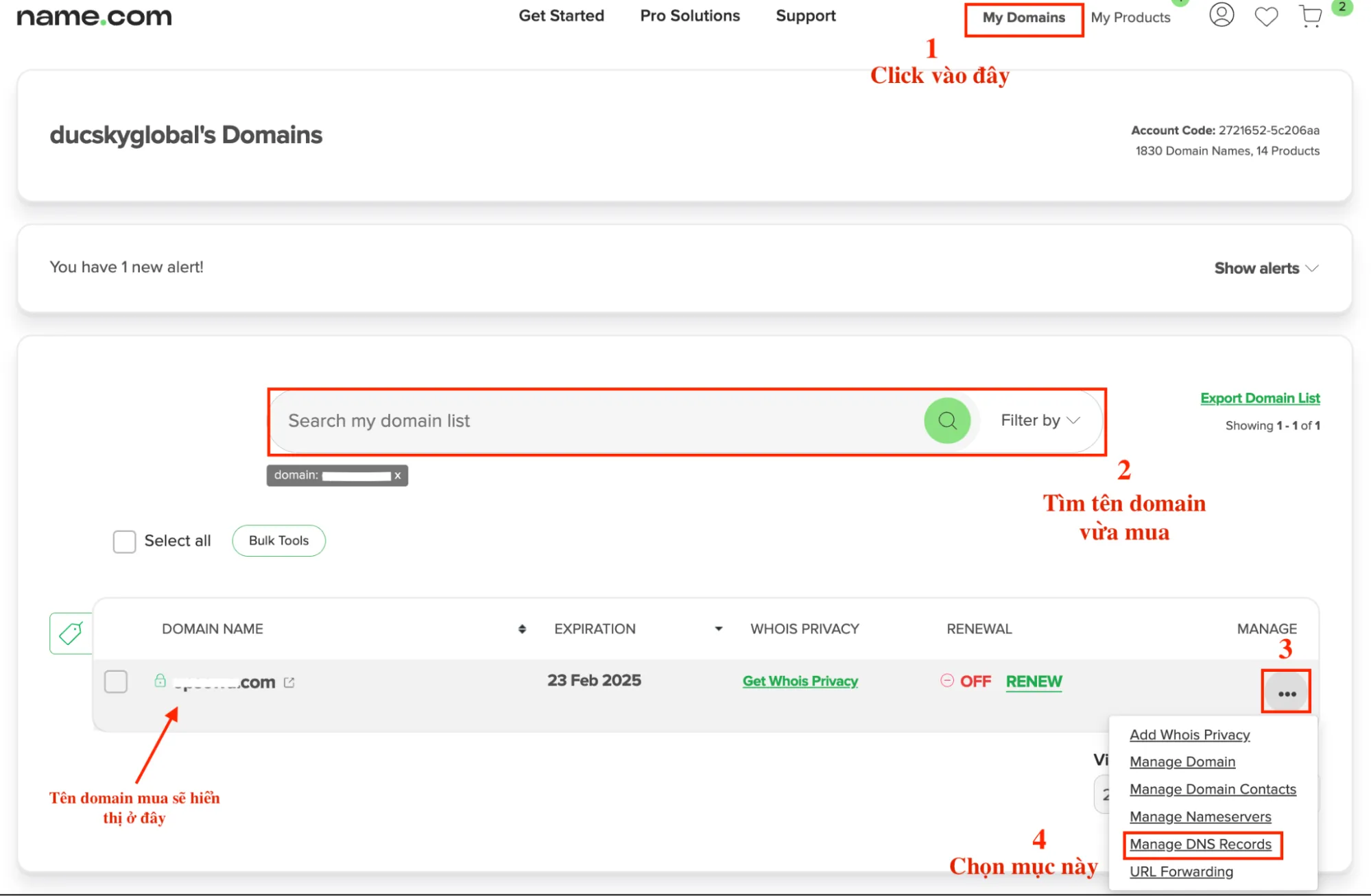
- In the section for adding a new DNS record, fill in the following information:
- TYPE: Select CNAME from the dropdown.
- HOST: Enter
@(the @ symbol represents the root domain name, for example yourstore.com). - ANSWER: Paste the Value you just copied from BettaMax here.
- Click Add Record to save the DNS record.
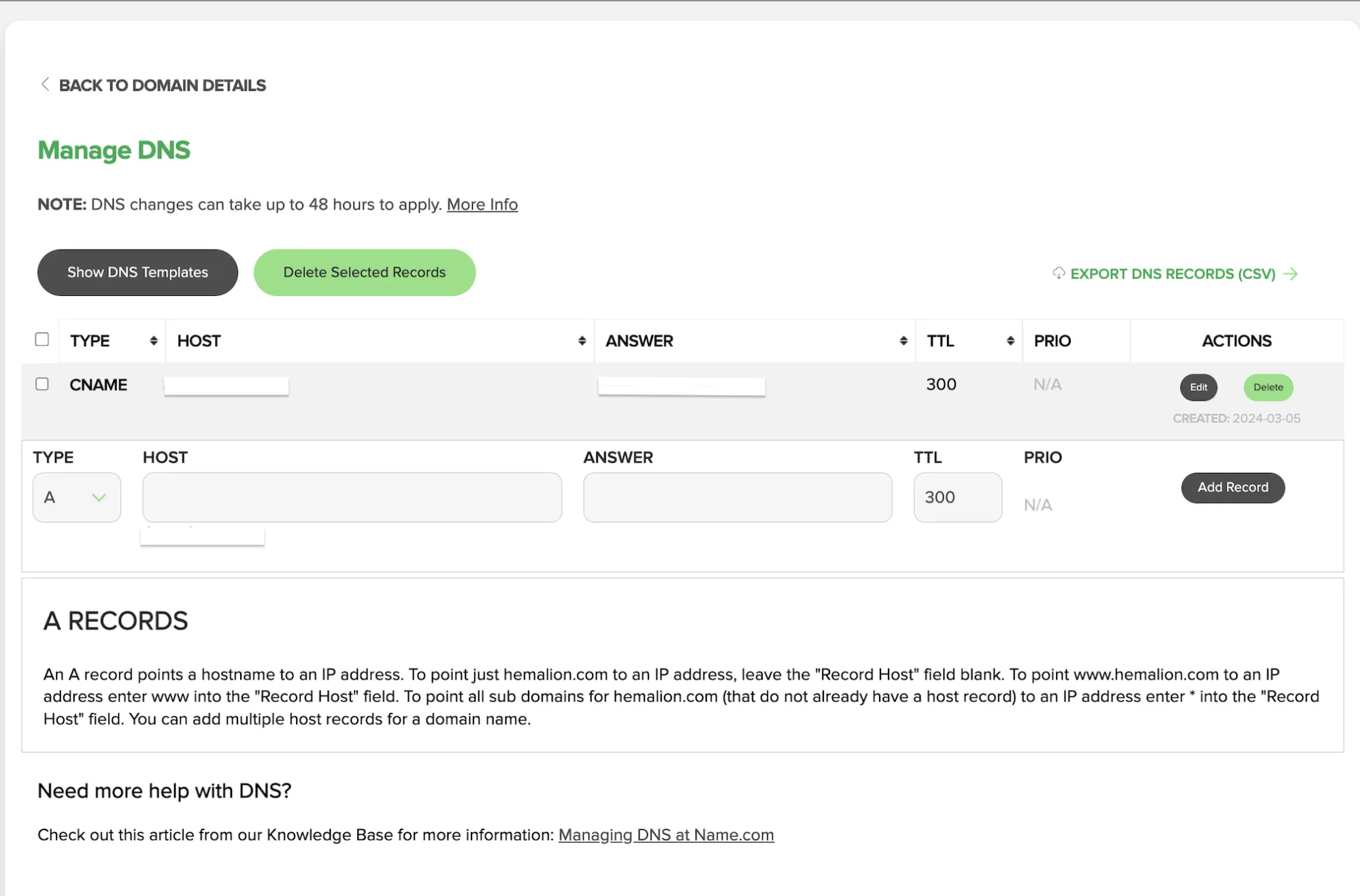
@, please delete the old record before adding the new one. Two CNAME records for HOST will cause conflicts and render the domain inactive.
Part 4: Verifying your domain name on BettaMax #
After configuring the DNS, return to BettaMax to activate verification. The DNS needs time to update, so this process may take 15 to 20 minutes.
- Go back to the BettaMax tab that has the Verify Domain dialog box open .
- Click Verify Domain to begin the verification process.
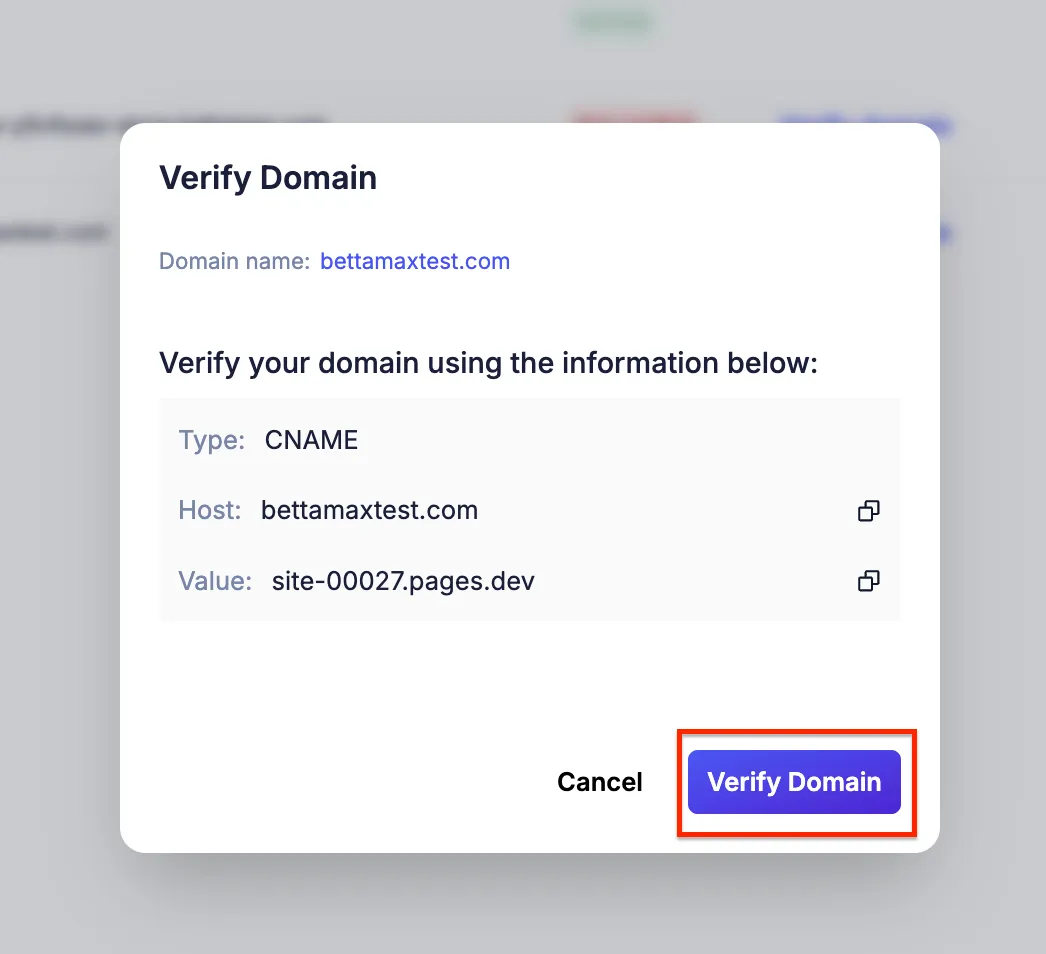
- Wait for the system to verify. Do not close the tab or perform any other actions while waiting. The verification process usually takes 15 to 20 minutes .
- After successful verification, the domain name appears in the list.
Part 5: Setting the new domain name as the primary domain. #
After verification, the domain has been linked but is not yet the store’s primary domain. You need to convert this domain to a primary domain so that all product links and store pages run on the new domain.
- In the Domain list, find the domain name you just verified.
- Click Set as Primary or the toggle icon next to that domain name.
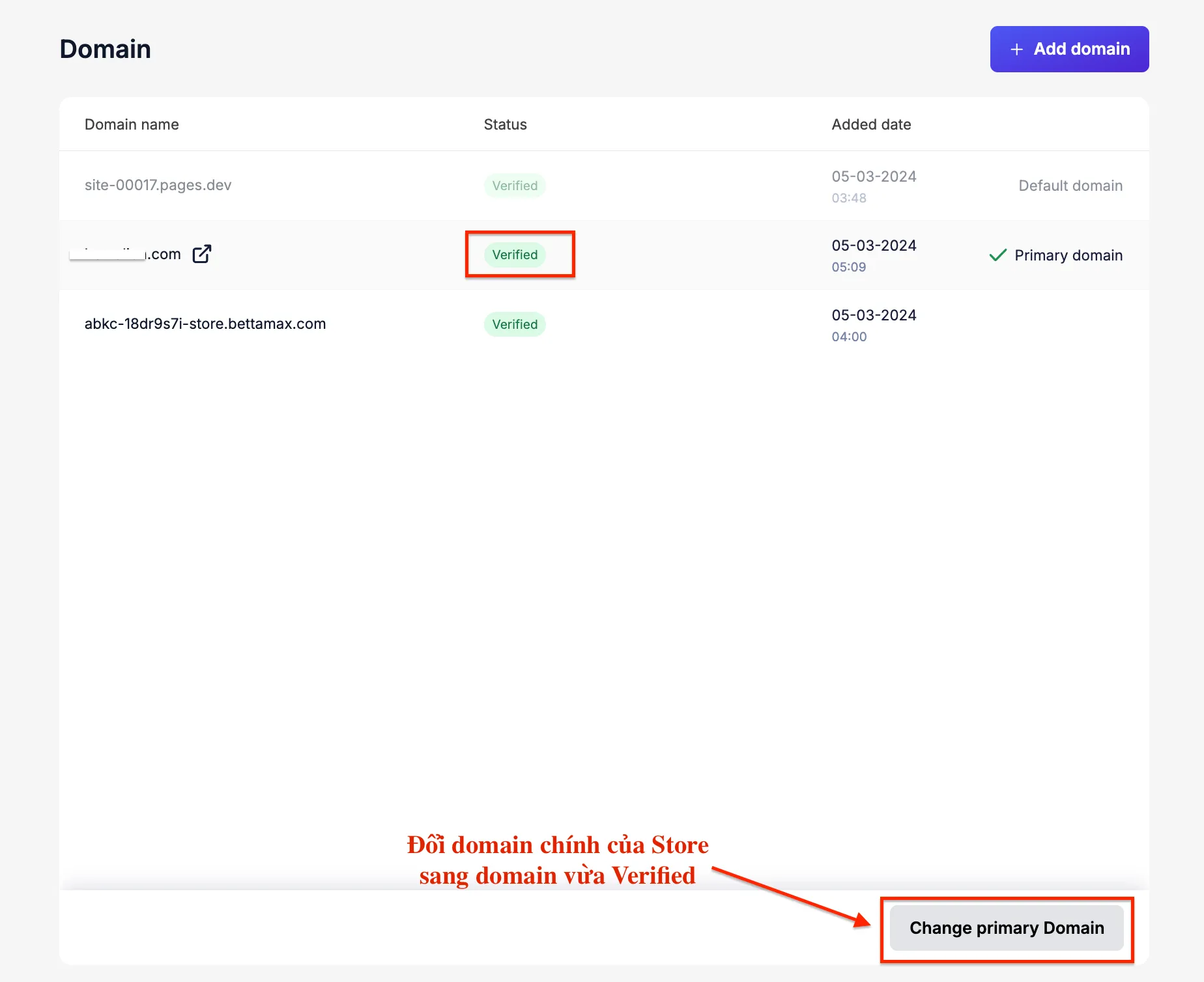
- Confirm the action. The system will automatically update all product links and store pages to the new domain.