This guide helps you create a free shipping program on BettaMax in two ways: using discount codes (customers enter the code) or automatically applying the discount when eligibility is met. Each method is suitable for different campaigns.
Option 1: Free shipping using a discount code #
Use this method when you want customers to enter a code to receive free shipping. Suitable for email marketing campaigns, advertisements with specific calls to action (CTA), or limited-quantity promotions.
Step 1: Create a new discount
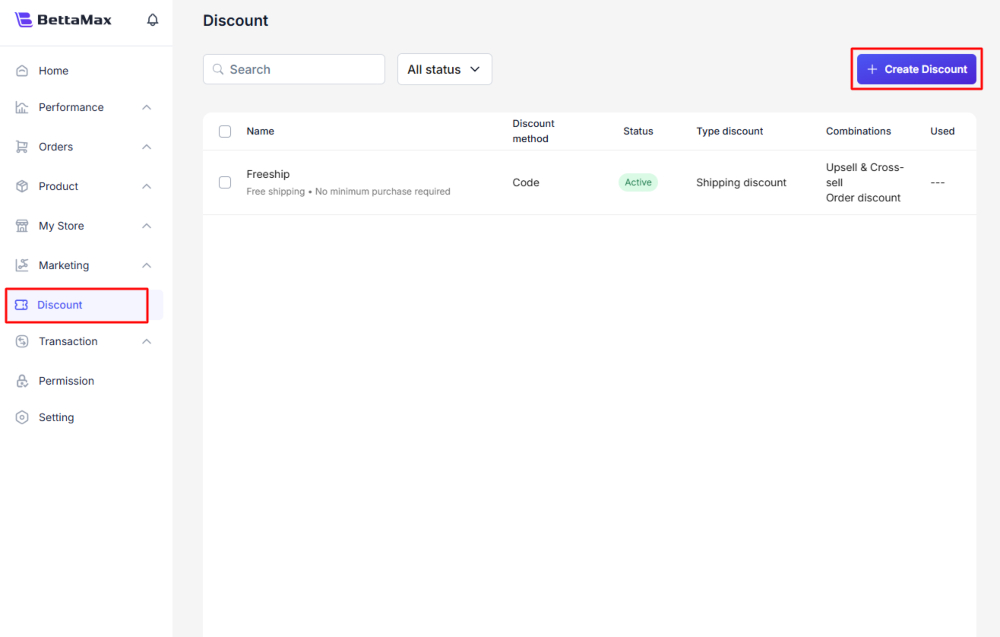
- From the menu bar on the left, select Discount .
- Click Create Discount in the upper right corner.
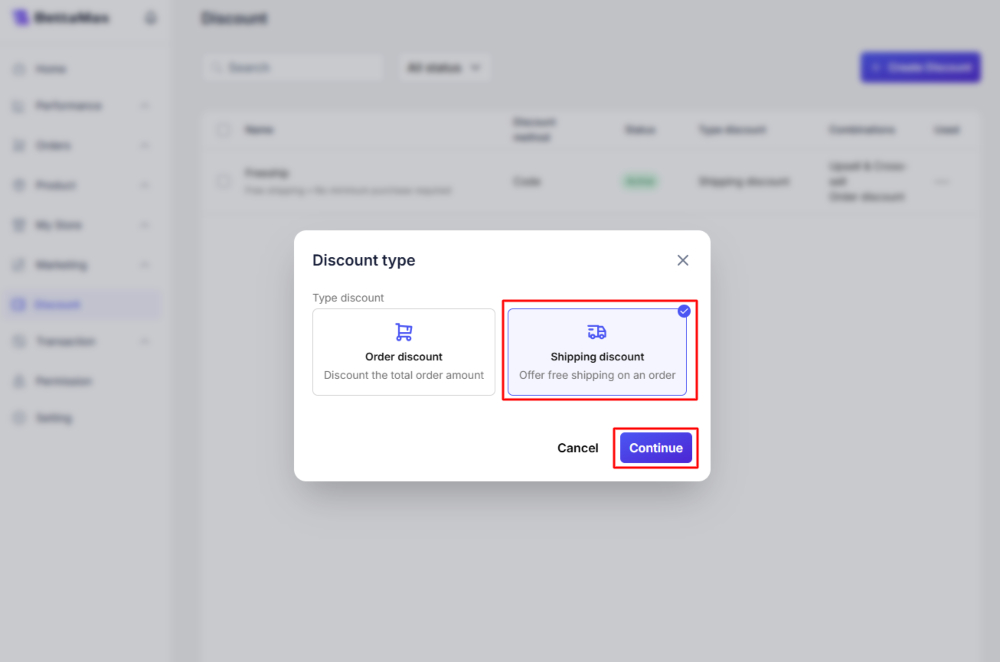
- In the dialog box, select Shipping discount , then click Continue .
Step 2: Configure discount code information
- Enter the campaign name in the Title field (e.g.,
Freeship Christmas). This name will only be displayed internally within the system. - In the Discount Method section , select Discount code .
- In the Type section , select Static code .
- Enter the code in the Discount code field (e.g.,
FREESHIP). This is the code the customer entered on the checkout page. Or click Auto-generate to have the system automatically generate a random code.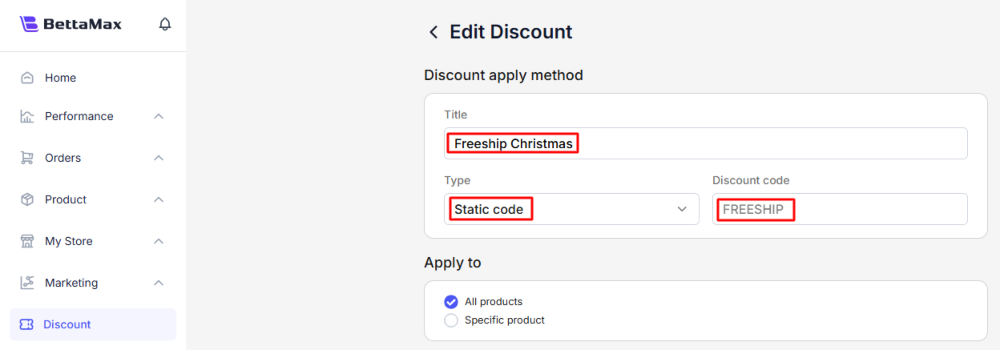
FREESHIP, , SHIP0, or FREESHIP2025. Avoid codes that are too long or contain special characters that customers might enter incorrectly.Step 3: Select the applicable product.
In the “Apply to” section , select the area where free shipping applies:
- All products — Applies to all products in the store.
- Specific products — Applies only to selected products. Click the search box to find and select specific products.
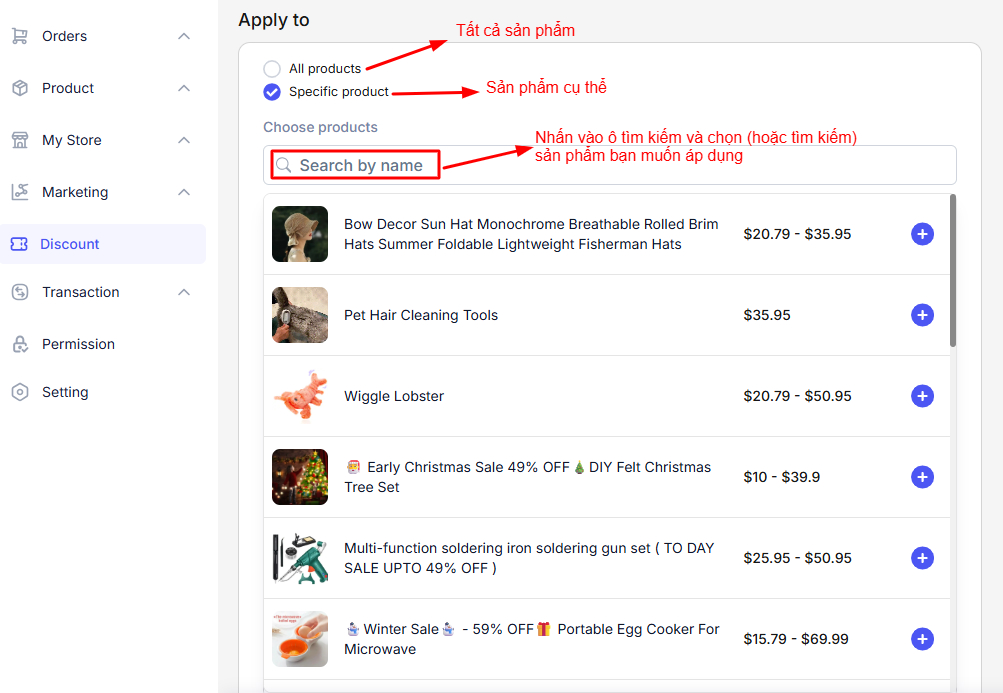
Step 4: Set minimum order requirements
In the Minimum purchase requirements section , select the applicable conditions:
- None — No conditions, all orders qualify for free shipping when you enter the code.
- Minimum purchase amount — Free shipping is only available when the total order reaches the minimum amount. Enter the amount in the field next to it.
- Minimum quantity of items — Free shipping only when the minimum quantity of items is reached. Enter the quantity in the field next to it.
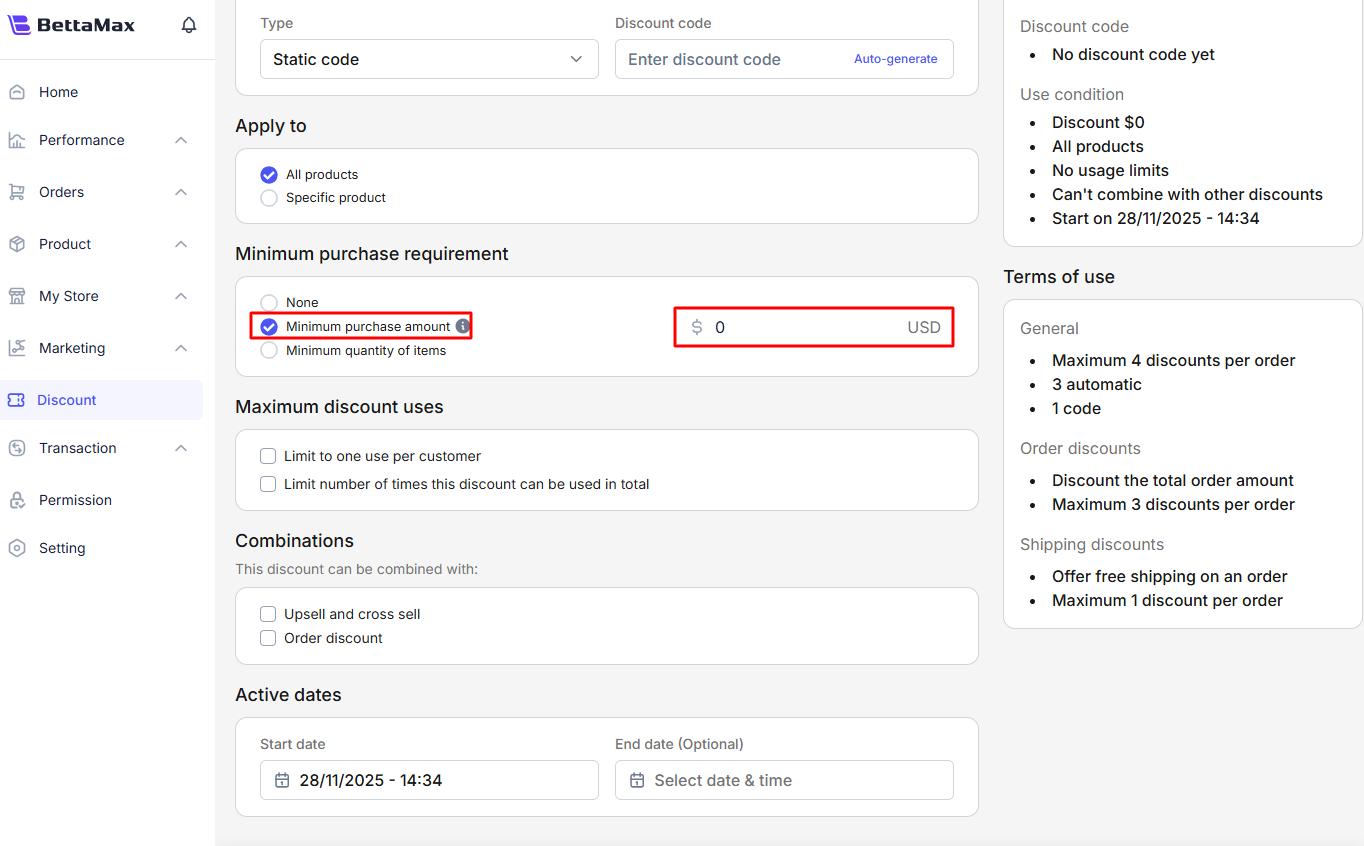
Step 5: Limit the number of uses.
In the Maximum discount uses section , enable the limiting options if needed:
- Limit to one use per customer — Each customer can only use this code once.

- Limit the total number of times this discount can be used (e.g., up to 20 times). Enter the number in the field next to it.
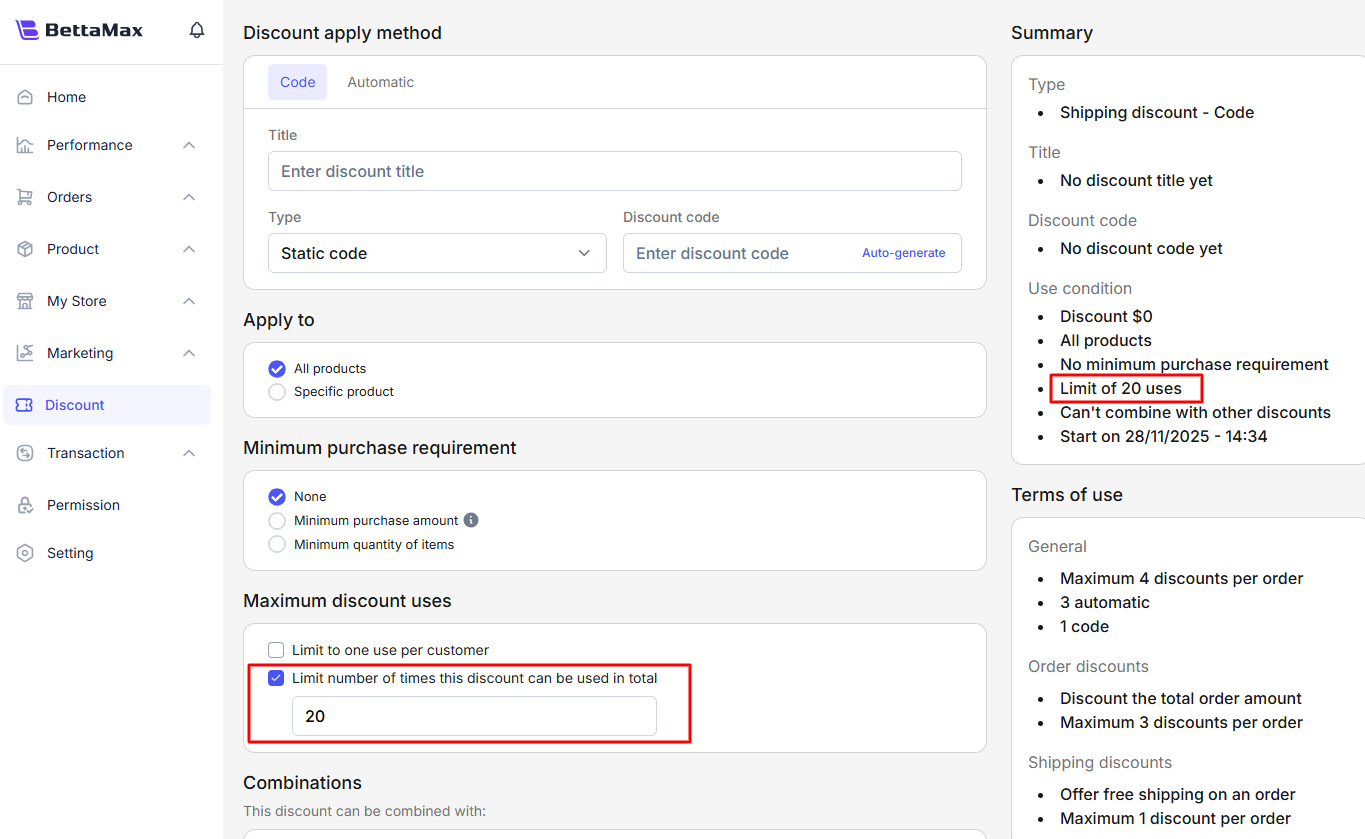
Step 6: Install in combination with other discounts
In the Combinations section , select other discount types that this freeship code can be combined with:
- Upsell and cross-sell — Allows combination with discount upsell/cross-sell.
- Order discount — Allows combination with order discounts.
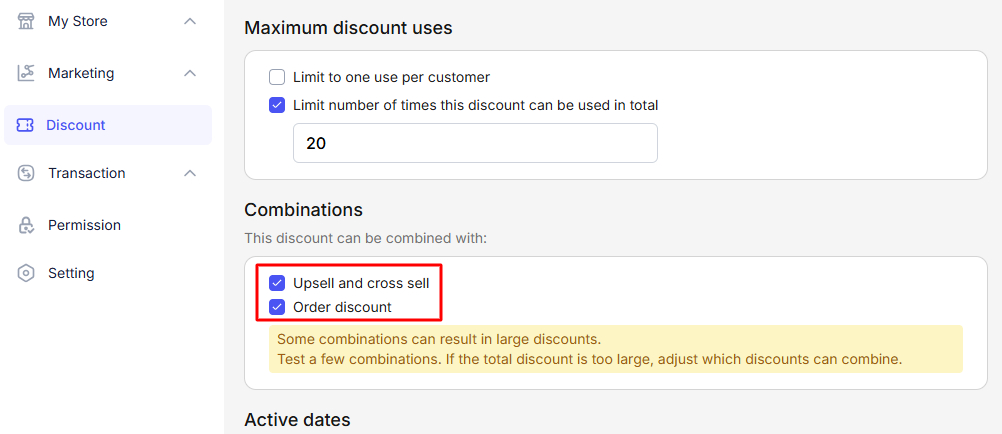
Step 7: Set the validity period
In the Active dates section , select Start date and End date (optional). If you don’t set an End date, the code is valid indefinitely.
Step 8: Save and check
- Click Create to generate a free shipping code.
- Verify the result: When a customer enters a code (e.g.,
FREESHIP) on the checkout page and is eligible, the shipping fee will automatically display as FREE .

Option 2: Free automatic shipping #
Use this method when you want free shipping to be applied automatically without the customer entering a code. It’s suitable for regular free shipping policies based on minimum order amounts, helping to increase the average order value.
Step 1: Create an automatic discount
- From the sidebar, select Discount > then click Create Discount .
- Select Shipping discount , then click Continue .
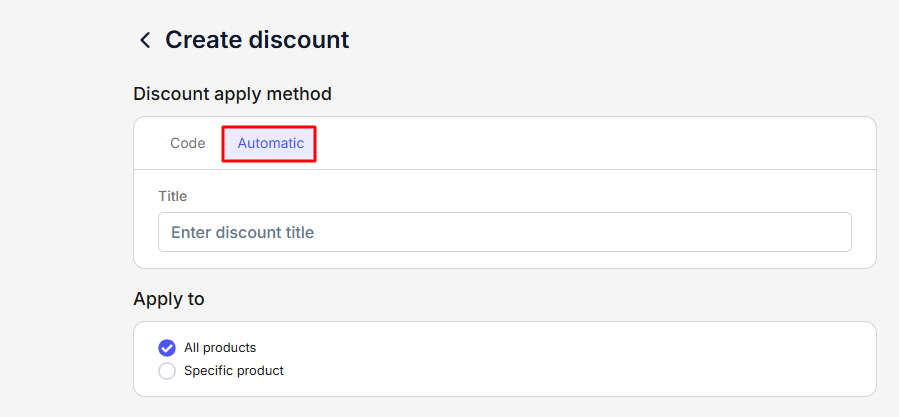
- In the Discount Method section , select Automatic instead of Discount code.
Step 2: Detailed Configuration
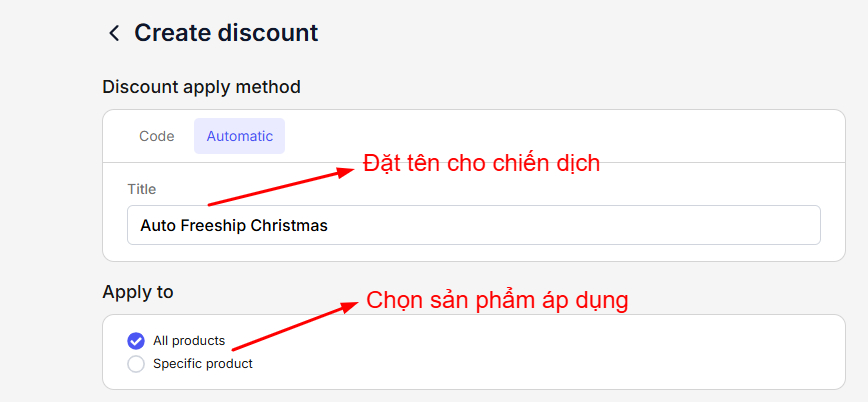
- Enter the campaign name in the Title field (e.g.,
Auto Freeship Christmas). - In the Apply to section , select either All products or Specific products .
- In the Minimum purchase requirements section , select the applicable condition (None, Minimum purchase amount, or Minimum quantity of items). The configuration is similar to Form 1, Step 4.

Step 3: Limits, combinations, and time
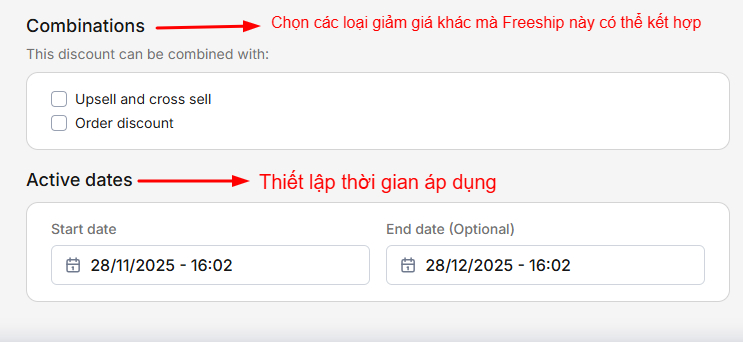
Configure Maximum discount uses , Combinations , and Active dates in the same way as Form 1 (Steps 5, 6, 7).
Step 4: Save and check
- Click Create to activate the automatic free shipping program.
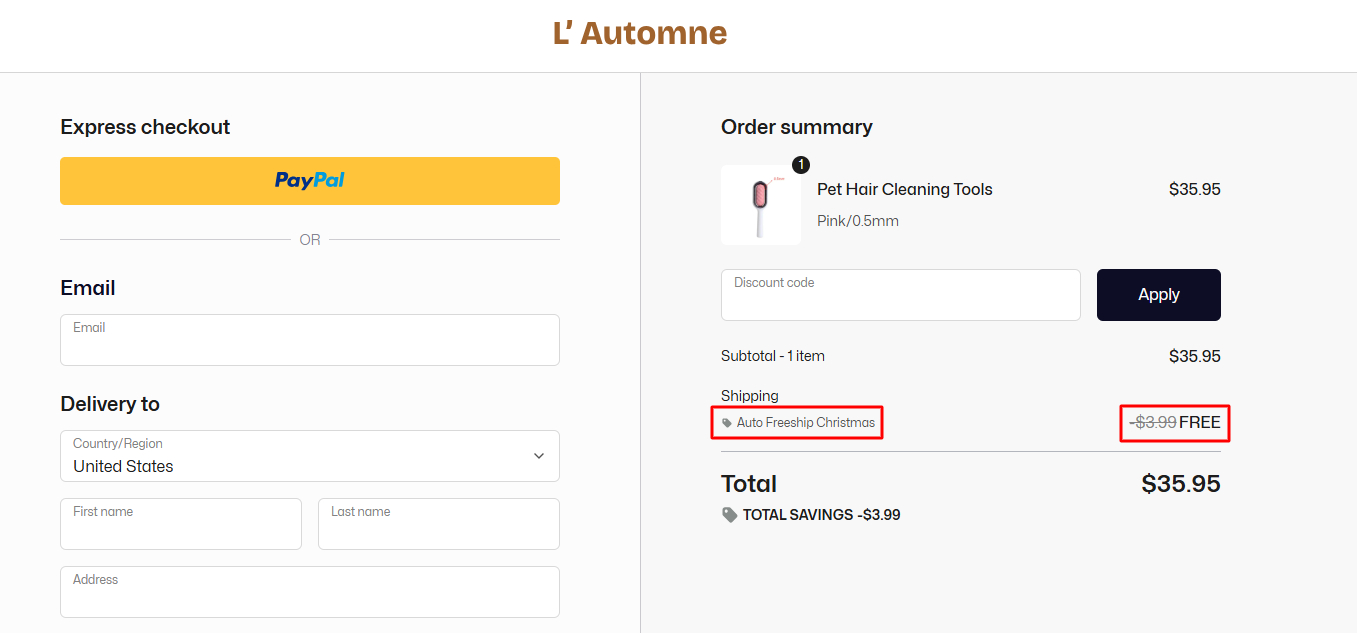
- Verify the result: When a customer adds eligible products to their cart and proceeds to checkout, the shipping fee automatically displays as FREE without needing to enter a code.