
This guide will help you integrate Google Ads Conversion Tracking code into your BettaMax store to measure conversions from ads. It takes about 10 minutes to complete.
Before we begin:
- The Google Ads account is active.
- The store was created on BettaMax.
- Admin privileges on both Google Ads and BettaMax
Step 1: Get Google Tags from Google Ads #
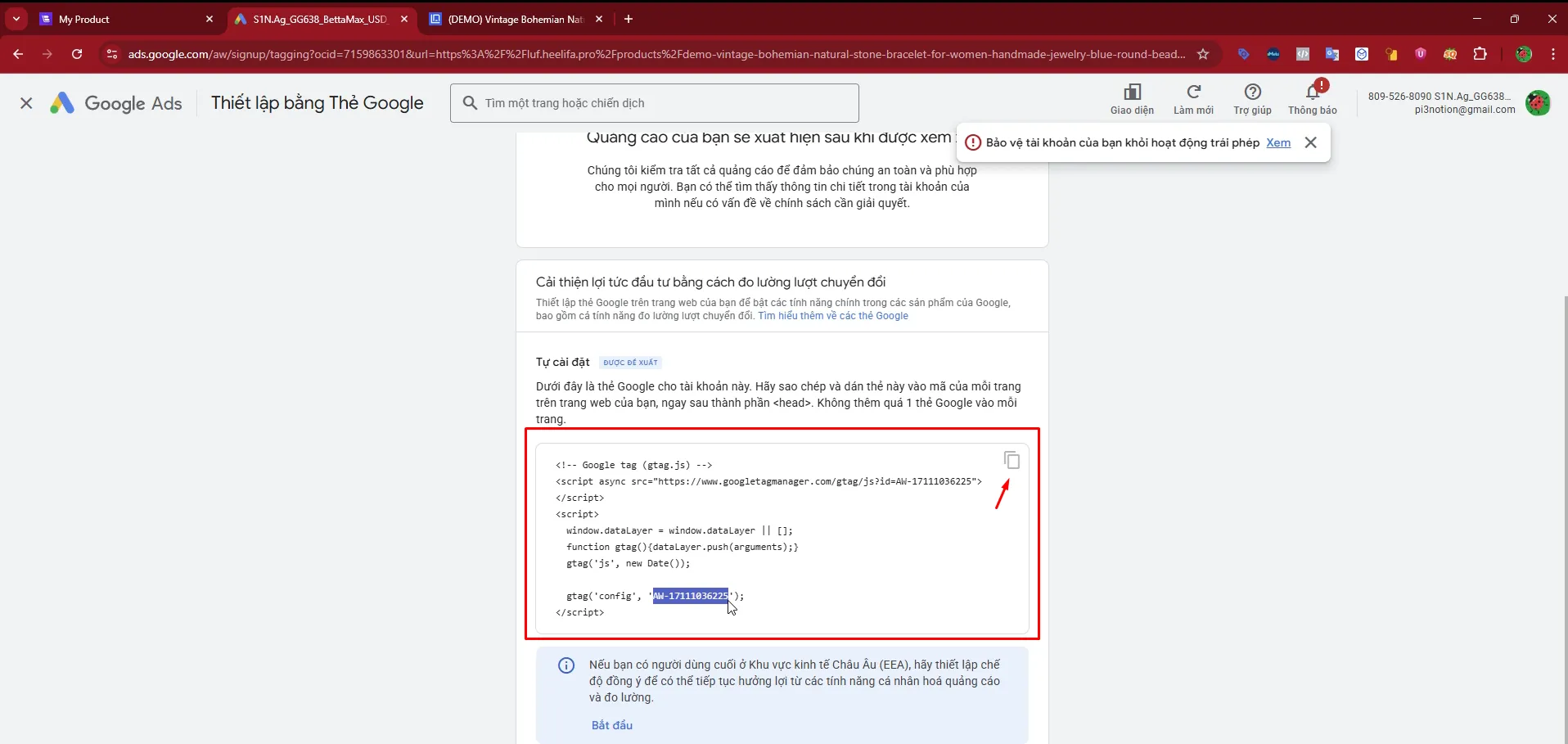
Access Google Ads to retrieve the Google Tag code, which will be used for the next conversion setup step.
- Log in to your Google Ads account .
- Tap Tools and Settings in the top navigation bar.
- Select Set up using Google Tag.
- Copy the Google Tag code shown.
Step 2: Obtain the Conversion ID and Conversion Label #
After obtaining your Google Tag, you need to confirm the settings so that the Google Ads system can generate the Conversion ID and Conversion Label code pair.
- In Google Ads, click Check setup process .
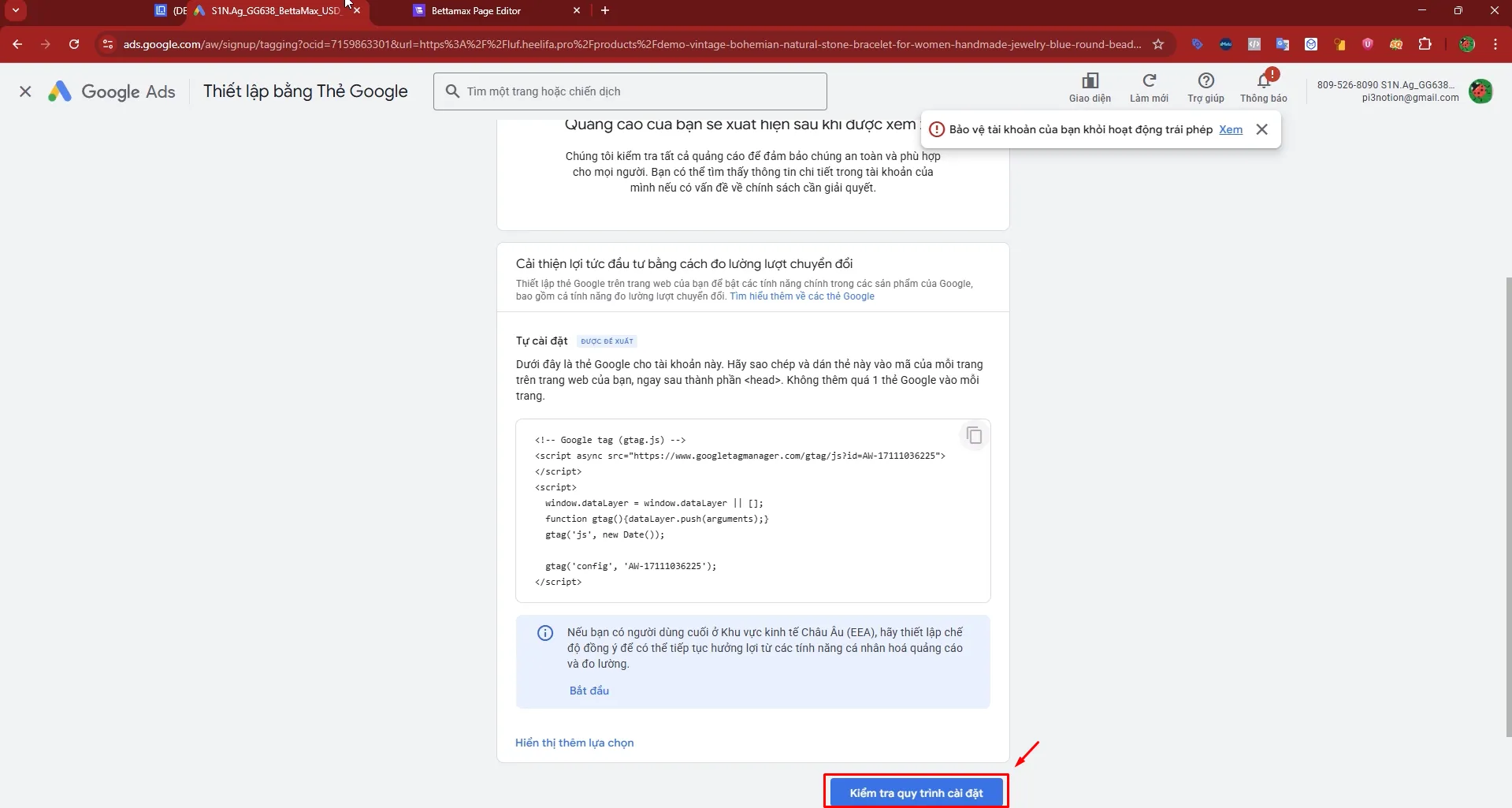
- Confirm completion by following the on-screen instructions.
- Copy the generated conversion code, which is in the form
AW-XXXXX/XXXXX.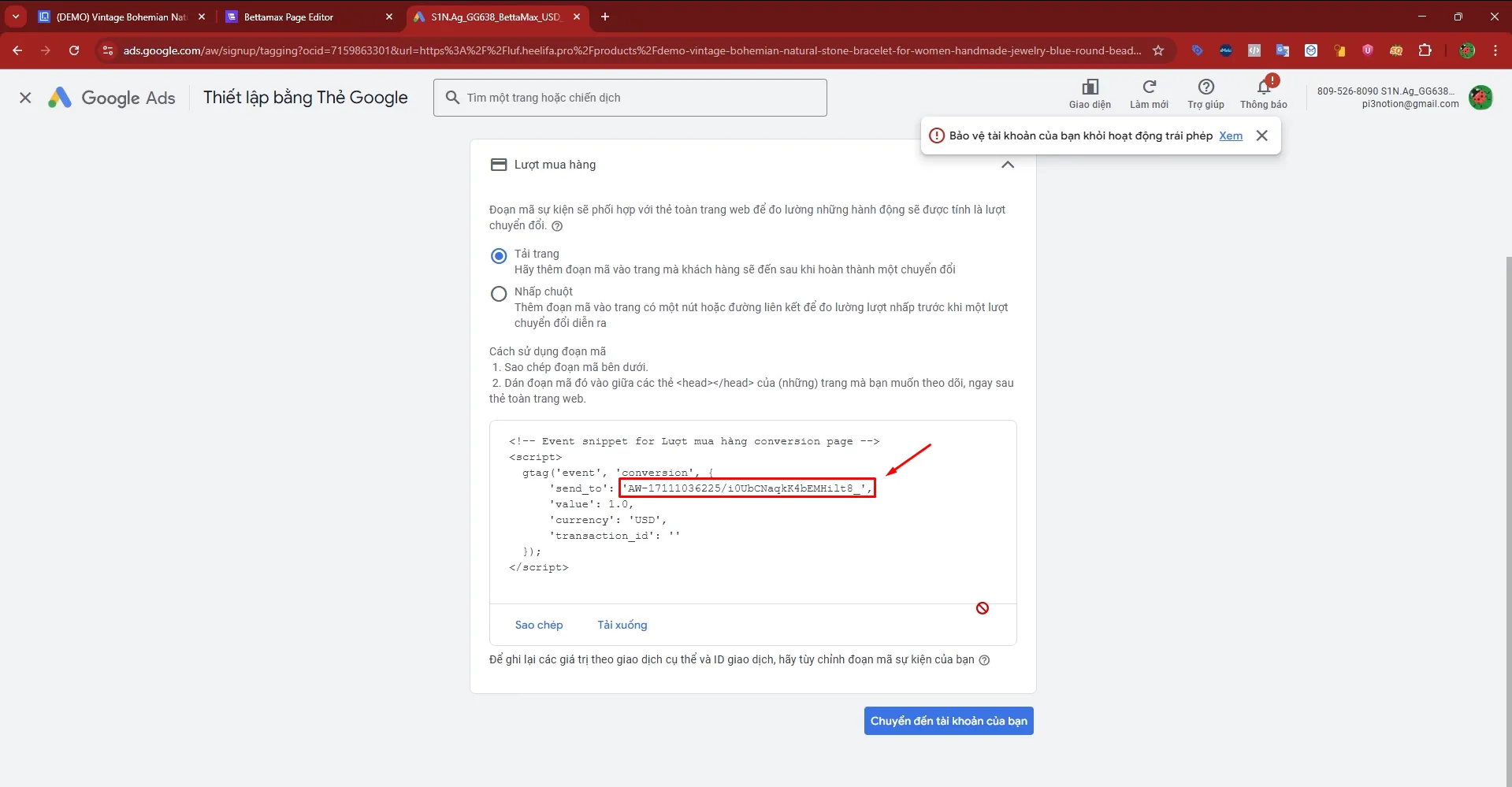
AW-XXXXX/XXXXX. The part before the “/” is the Conversion ID . The part after the “/” is the Conversion Label . You need to copy both of these values exactly.Step 3: Attach the Conversion code to BettaMax #
Paste the Conversion ID and Conversion Label into the correct fields in your BettaMax store settings to enable tracking.
- Go to Store > Settings > Google AdWords .
- In the Add Conversion ID section , paste the Conversion ID (part
AW-XXXXX) into the corresponding field. - Paste the Conversion Label (the part
XXXXXafter the “/”) into the Conversion Label field .
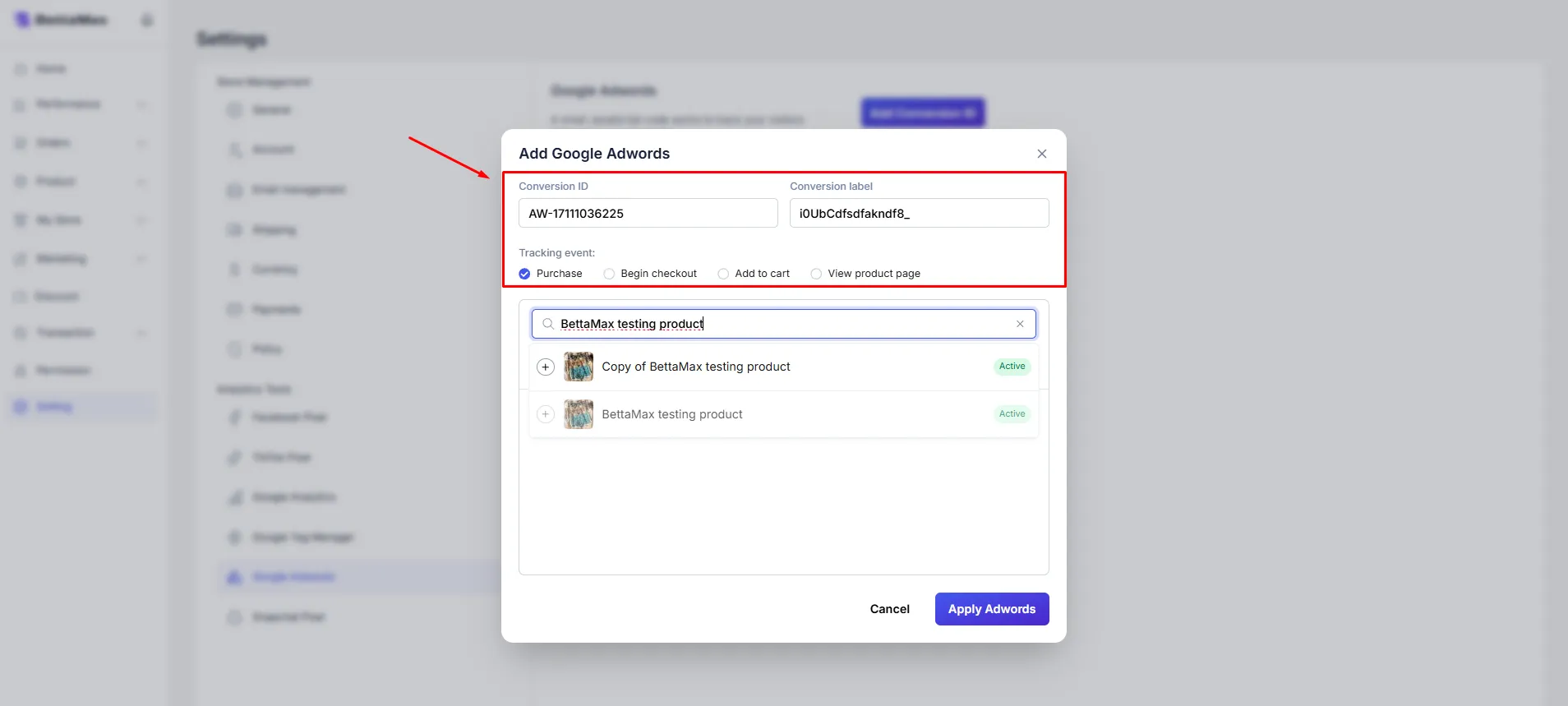
- Select the tracking event in the Event section : Purchase , Add to Cart , or Checkout .
- Select the products you want to track if you want to restrict tracking to specific products.
- Click Apply Adword to save and activate.
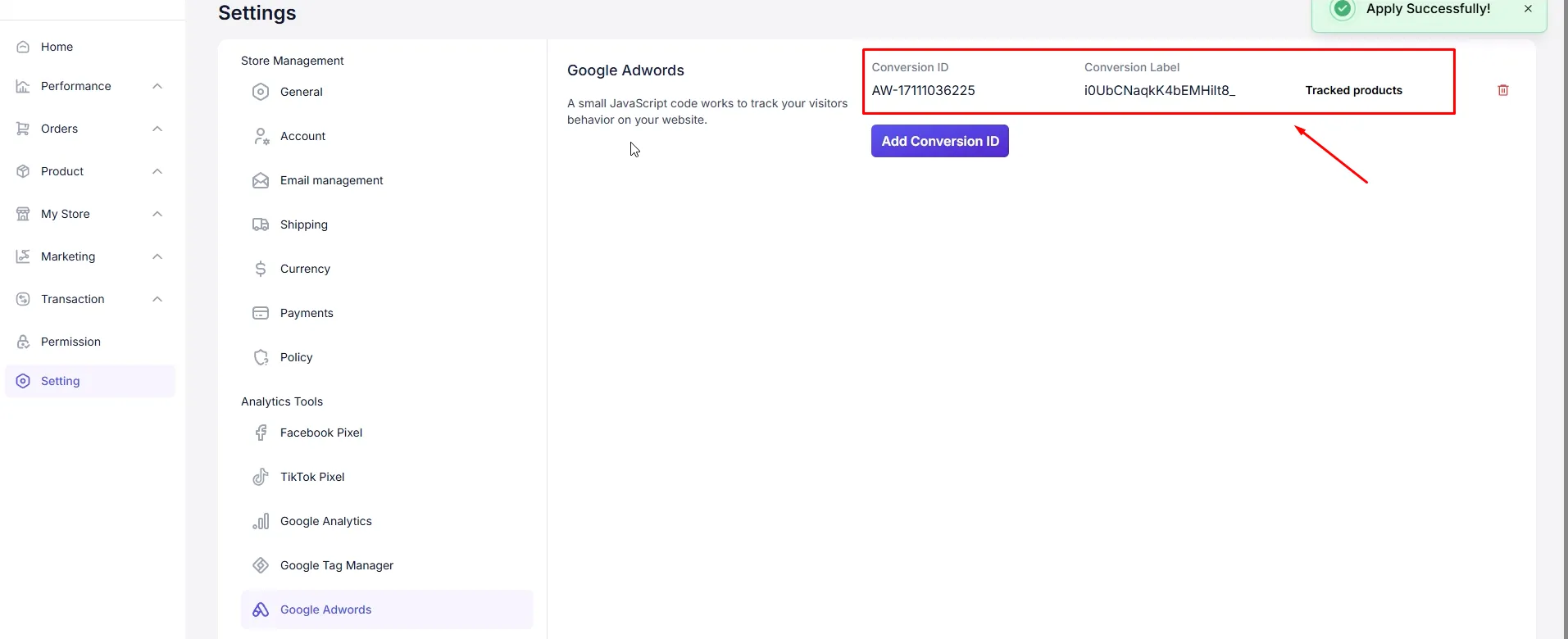
After successful integration, the Google Ads code will appear in the store’s Google Ads listings.
Step 4: Check using Tag Assistant #
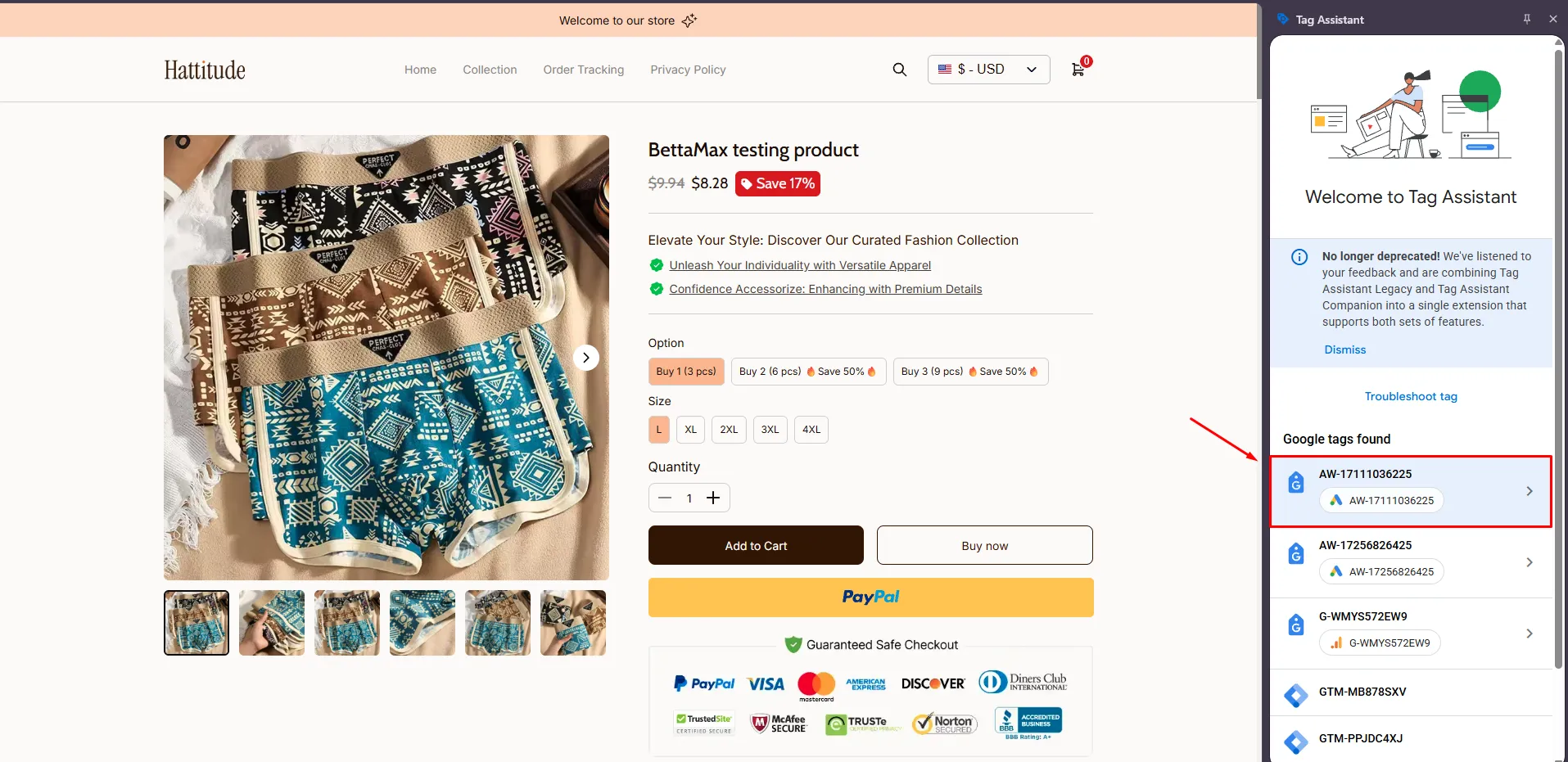
Use the Tag Assistant extension on Chrome to verify that the code has been correctly embedded in your store.
- Install the Tag Assistant extension from the Chrome Web Store if you don’t already have it.
- Open the BettaMax store on the Chrome browser.
- Click the Tag Assistant icon in the extension bar.
- Check for Google Ads Conversion Tracking code appearing in the detected tag list.
Important note #
Here are a few things to keep in mind to ensure tracking works consistently throughout the campaign.
- Double-check the Conversion ID and Conversion Label before saving. If they are entered incorrectly, Google Ads will not record the conversion, and the campaign data will be inaccurate.
- Create separate conversion codes for each event. Each event ( Purchase , Add to Cart , Checkout ) should have an independent conversion code to analyze the effectiveness of each step in the funnel.
- Wait for Google to confirm after attaching the code. The confirmation process may take several hours, which is normal.
- Do not edit the Conversion ID while the campaign is running. Changing the code while the campaign is active can disrupt tracking and affect your Google Ads optimization data.