
This guide will help you create discount codes (vouchers) and set terms of use on BettaMax. Use this feature when you want to run promotions, flash sales, or special offers for specific customer groups. It takes about 5 minutes.
Before we begin:
- I already have a BettaMax account and am logged into the dashboard.
- The online store has been established and has at least one product.
Step 1: Create a new account and select the discount type. #
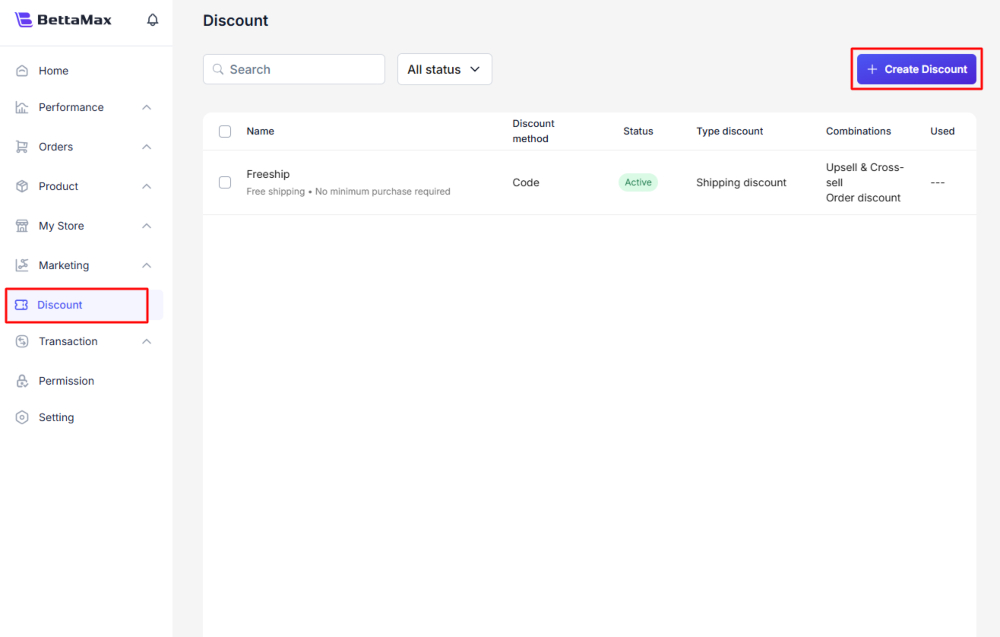
Access the Discount section on the dashboard to start creating a new voucher.
- From the dashboard, select the Discount option on the navigation bar.
- Press the + Create Discount button in the upper right corner of the screen.
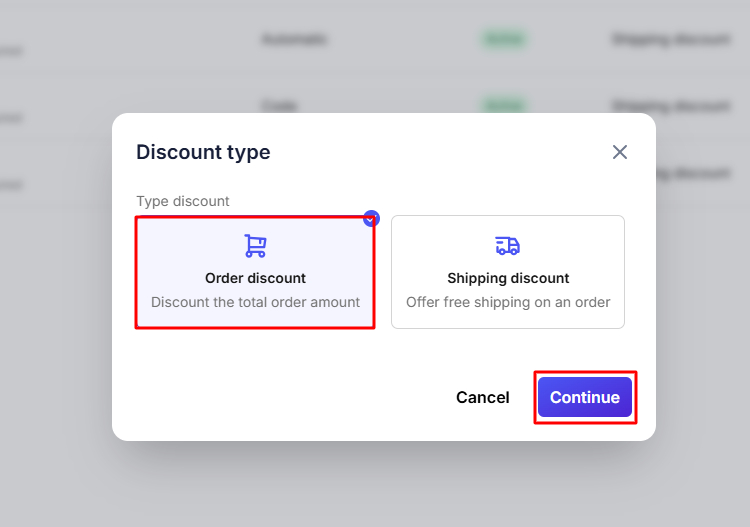
- In the dialog box that appears, select the type of discount that suits your campaign.
Order discount: Reduces the total amount of the order. Use this when you want to offer a discount based on the purchase value.
Shipping discount: Offers free or reduced shipping fees. Use this when you want to encourage purchases with a shipping discount. - Select your desired discount type, then click Continue .
Step 2: Set up discount code information #
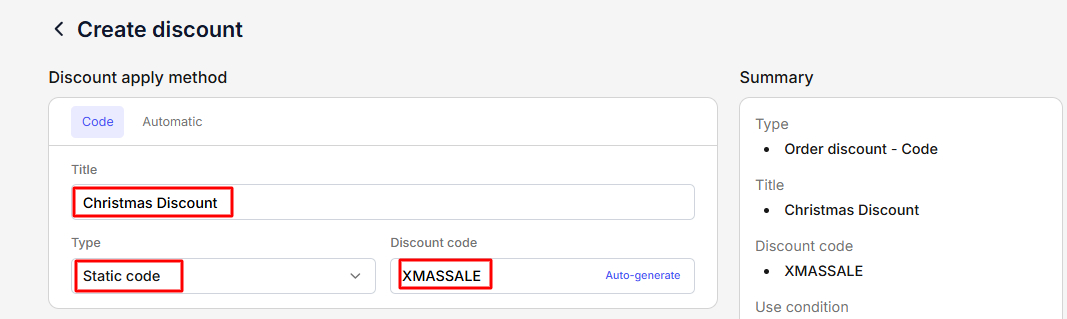
The Code Details section defines how the discount code works and the specific code the customer should enter at checkout.
- In the Discount apply method field , choose how to apply the code.
- Code: Customers must enter the code themselves on the checkout page to receive the offer.
- Automatic: The discount is applied automatically to the order; customers do not need to enter a code.
Note: Select Automatic if you want the discount to be applied automatically without the customer entering a code, suitable for flash sales or site-wide promotions. - Enter the campaign name in the Title field . This name is displayed internally on the dashboard; customers will not see it.
- In the Type field , select Static code to use a fixed code.
- Enter the discount code in the Discount code field . This is the code the customer will use at checkout.Tip: Use Auto-generate to generate random codes, avoiding easily guessable codes like SALE100 which can be abused by people outside the campaign.
Step 3: Set usage conditions and limitations. #
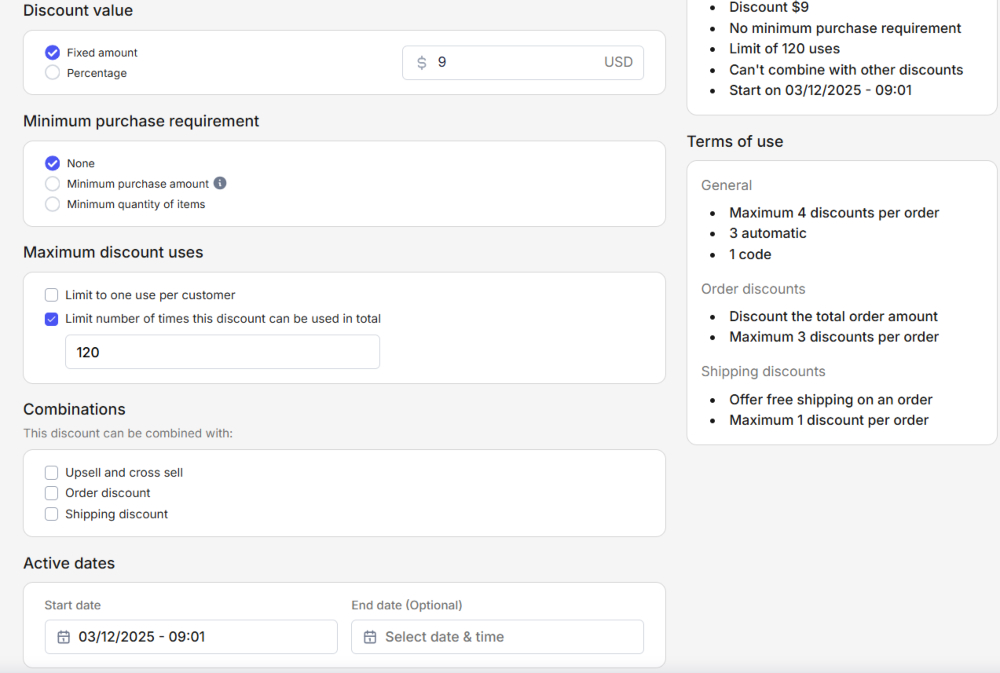
This section controls who can use the code, under what conditions, and until when the code remains valid. Carefully setting up this section helps prevent the code from being misused.
- In the “Apply to” field , specify the range of products to which the discount applies.
- All products
- The discount code applies to all products in the store.
- Specific product
- This applies only to the specific product or collection you choose. Use it when you want a selective promotion.
- In the Minimum Purchase Requirement field , set the minimum threshold for the code to be valid.
- None
- No minimum order required. The code applies to all orders regardless of value.
- Minimum purchase amount
- The order must reach a minimum value to use the code. Enter the specific amount, for example: $9 USD.
- Minimum quantity of items
- The order must contain a minimum quantity of products. Enter a specific quantity, for example: 120 items.
- In the Maximum discount uses field , you can limit the number of times the code can be used.
- Total number of uses
- Enter the maximum number of times all customers can use the code. Once the limit is reached, the code will automatically expire.
- Limit per guest
- Enable the option so that each customer account can only use the code once.
Tip: Enable the “1 time/customer” limit in Maximum discount uses to prevent one account from using the code multiple times and exhausting your promotional budget. - In the Combinations section , select whether the code can be combined with other types of promotions.
- Order discounts
- Allows the code to be combined with other discounts applied to the total order.
- Shipping discounts
- Allow the code to be combined with shipping fee offers.
- Upsell discounts
- Allows the code to be combined with the Upsell offer after purchase.
Note: Enable Upsell discounts in Combinations if you want the discount code to stack with the Upsell offer, helping to encourage customers to buy more products. - In the Active dates field , set the validity period of the code.
- Start date
- The date the code becomes effective. Required field.
- End date
- Expiration date of the code. Not mandatory, but recommended for campaign tracking.
Warning: If you don’t set an End date , the code will be valid indefinitely. Remember to manually disable it after the campaign ends to prevent the code from being used unintentionally again. - Review all the information, then click Save to save the voucher.
Step 4: Check the voucher at the store. #
After creation, perform a real-world test on the store to confirm the code is working correctly before running the campaign.
- Open your online store in your browser.
- Add products to your shopping cart, then click Checkout .
- On the checkout page, find the Order summary section and enter the code in the Discount code field .
- Click Apply to apply the code.
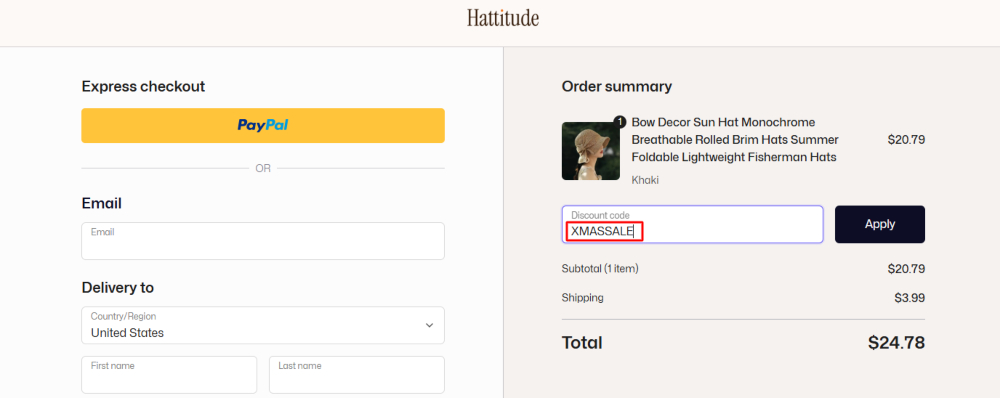
If the code is valid, the page will display the message “Apply discount successfully!” and the TOTAL SAVINGS line in the total payment section.