This guide helps you clone an existing product to create a new version with similar specifications. Use this feature when you want to create different product page variants for A/B testing or use the same product with its own optimized URL and description for each advertising campaign.
Step 1: Access the product you want to clone. #
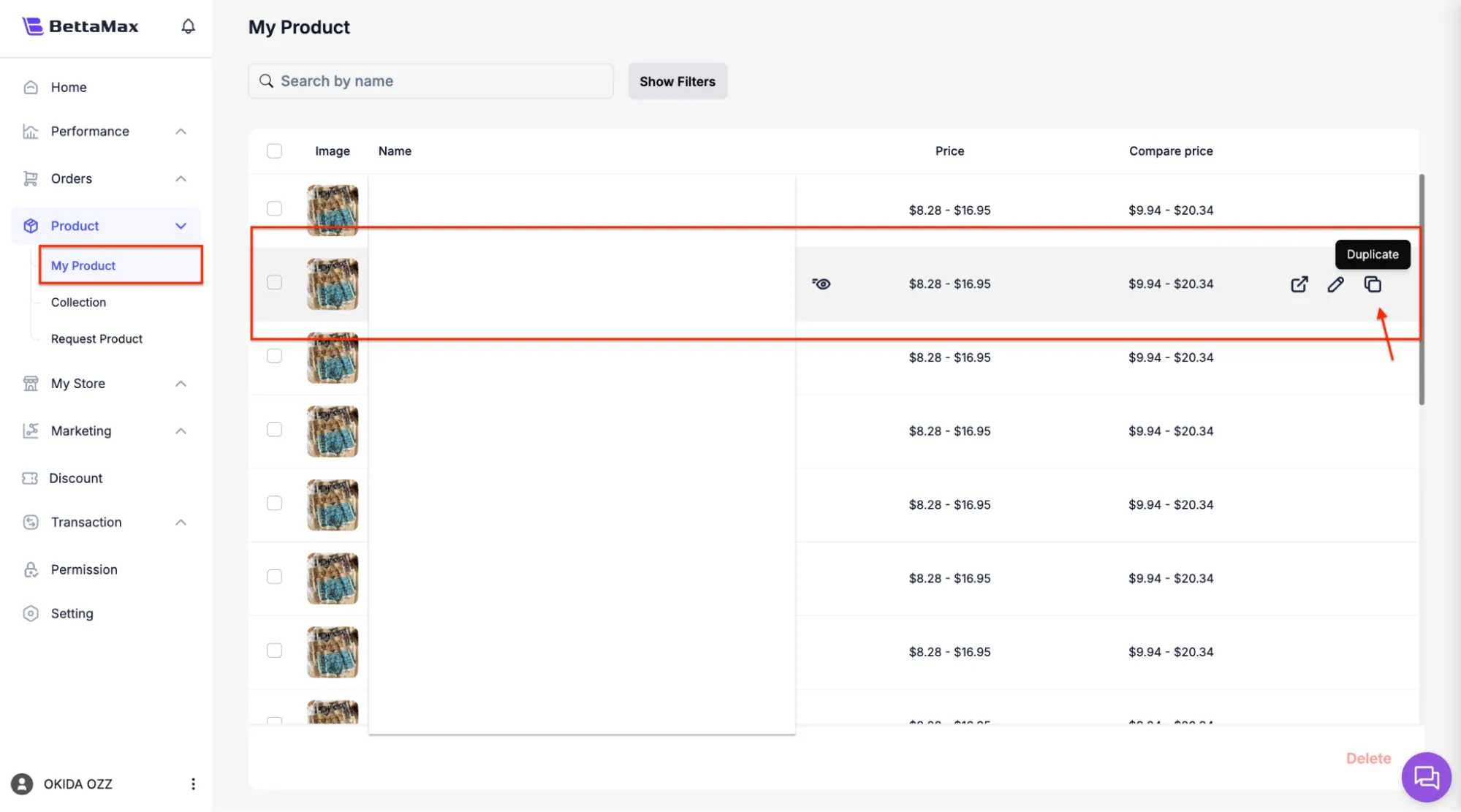
The cloning operation is performed directly from the product list in My Product without needing to open the details editing page.
- From the sidebar, select My Product .
- Find the product you want to duplicate in the list.
- Click the Duplicate icon next to that product.
Step 2: Select the information to copy. #
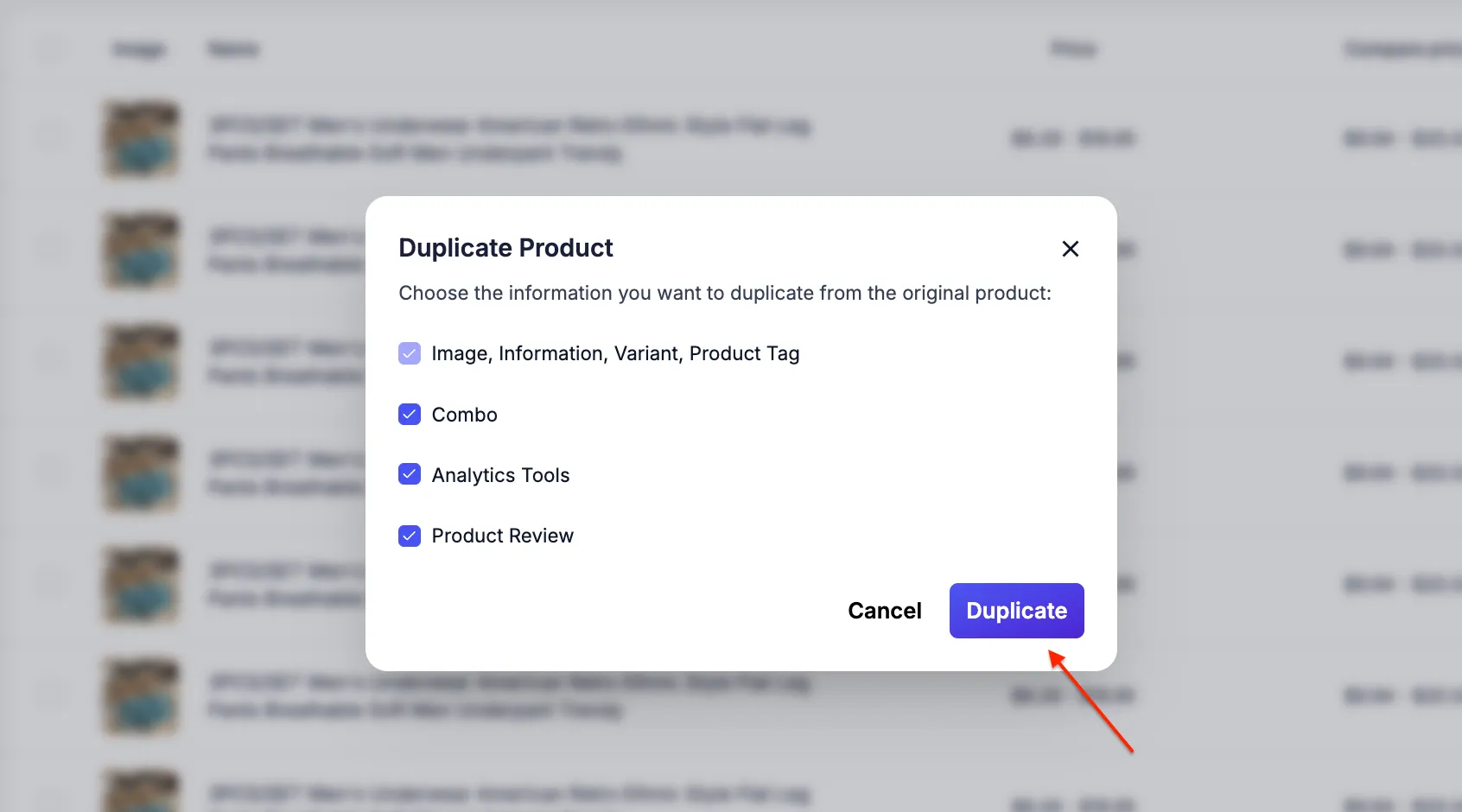
The cloning dialog box lets you select which parts of the original product will be copied to the new version. Uncheck the parts you want to reset from scratch.
- In the Duplicate Product dialog box , select the parts you want to copy:
- Image — Copy the entire product image.
- Information — Copy the name, description, and basic information.
- Variant — Copy variations (color, size) and price.
- Product Tag — Copy the tag assigned to the original product.
- Combo — Copy product combo settings if available.
- Analytics Tools — Copy attached pixels and tracking.
- Product Review — Copy product reviews if available.
- Click Duplicate to create a copy. The new product will immediately appear in the My Products list with the prefix “Copy of” before its name and in Draft status .
Step 3: Edit and finalize the copy #
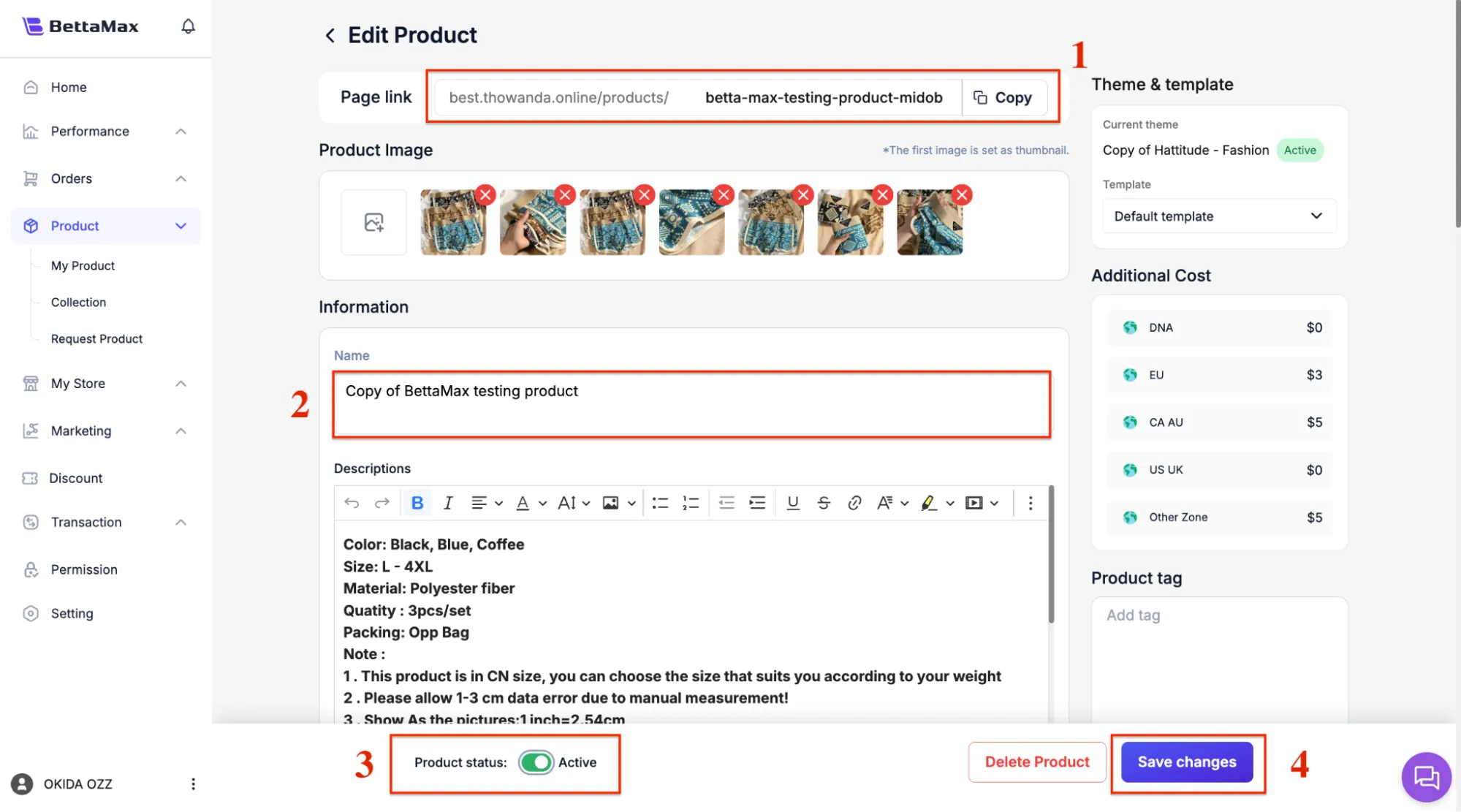
After cloning, you need to update at least three important pieces of information to avoid content duplication and optimize for the new campaign: product name, URL slug, and status.
- Click on the duplicated product to open the editing page.
- Change Product Title : Remove the “Copy of” prefix and change the name to suit the purpose of this copy. For example, change it
Copy of Wireless EarbudstoWireless Earbuds — Free Shipping. - Scroll down to the Search Engine Optimization section and update the URL slug to a unique string, different from the original product. For example:
wireless-earbuds-free-shipping. - Update the Meta Title and Meta Description if the copy targets different keywords or campaigns than the original product.
- Check the selling price in the Variants section and adjust if necessary.
- Change the Status to Active when you are ready to publish.
- Click Save to save all changes.