
This guide will help you create an upsell campaign on BettaMax to encourage customers to purchase more products with quantity discounts. Upsells appear directly on the product page or shopping cart, without the need for discount codes. It takes about 5 minutes to complete.
Before we begin:
- I have a BettaMax account and have successfully logged in.
- You have created at least one product or collection that you want to apply Upsell to.
Tip: Upselling by quantity is most effective when the price difference is no more than 25% from the original price. Offers that are too high will make customers hesitate, while offers that are too low are not attractive enough.
Create Upsell Offers on BettaMax #
Each Upsell Offer is a separate campaign with specific products, time periods, and discount conditions.
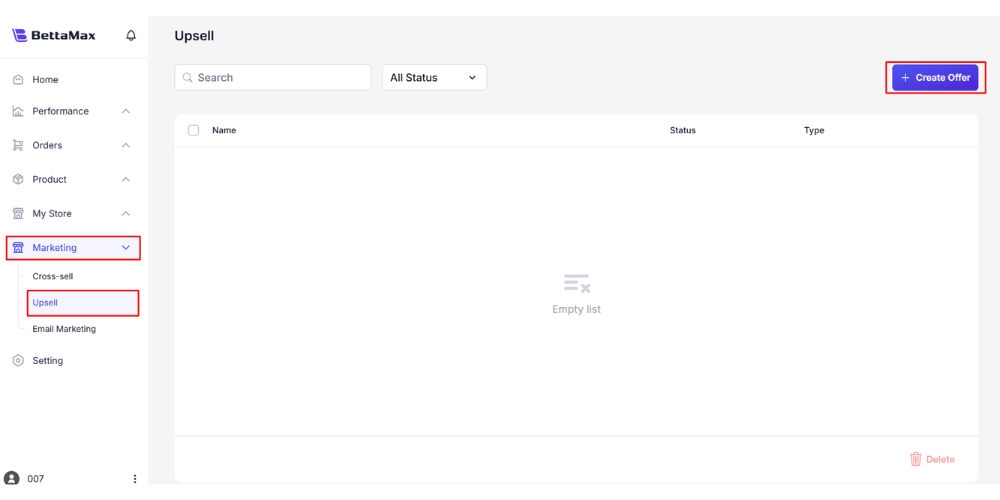
- From the navigation bar, select Marketing > Upsell .
- Click Create Offer .
- In the Create Offer dialog box , fill in the Offer group information :
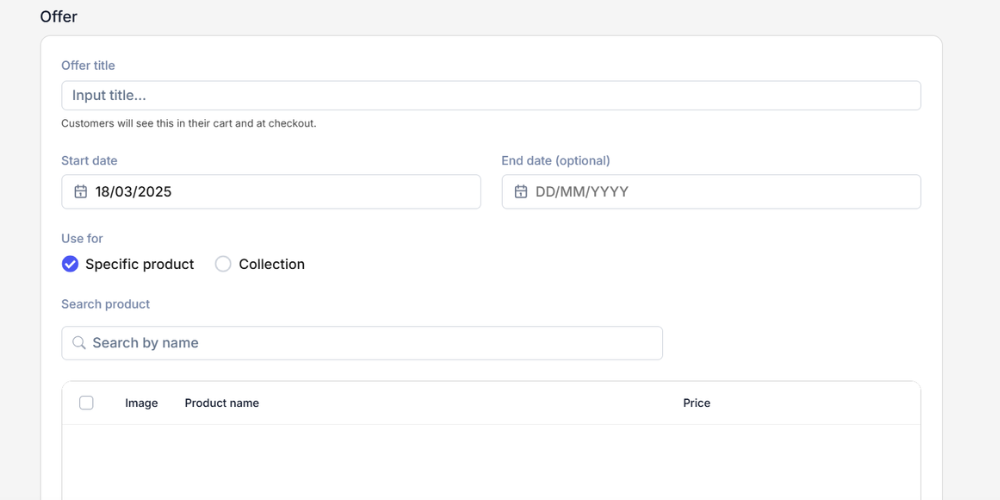
- Offer Title : The campaign name displayed in the shopping cart and checkout page — what customers will see. Example:
Buy 2 Get 10% Off - Time : Select the start and end dates and times for the offer.
- Use For : Select Specific Product (applies to a specific product) or Collection (applies to the entire collection)
- Search Product : Enter the name of the product or collection to apply the search, then select from the suggested list.
- Offer Title : The campaign name displayed in the shopping cart and checkout page — what customers will see. Example:
- Fill in the Quantity Discount group information :
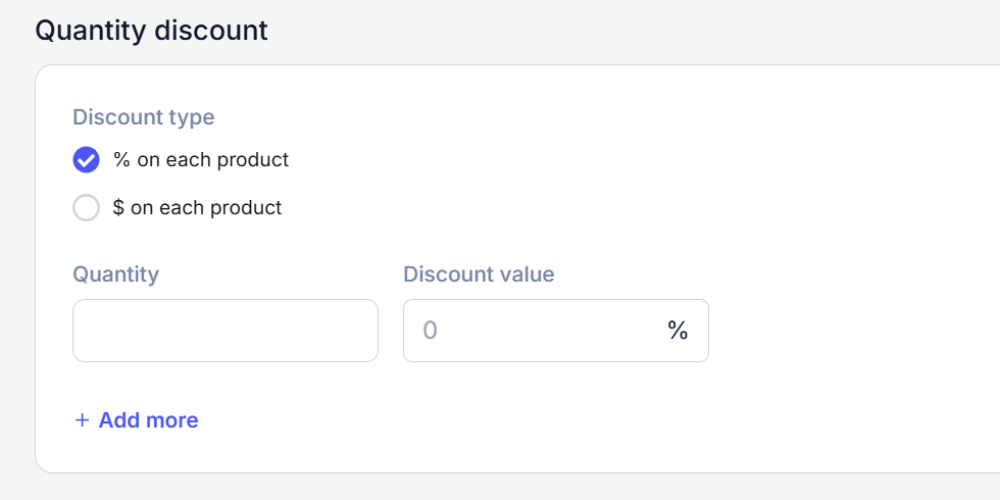
- Discount Type : Choose the discount type — Percentage (percentage discount, e.g., 10%) or Fixed Amount (fixed amount discount, e.g., $3)
- Quantity : The minimum number of products required to trigger the discount. For example, “enter”
2means purchasing 2 or more products. - Discount Value : The discount value corresponding to the selected Discount Type
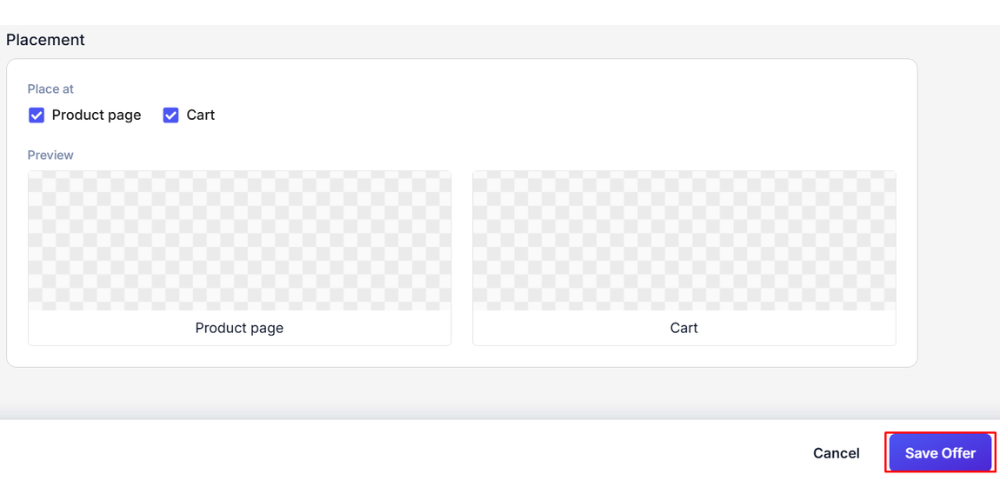
- Choose Placement — where the offer will be displayed:
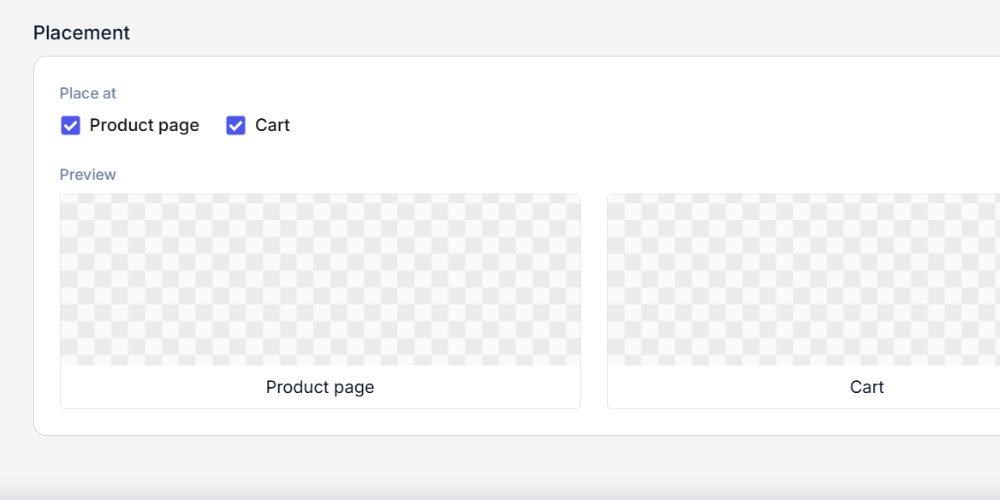
- Product Page : Offers are displayed directly on the product page, so customers see them immediately when viewing the product.
- Cart : Offers displayed in the shopping cart when customers add products.
- Click Save Offer to create a campaign.
Note: The Offer Title is displayed directly on the store and customers will see it. Use a clear name in English as the main market is US/UK/CA. For example:
Buy 2, Save 10%or 3 for $25.Manage created Upsell Offers #
After creating your offer, you can view, edit, or deactivate it at any time on the Upsell page.
- Go to Marketing > Upsell to see a list of all offers.
- Click on the offer to edit the information or extend the time.
- Offers that have expired (passed their End Date) will automatically stop being displayed in the store.
Warning: Edits to a running offer will take effect immediately. If you want to make major changes (change products, change discount type), you should create a new offer instead of editing a running offer to avoid campaign disruption.
Tips for setting up effective upsell #
Several practical principles can help offers achieve better conversion rates.
- Reasonable price spread : The discount should be attractive enough but not significantly impact the margin. Typically, 10-25% is appropriate.
- Choose the right product : Upselling is most effective with products that customers frequently buy more than once, for example, accessories, consumables, or product sets.
- Place it in the Cart section instead of the Product Page if you want customers to only see the offer after they’ve decided to buy — less distraction.
- Time limit : Offers with an end date create more urgency than offers without an end date.
Tip: After creating the offer, visit the store and add products to the cart to check that the offer is displayed in the correct place and meets the conditions before running ads.