
This guide helps you submit product quote requests via Product Request, track processing status, and check fulfillment costs after your request is approved. Instead of finding suppliers yourself, simply send the product link and the BettaMax team will source the product and provide a quote.
Before we begin:
- You already have a BettaMax account and are using the Join Fulfill plan.
- Do you have a link to the product for reference (Aliexpress, Amazon, or any other source)?
- Do you have a picture of the product you need a quote for (if you don’t have a link)?
What is a Request Product and who is it for? #
Request Product is a feature that allows sellers to submit product information so BettaMax can proactively find suitable suppliers. Instead of sourcing products yourself, you simply provide the desired product information, and the BettaMax team will handle the rest.
When should I use it?
You want to sell a product but don’t have a supplier yet, or you want BettaMax to find a better price than the source you’re currently considering.
When should you not use it?
Since you already have a defined vendor and only need BettaMax to handle fulfillment, use the standard product creation flow instead of Request Product.
Submit a product quotation request. #
Each Product Request corresponds to a product you want BettaMax to source and quote for. You can send multiple requests simultaneously for different products.
- Log in to admin.bettamax.com .
- From the menu bar, select Product > Request Product .
- Nhấn Add Request Product.
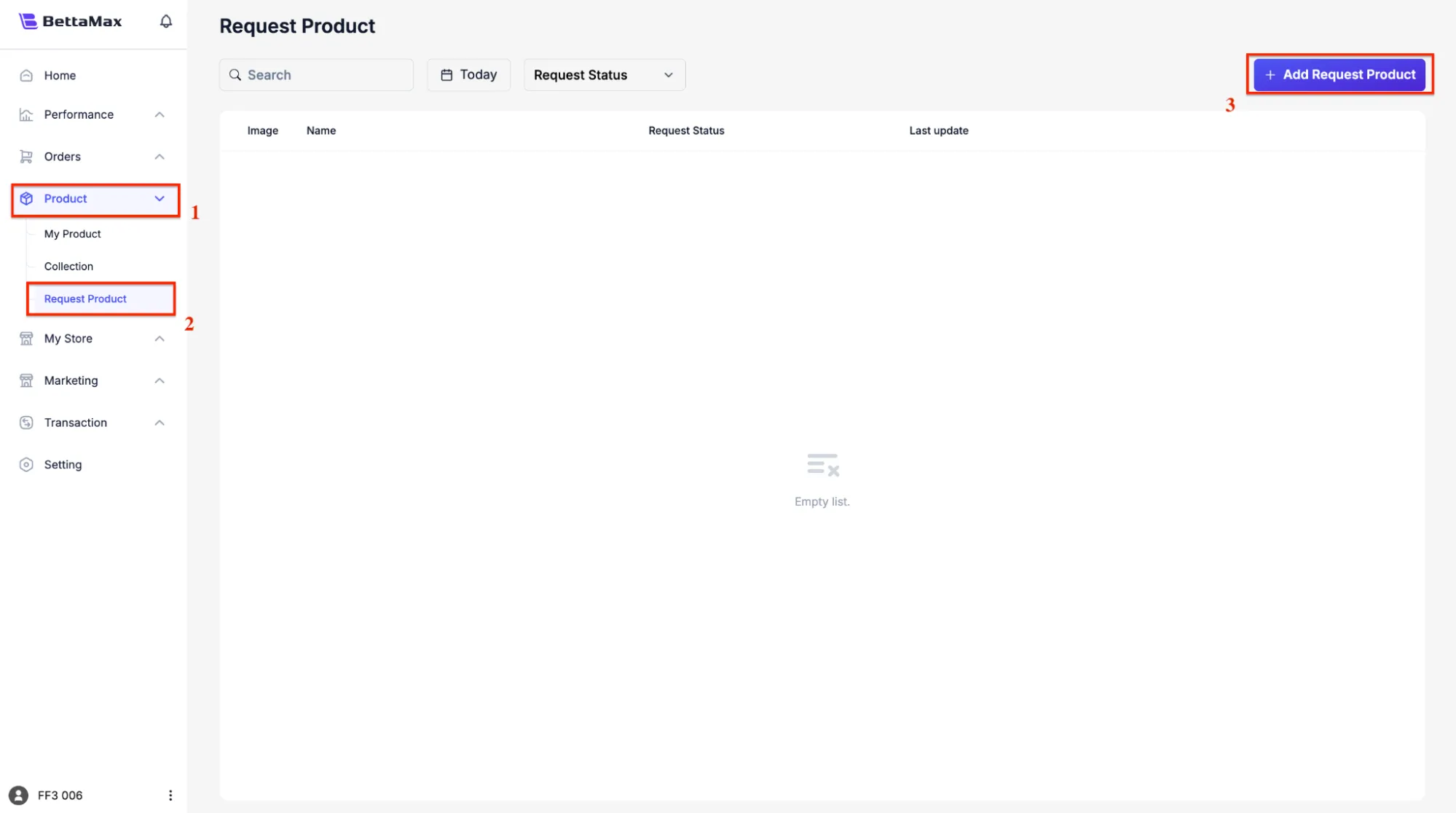
- Product link — Paste the product link from AliExpress, Amazon, or another supplier you want to sell to.
- Product Name — The product name that will be displayed on your store.
- Product images — Upload product images if the link doesn’t load automatically.
- Notes for the BettaMax team — Please add any special requests, e.g., preferred color, specific variant, packaging requirements.Please fill out the quotation request form completely:
- Click Send Request to submit your request.

Track request status #
After submission, your request is processed automatically and its status is updated in real time on the Request Product page. The typical processing time is 10 to 15 minutes.
- Go back to the Product > Request Product page .
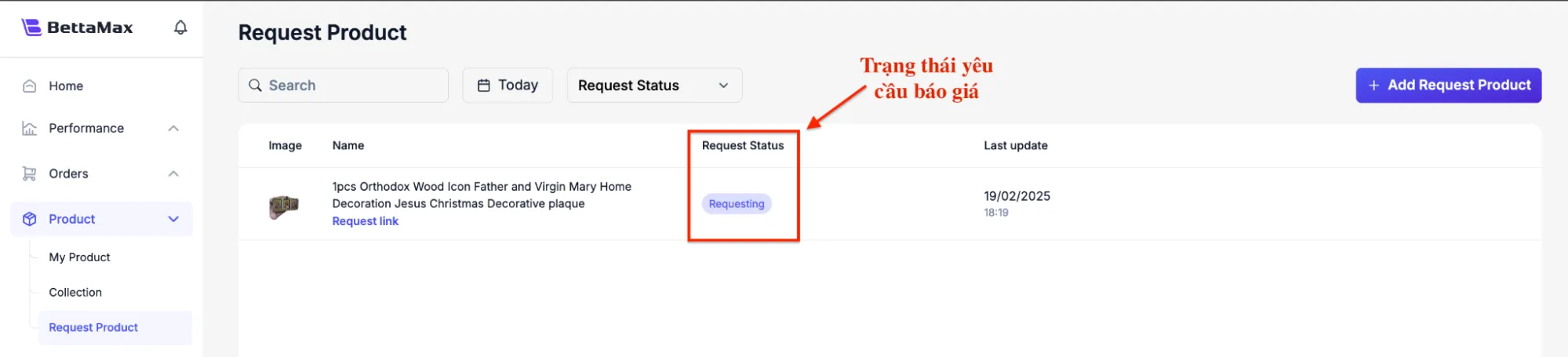
- Find the recently submitted product in the list. The Status column shows the current status:
- Requesting — Your request has been acknowledged and is awaiting processing.
- Processing — The BettaMax team is sourcing and providing quotations.
- Completed — Quote finalized, product added to My Products .
- Rejected — Your request has been denied. See the reason in the request details.
Check costs and calculate profits. #
After your product is approved, you need to check the fulfillment costs to determine a reasonable selling price. This information can be found in the Variant section of each product in My Product.
- From the sidebar, select My Product .
- Find the recently approved product and click the edit icon (pen).
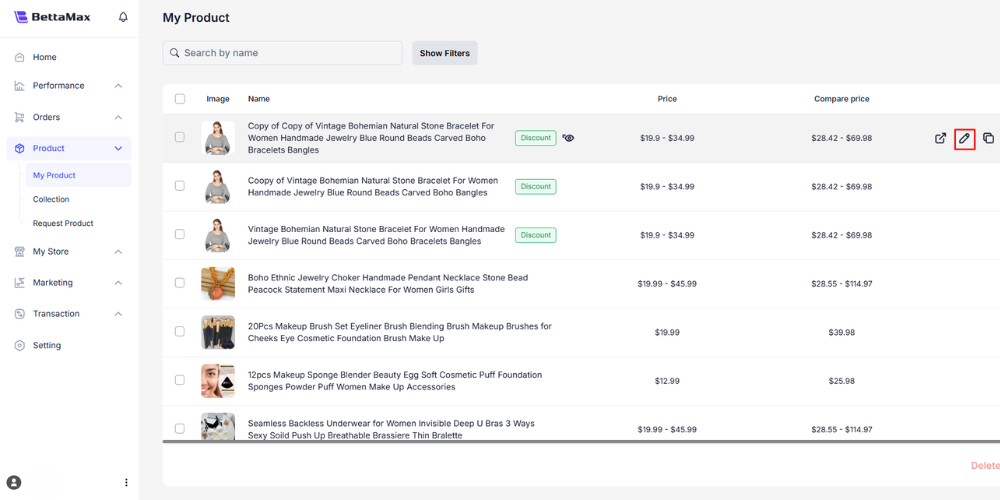
- In the product editing page, scroll down to the Variants section . Here you will see the full cost information for each variant:
- Price — The current selling price in your store.
- Compare price — The original price is displayed with a slash through it (if there is a discount).
- Fulfillment cost ($) — The total cost you pay to BettaMax when an order is placed. This includes the product price and fulfillment fees.
- %All cost — The percentage of total cost relative to the order value.
Profit Calculation Tip: Use the following formula to determine a suitable selling price before publishing: Profit = (Selling Price + Store Shipping Fee) − Fulfillment Cost

Example: Selling price $29.99, shipping fee $5.00, fulfillment cost $18.00 → Profit = $16.99/order before tax and advertising fees.
Adjust prices and publish products. #
After confirming reasonable fulfillment costs, update the selling price and publish the product to start accepting orders.
- In the Variants section , enter the selling price in the Price field for each variant.
- Adjust other product information as needed: name, description, images, SEO.
- In the Status section on the right-hand column, change it from Draft to Active .
- Click Save to save and publish the product.