
This guide helps you complete three fundamental platform settings before your store goes live: account information, shipping fees, and sales policies.
Proper configuration from the start helps avoid order data discrepancies and ensures the store presents a professional image to international customers.
1. Set up account information #
Account information determines how the store displays to customers and how the system records the time zone for each order. This is the first step that needs to be completed before any other setup.
- From the main menu bar, select Settings .
- Select the General tab .
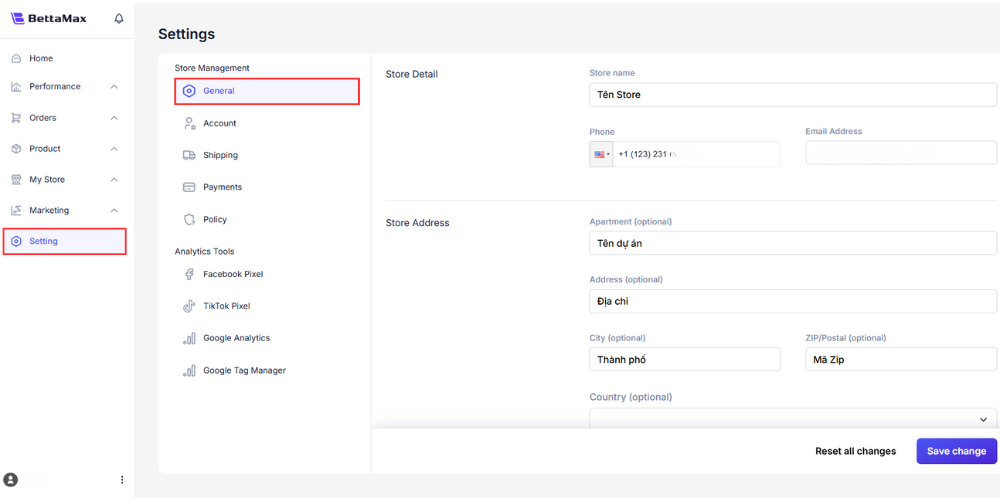
- Please fill in all the following fields:
- Store Name: The name of the store displayed to customers.
- Store Address: The store address used for legal purposes.
- Timezone: The time zone used to display order data and reports.
- Click Save to save the changes.
2. Set shipping fees #
Shipping costs directly impact the conversion rate and profit margin of each order. BettaMax offers two setup options: a fixed fee applied globally and a separate fee based on geographical region.
- From the menu bar, select Settings .
- Select the Shipping tab .
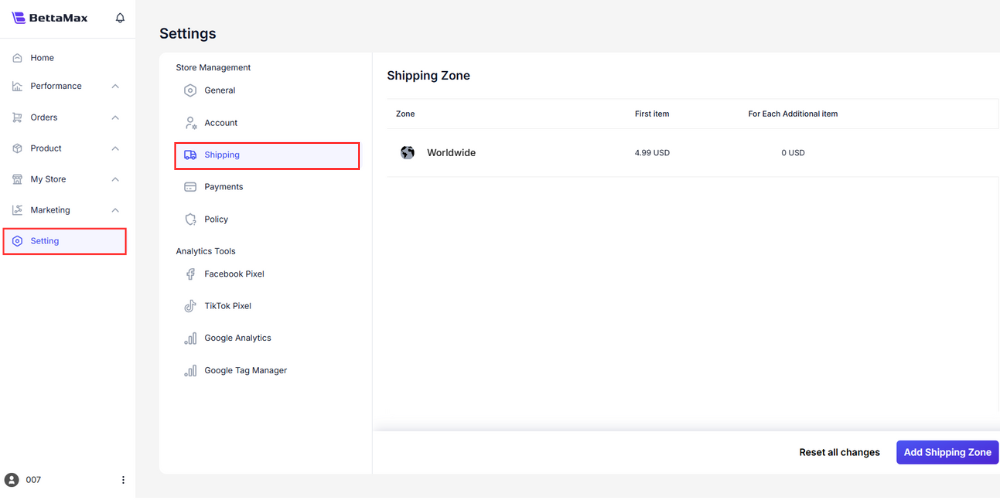
a. Set the default shipping fee (global)
Use this option to apply a fixed fee to the entire order, regardless of the buyer’s country. This is suitable when you are just starting out and don’t yet need to differentiate fees by region.
Fill in the two fields directly in the default fee section:
- For first item: Shipping fee for the first item in the order.
- For each additional item: Additional charge for each product added to the same order.
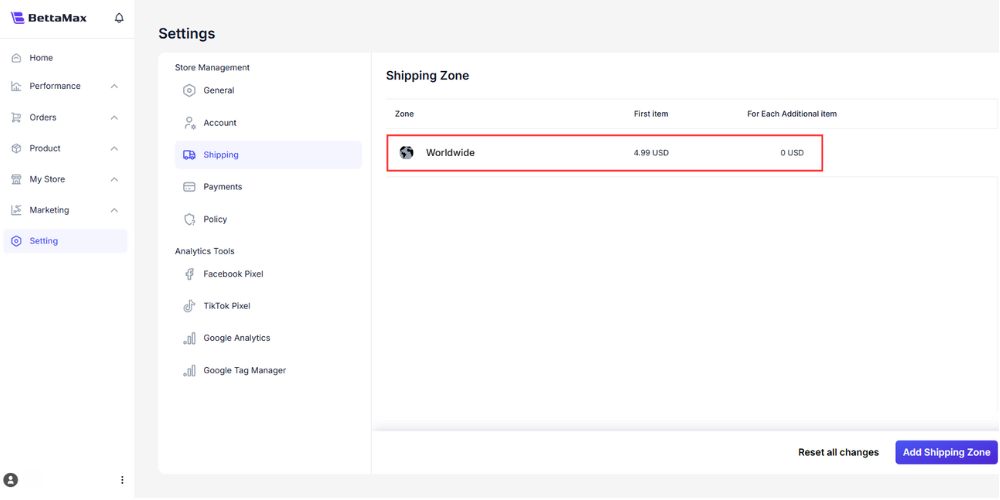
b. Set shipping fees by region
Use this option when you want to apply different fees to different markets, for example, the US having its own fees, the UK having its own fees. You can create multiple Shipping Zones, each corresponding to a group of countries.
- Press the Add Shipping Zone button .
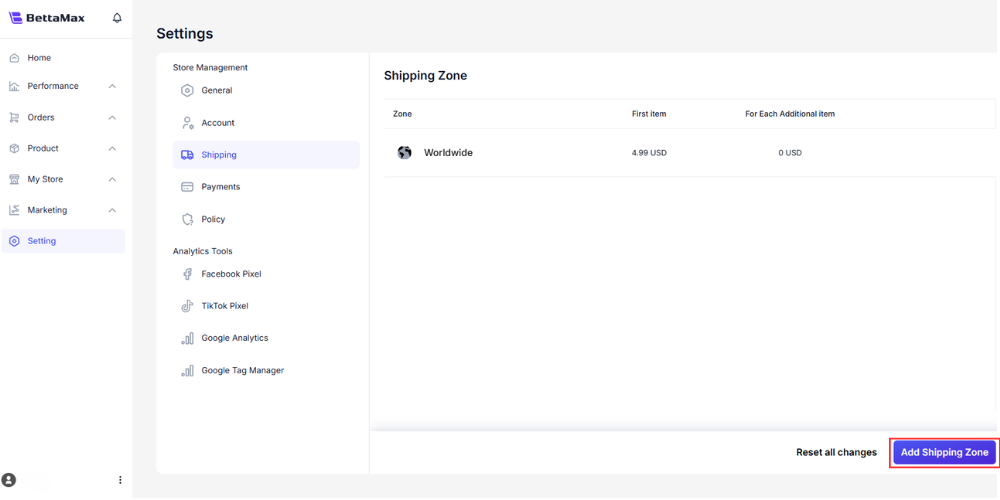
- In the Add New Shipping Zone dialog box , fill in the following information:
- Zone name: A name used to distinguish a zone, for example:
North America,EU Zone. - Shipping countries: Select the countries that apply this fee.
- For first item: Shipping fee for the first item in the order.
- For each additional item: Additional charge for each added product.
- Zone name: A name used to distinguish a zone, for example:
- Click Save to have the system record and apply the fees to the newly created zone.

3. Setting up sales policies #
BettaMax provides pre-approved default policies to ensure transparency and compliance with international markets. You don’t need to modify these policies, but you can add your own store-specific policies if needed.
- From the menu bar, select Settings .
- Select the Policy tab .
- Review the existing default policies. This is what customers will read when they access your store’s policies page.
Add custom policies
If your store has its own policies such as warranty conditions, return policies, or customer data privacy commitments, you can add them below the default policies.
- Click Show more to expand the policy editing section.
- In the Edit Policy dialog box , scroll to the bottom of the page to the Add your policy section .
- Enter your custom policy details in the ” Add your policy” field . For example:
- The store has its own return/exchange policy.
- Product warranty conditions.
- We are committed to protecting customer information.
- Click Save to save the newly added policy.