
This guide will help you create a Snap Pixel, connect it to your BettaMax store, and verify that the pixel is working correctly. Once complete, you can measure conversions from Snapchat ads, run remarketing campaigns, and build a Lookalike Audience. It takes approximately 15 minutes.
Before we begin:
- I have an active Snapchat Ads Manager account.
- I have logged into BettaMax admin with store administrator privileges.
- Use the Chrome browser to enable Snap Pixel Helper during the testing phase.
Step 1: Create a Snap Pixel #
Snap Pixels are created and managed directly within Snapchat Ads Manager. Follow these steps to obtain your Pixel ID.
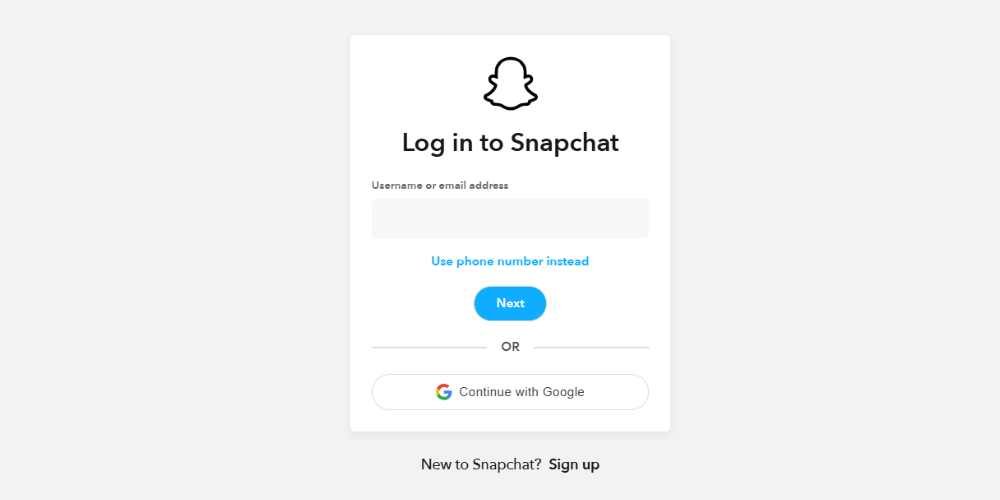
- Access Snapchat Ads Manager and log in to your account.
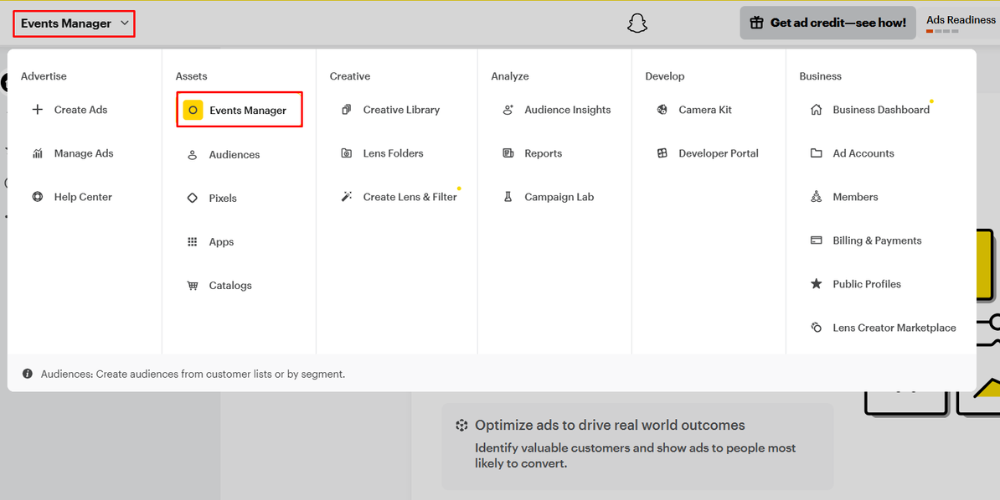
- Click on the Menu in the upper left corner, then select Events Manager .
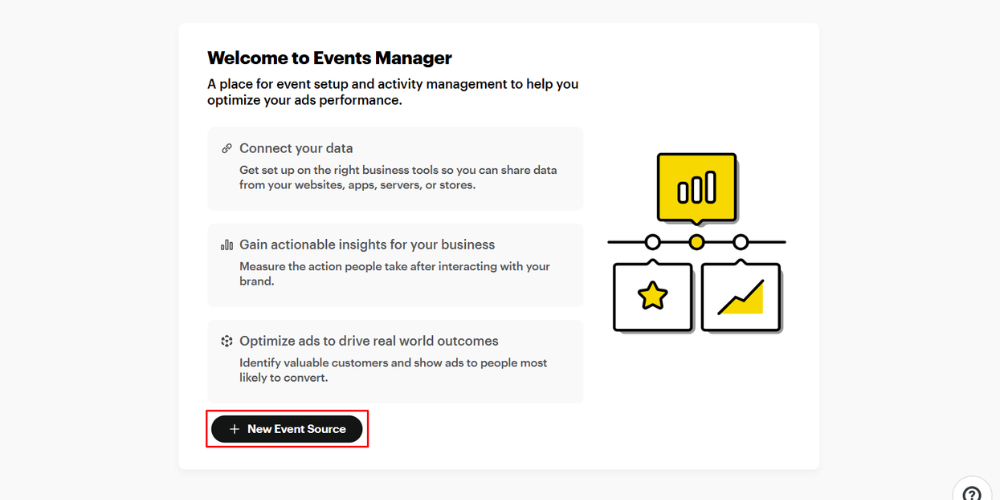
- Click New Event Source .
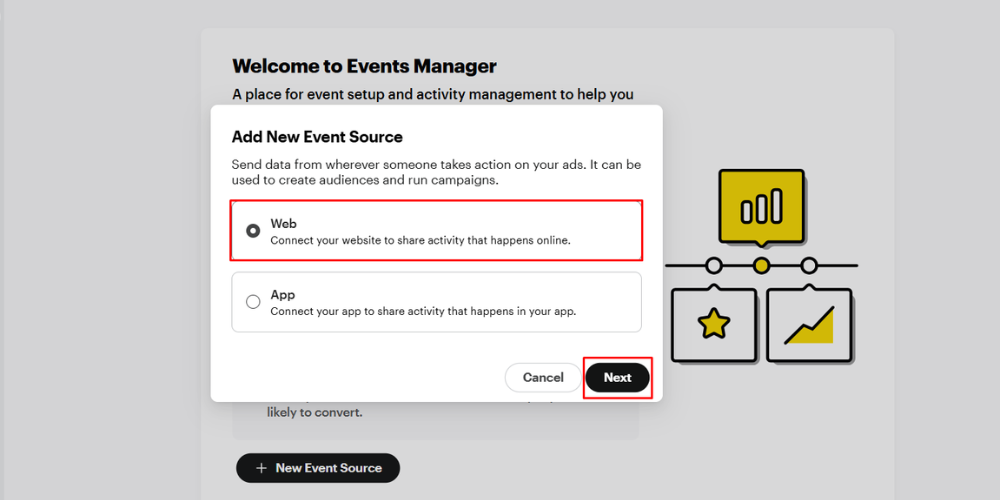
- Select Connect with Website , then click Next .
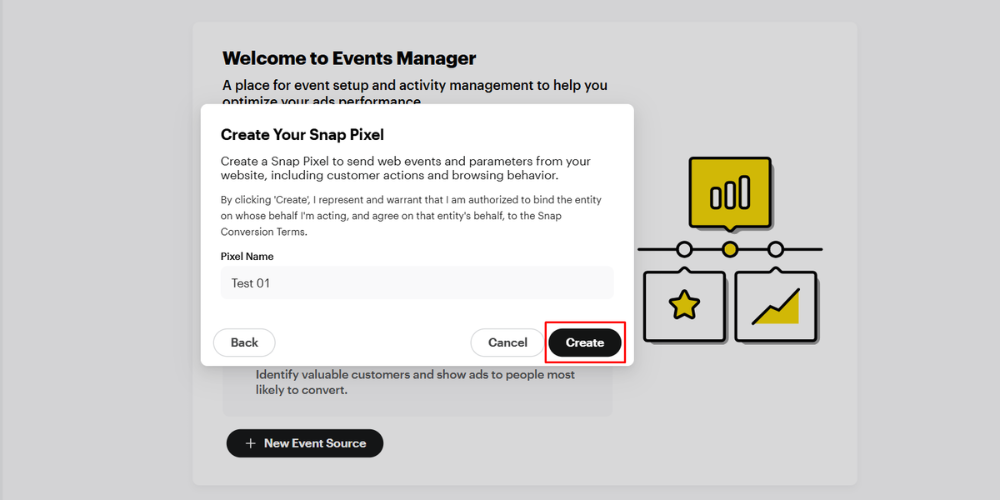
- Enter a name for the Pixel in the Pixel Name field , then press Create .
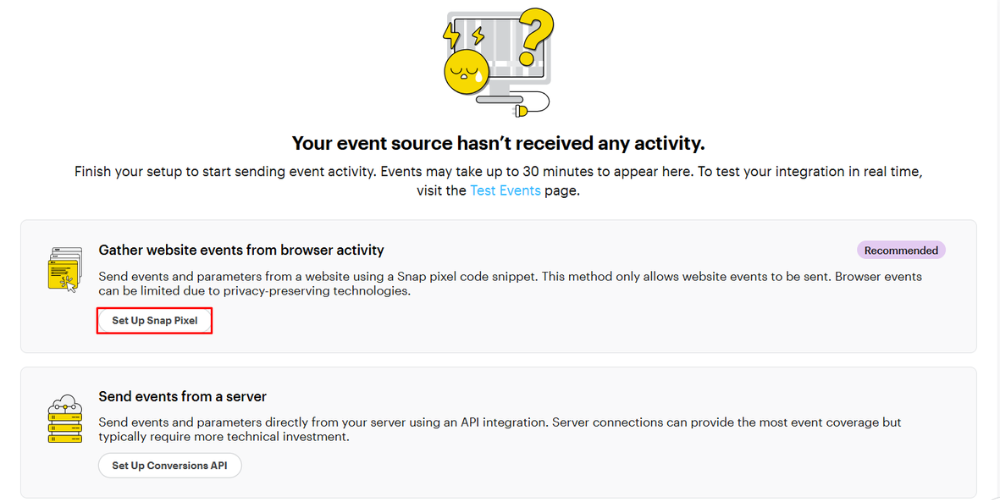
- Select Set Up Snap Pixel to proceed with the configuration.
- Select Manual Setup as the installation method.
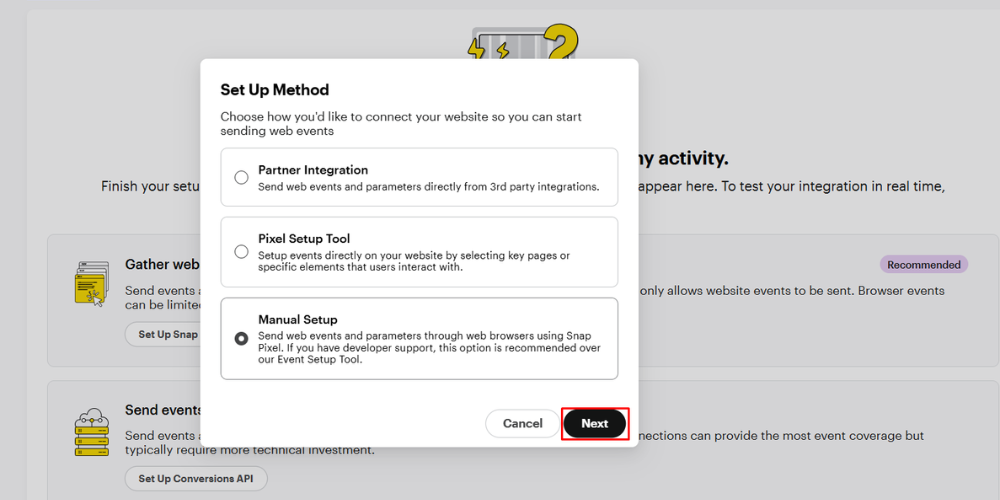 Tip: Choose Manual Setup instead of Automatic to have precise control over which events are triggered. Avoid collecting unnecessary data for your campaign.
 - In the list of events, select the events you want to track based on your campaign goals: Awareness , Consideration , or Conversion .
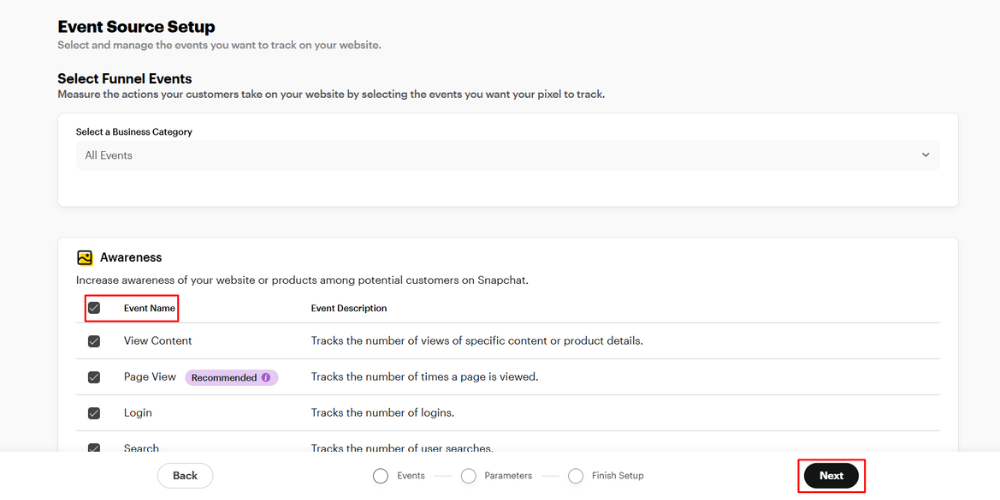
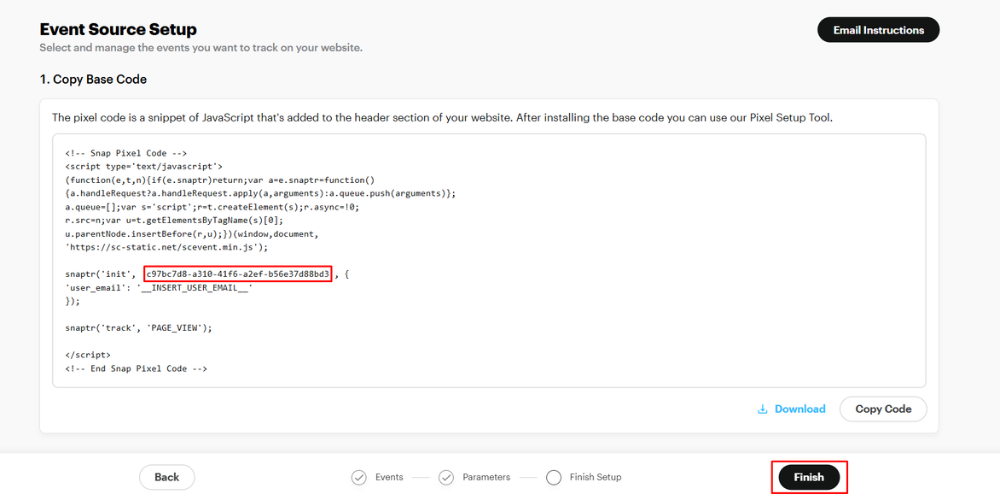
- Copy the Pixel ID displayed on the screen. Keep this tab open to paste it into BettaMax in the next step.
Step 2: Add Pixel ID to BettaMax #
After obtaining your Pixel ID from Snapchat, you connect the pixel to your store via the BettaMax settings page.
- Log in to BettaMax admin .
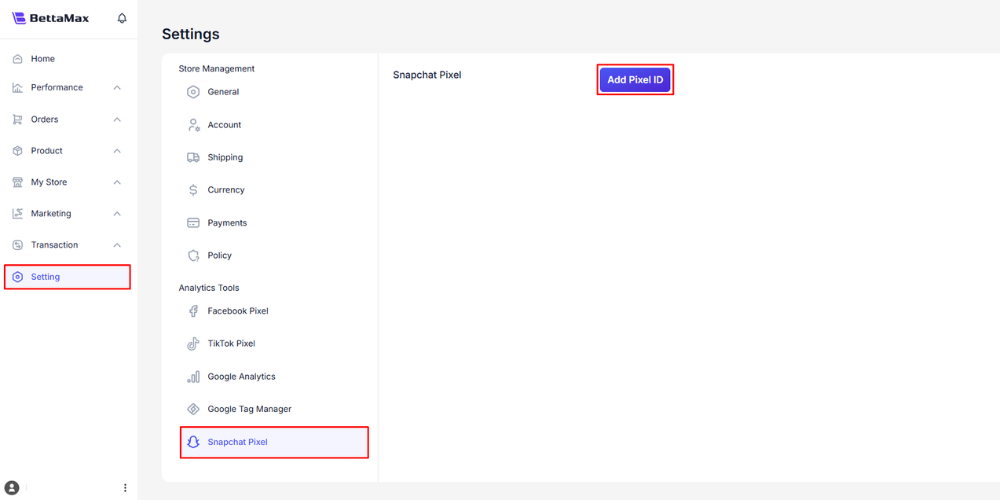
- Go to Settings > Snapchat Pixel .
- Tap Add Pixel ID .
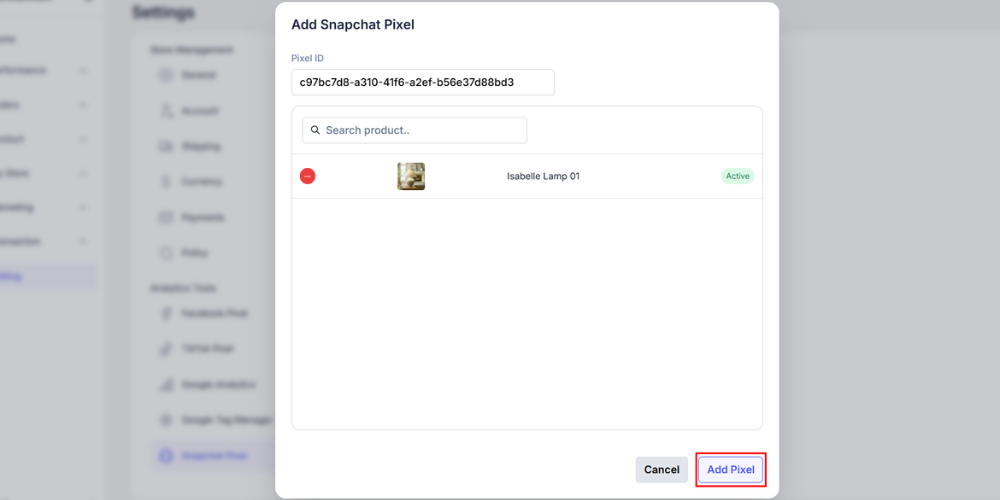
- Paste the copied Pixel ID into the ID field .
- Select the product or group of products to which you want to apply tracking.
- Press Add Pixel to save.
Step 3: Check if the Pixel is working. #
Snap Pixel Helper is a Chrome extension that allows you to verify whether pixels are correctly enabled on the storefront.
- Open the Chrome Web Store , search for Snap Pixel Helper , and click Add to Chrome to install the extension.
- Open the storefront of the store in Chrome.
- Click the Snap Pixel Helper icon on the Chrome toolbar to activate it.
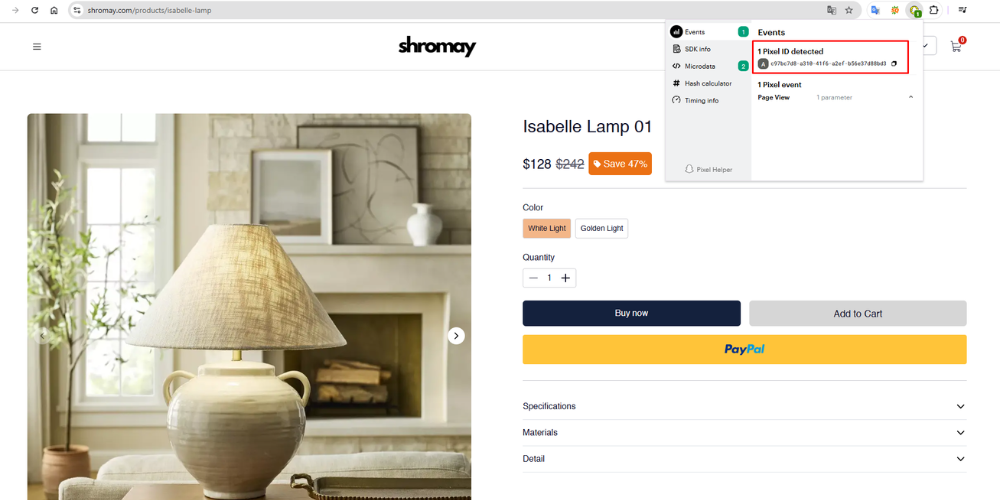
- Perform the following test actions in order: view the product page, add the product to the shopping cart, and proceed to checkout.
- Tap the Snap Pixel Helper icon again and check the list of events. Each action you just performed should appear in the list.
Snap Pixel tracking event #
BettaMax supports 7 standard Snap Pixel events. Each event corresponds to a specific customer action on the storefront.
| Event | When to activate | For use |
|---|---|---|
| Page View | Visitors to any page on the store | Awareness, remarketing chung |
| View Content | Customers viewing the product details page | Product-specific remarketing |
| Search | Customers use the search function on the store. | Product demand analysis |
| Add to Cart | Customers add products to their shopping cart. | Remarketing abandoned carts |
| Start Checkout | The customer begins the checkout process. | Remarketing abandoned checkout |
| Add Payment Info | Customer enters payment information | Track payment funnel |
| Purchase | Order completed | Measure ROAS, Lookalike Audience |