
This guide will help you create a Google Analytics 4 account and connect Measurement ID to your BettaMax store. Once complete, you can track visits, traffic sources, and purchase behavior directly from your GA4 dashboard. This process takes approximately 10 minutes.
Before we begin:
- The Google (Gmail) account is active.
- I have logged into the BettaMax admin page at admin.bettamax.com
- BettaMax has a domain name and store name ready.
Step 1: Create an account and Measurement ID #
Go to analytics.google.com and follow the steps below to get the Measurement ID for your store.
- Click Create an account .
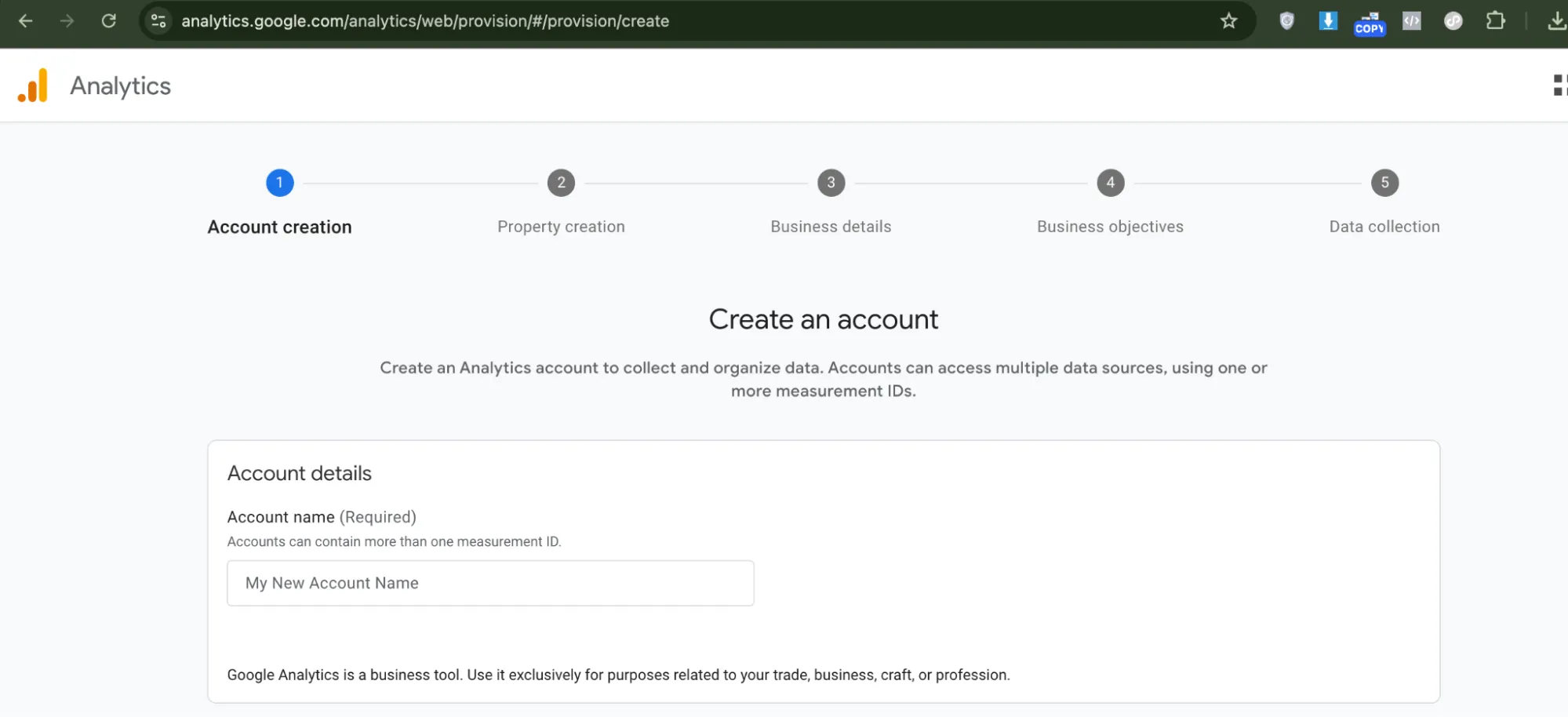
- Enter your Account name (your GA4 account name).Tip: Name your account the same as your BettaMax store name. When you manage multiple stores, finding the right account will be much faster.
- Click Next to proceed to the Property settings section.
- Enter the Property name , select the Reporting time zone , and the Currency .Note: Please select the GMT+7 time zone (Ho Chi Minh City) . If you select a different time zone, the reported data will be different from the actual time in Vietnam.
- Select the Industry category that matches the product you sell. If no suitable category is found, select Other .
- Click Create .
- Read and accept the Google Analytics Terms of Service by clicking I Accept .
- Enter your Website URL (link to your BettaMax store) and Stream name .
- Click Create & continue .
- Copy the Measurement ID displayed in the upper right corner of the screen.
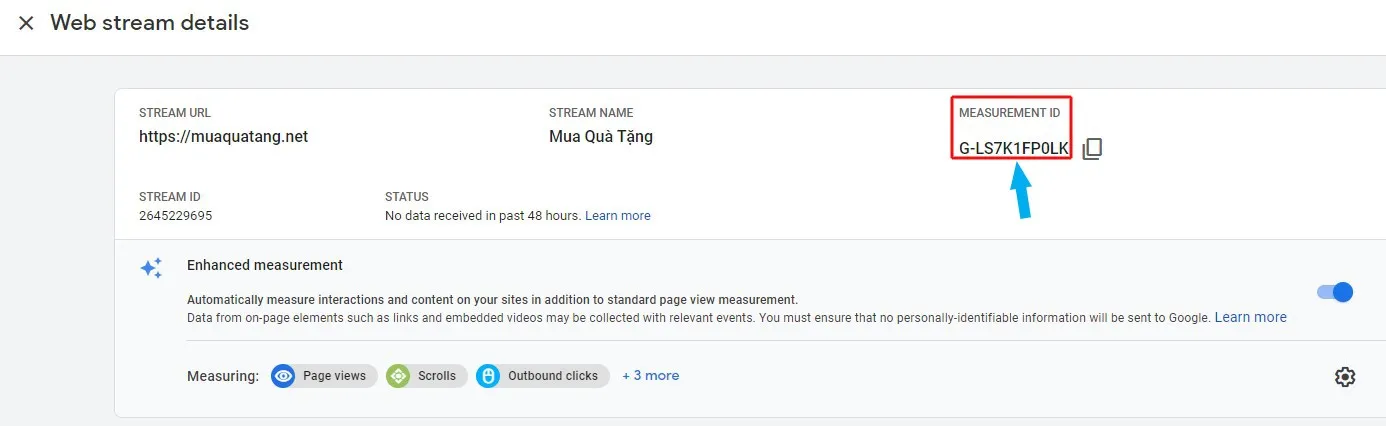 Note: Measurement IDs are in the format G-XXXXXXXXXX . This is the GA4 format, different from the UA-XXXXXXXXXX of Google Analytics 3 (Universal Analytics), which is now discontinued. You need this correct G- format to integrate with BettaMax.
Step 2: Add Measurement ID to BettaMax #
After obtaining the Measurement ID, paste it into the BettaMax settings to enable the tracking feature.
- Log in to the BettaMax admin panel at admin.bettamax.com/login .
- Go to Settings > Google Analytics .
- Click Add Analytics ID .
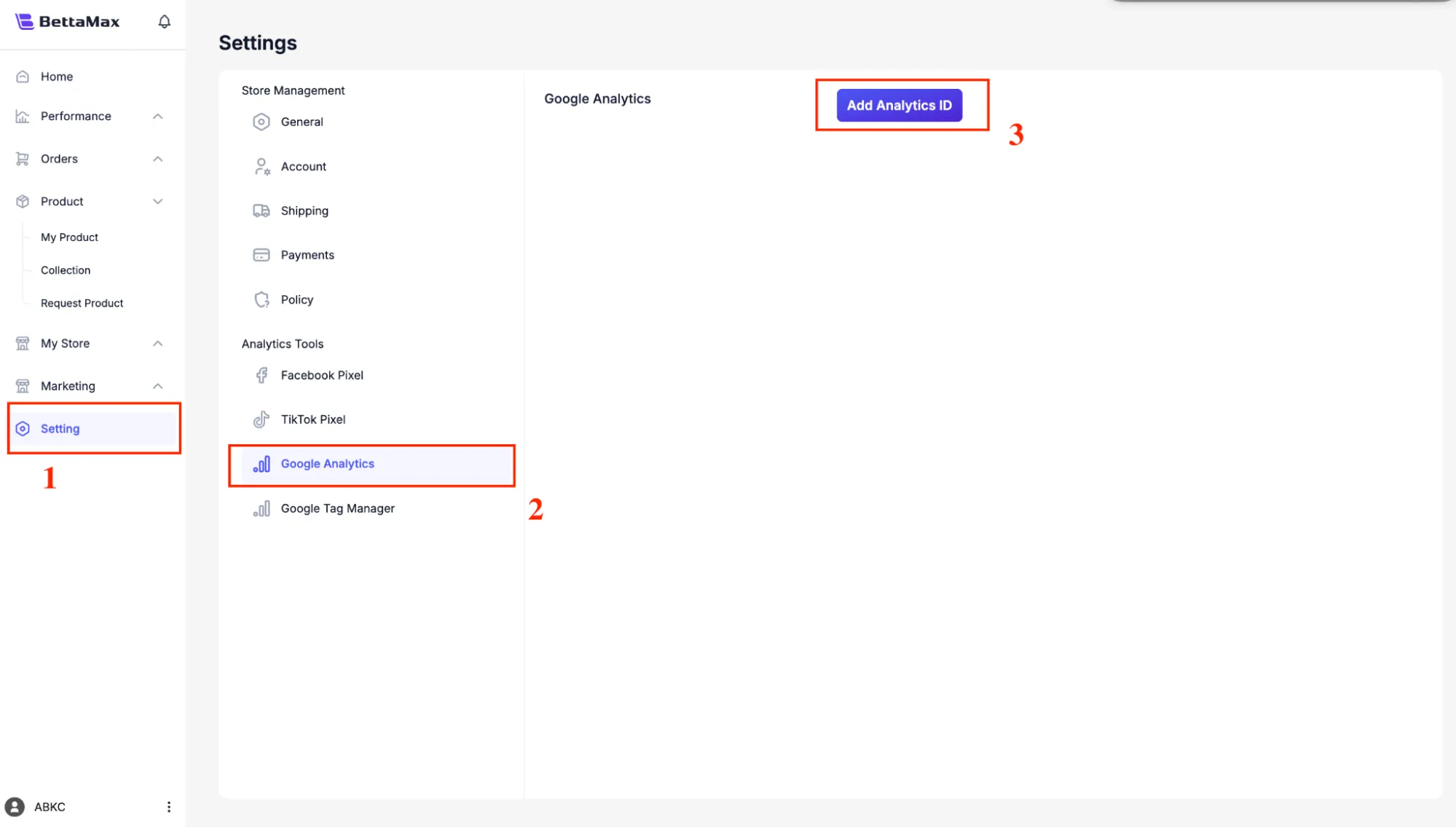
- Paste the copied Measurement ID into the input field.

- Press Save to save.Warning: If you change the Measurement ID after your ads have already run, historical data from the old ID will not transfer. Please ensure you use the correct ID from the start.
Step 3: Verify successful connection #
After saving, check to confirm that the Measurement ID has been correctly assigned to the product in the store.
- Go to My Products in the BettaMax admin panel.
- To find the product you want to check, click the Edit icon (pencil shape) in the action column.
- Confirm that the Google Analytics column displays the Measurement ID you just entered.
 Note: If the Google Analytics column is empty, go back to Settings > Google Analytics and double-check that the saved ID is correct.
Frequently Asked Questions #
Some common questions when first starting to use Google Analytics 4 with BettaMax.
Which metric should I monitor first?
Start with five basic metrics: visits, time on page (Engagement time), bounce rate, conversion rate, and traffic source. This forms the foundation for evaluating store effectiveness before delving into more advanced metrics.
Can GA4 track customer journeys?
Yes. GA4 offers User Journey Analysis, which lets you see what steps customers go through before making a purchase or leaving. This feature is located in the Explore section of GA4.
How can I track the cart abandonment rate?
Enable Enhanced E-commerce in GA4 to track cart abandonment rate and detailed purchase events. To manage multiple tracking tags simultaneously, you can integrate GA4 with Google Tag Manager.