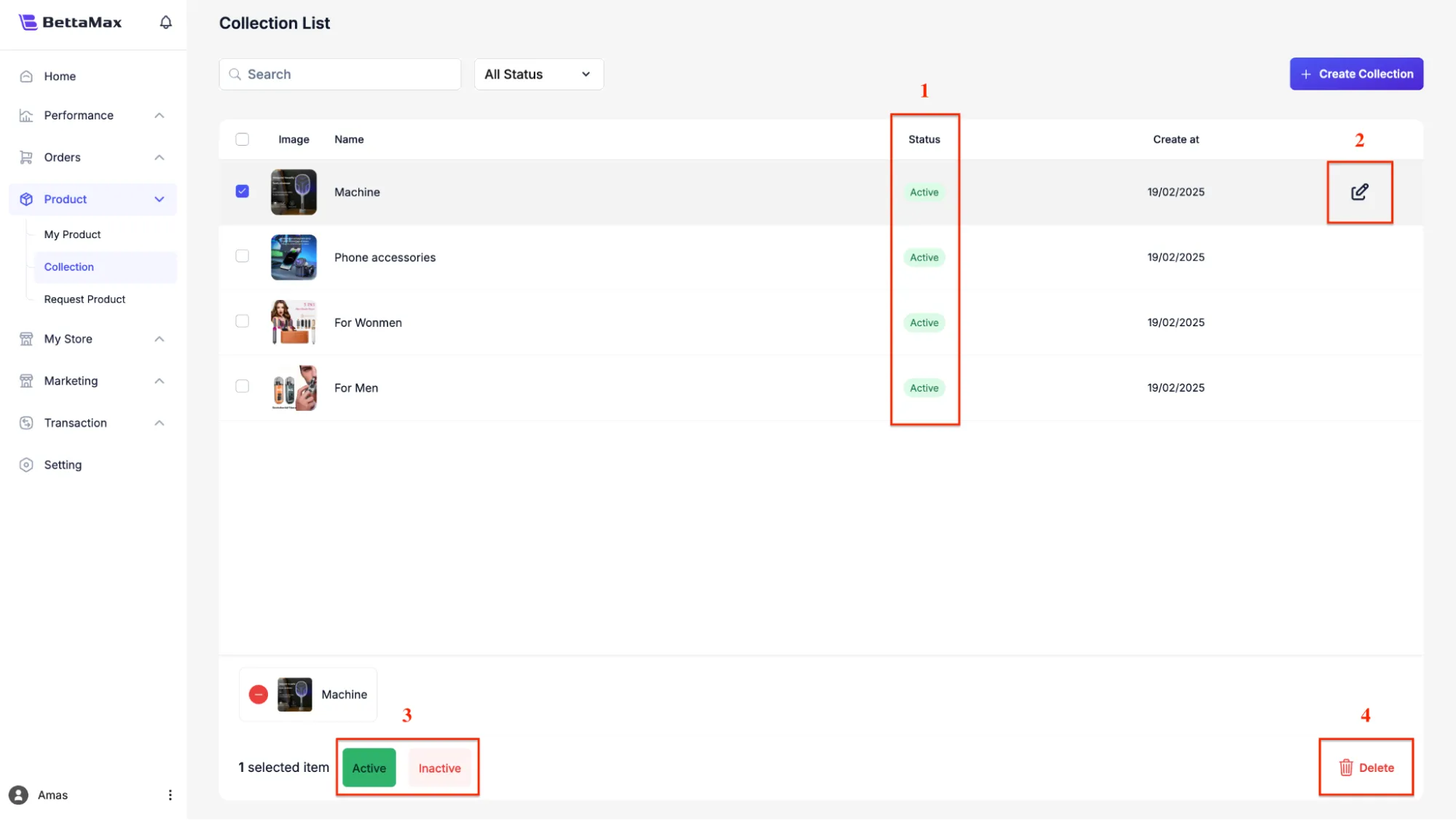
This guide helps you create and manage Collections to group products by category. Collections make it easier for customers to browse products and serve as the basis for building navigation menus for your store.
What is a collection and when should you use it? #
A Collection is a way of grouping multiple products together based on a common criterion, for example, by product category, by promotional program, or by target customer. A product can belong to multiple Collections at the same time.
- Theo danh mục: “Phone Cases”, “Wireless Earbuds”, “Smart Home”.
- According to the campaign: “Flash Sale”, “New Arrivals”, “Best Sellers”.
- By category: “For Men”, “For Women”, “Gifts Under $30”.
Create a new Collection #
Each Collection needs a clear name and description. You can add products manually or let the system automatically add them based on predefined criteria.
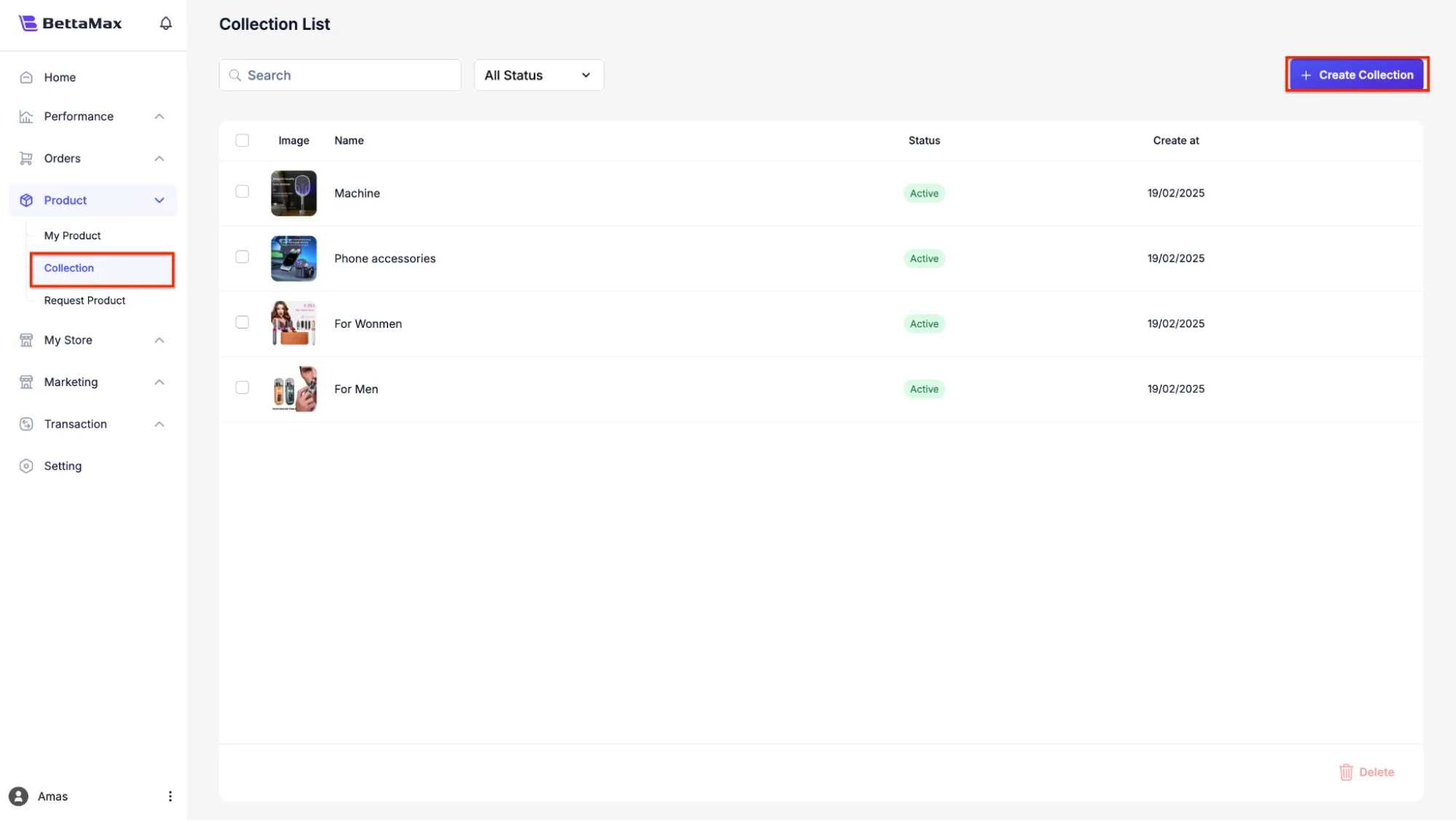
- From the sidebar, select My Product > Collection .
- Click Create Collection in the upper right corner.
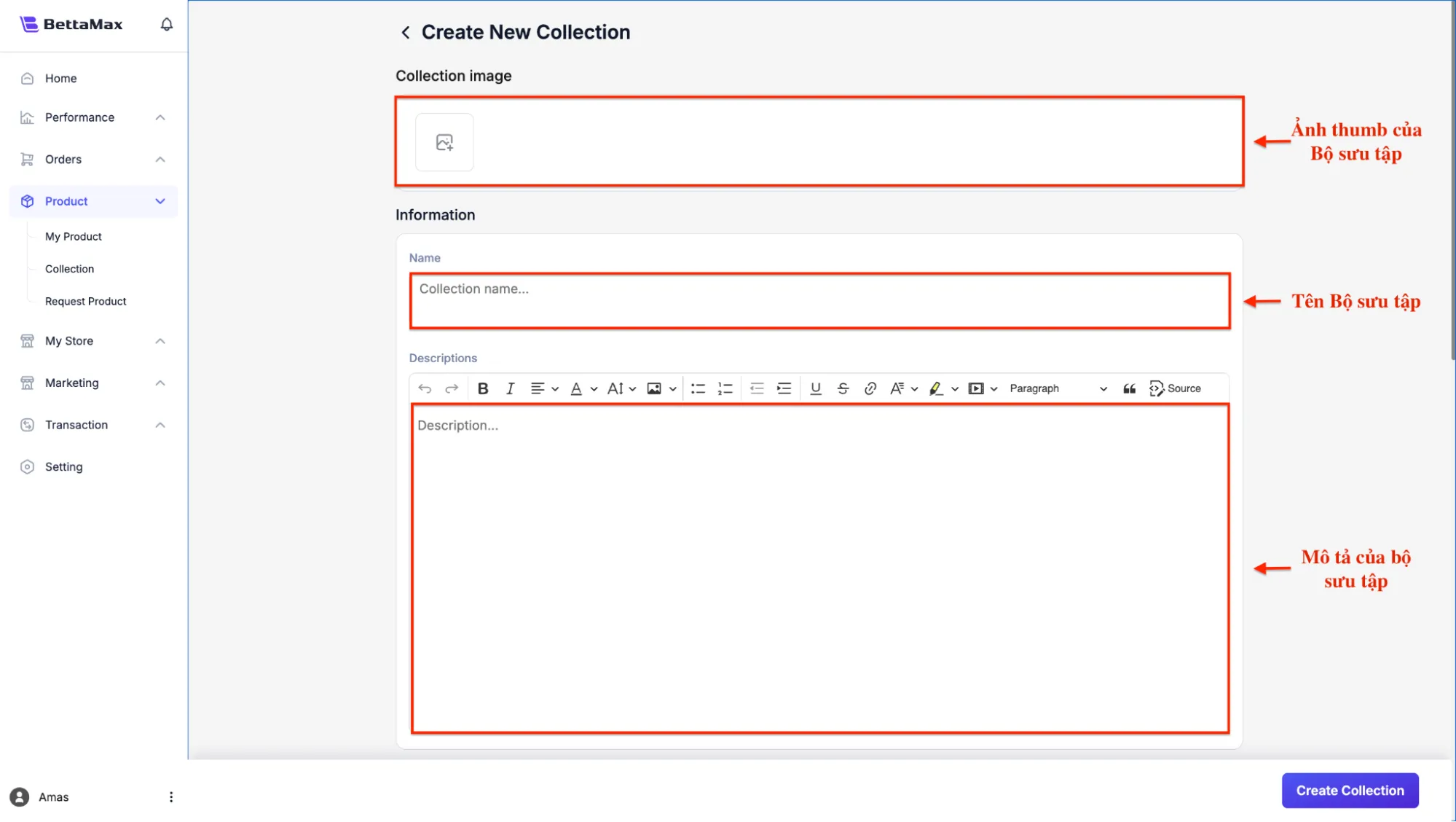
- Fill in the basic information for the Collection:
- Title — The name of the collection displayed in the store. For example:
Wireless Earbuds. - Description — A brief description of the category. Displayed on the Collection page and helpful for SEO.
- Title — The name of the collection displayed in the store. For example:
- Upload a representative image for the Collection to the Collection Image field (optional). This image will be displayed when the Collection is featured on the Homepage.
Add products to the Collection #
BettaMax supports two ways to add products to a Collection: manually or automatically based on conditions. Choose the method that best suits the size of your catalog.
Method 1: Add manually
Use this when the Collection has a small number of products or requires precise control over each product added.
- In the Products section , select Manually .
- Click Browse to find and select a product from the list.
- Select the products you want to add to the Collection, then click Add .
Method 2: Conditional Automated
Use this when your Collection needs to be updated continuously, for example, “New Arrivals” to automatically add new products or “Sale Items” to automatically add products with discounted prices.
- In the Products section , select Automated .
- Select product filtering criteria. Each criterion consists of three parts: attributes (Product tag, Price, Title, etc.), operators (is equal to, contains, is greater than, etc.), and values .
- Example:
Product tag>is equal to>saleto automatically add products with the tag “sale”. - Example:
Price>is less than>30to automatically add products under $30.
- Example:
- Select All conditions (all conditions must be true) or Any condition (only one condition needs to be true) if you have multiple conditions.
Setting up SEO for Collection #
Collection pages have their own URLs and can appear on Google when customers search by category. Optimizing SEO for Collection pages helps increase organic traffic to your store.
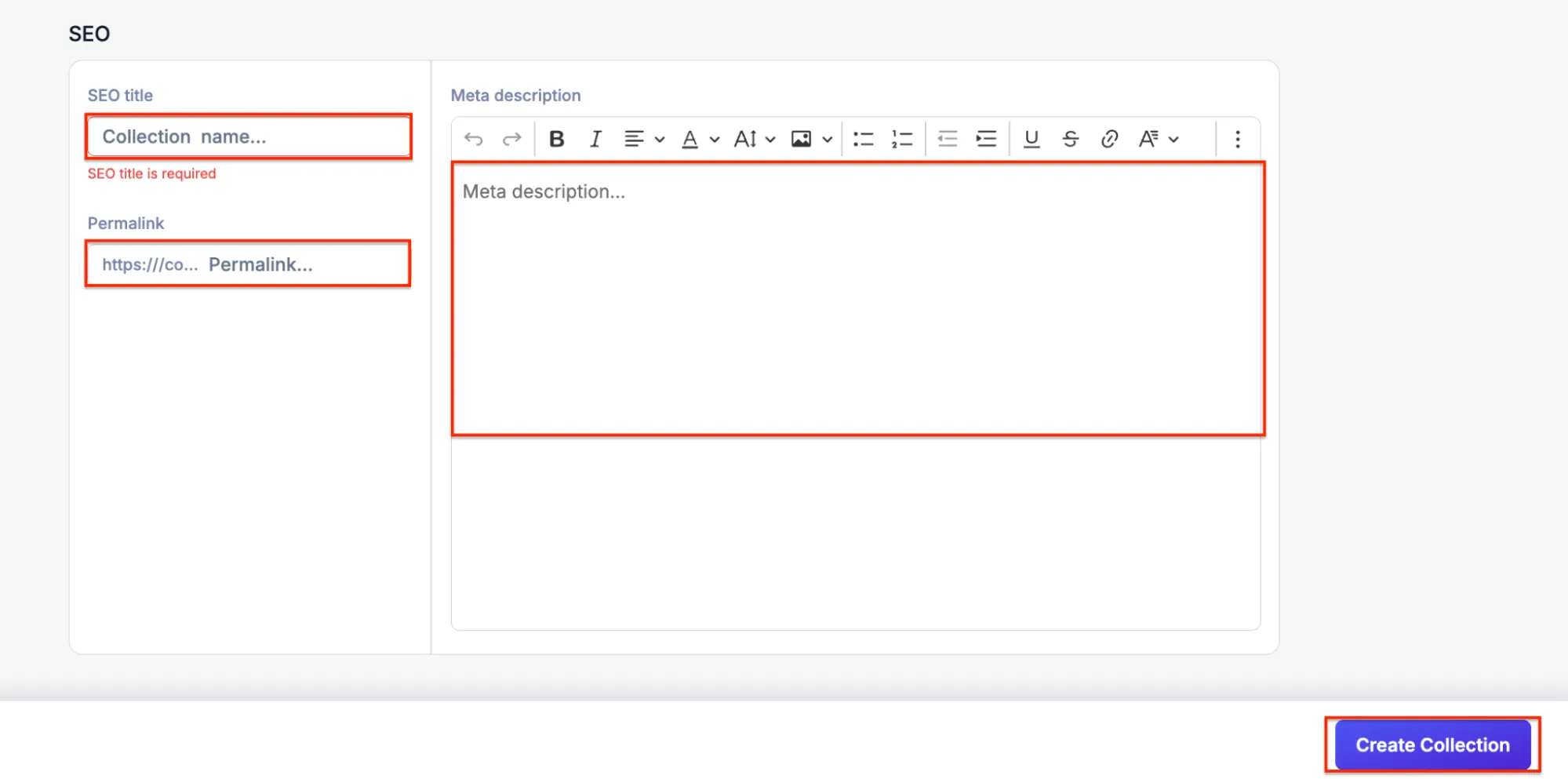
- Scroll down to the Search Engine Optimization section on the Collection creation page.
- Fill in the Meta Title (50 to 60 characters), Meta Description (150 to 160 characters), and URL Slug (lowercase, no accents, use hyphens).
Save and check the Collection #
- Click Save to create the Collection.
- Open the store and access the Collection URL to check that the product is displayed correctly.