
Creating and managing voucher on BettaMax helps Sellers run flexible promotional campaigns, stimulate purchases, and boost revenue. With the Discount tool, you can easily set up discount types, usage conditions, and active periods. This guide walks you through each step to create and validate discount codes effectively.
Introduction to the Voucher Creation and Management Tool
Creating and managing discount codes (Vouchers) on BettaMax is an essential part of marketing strategies, helping drive purchasing demand and increase revenue. This process is performed directly in the Discount section and includes setting specific usage conditions.
With this feature, Sellers can launch flexible discount campaigns: from order-level discounts to free shipping – ensuring they reach target customer groups effectively while optimizing profit margins.
4 Steps to Create and Manage Voucher on BettaMax
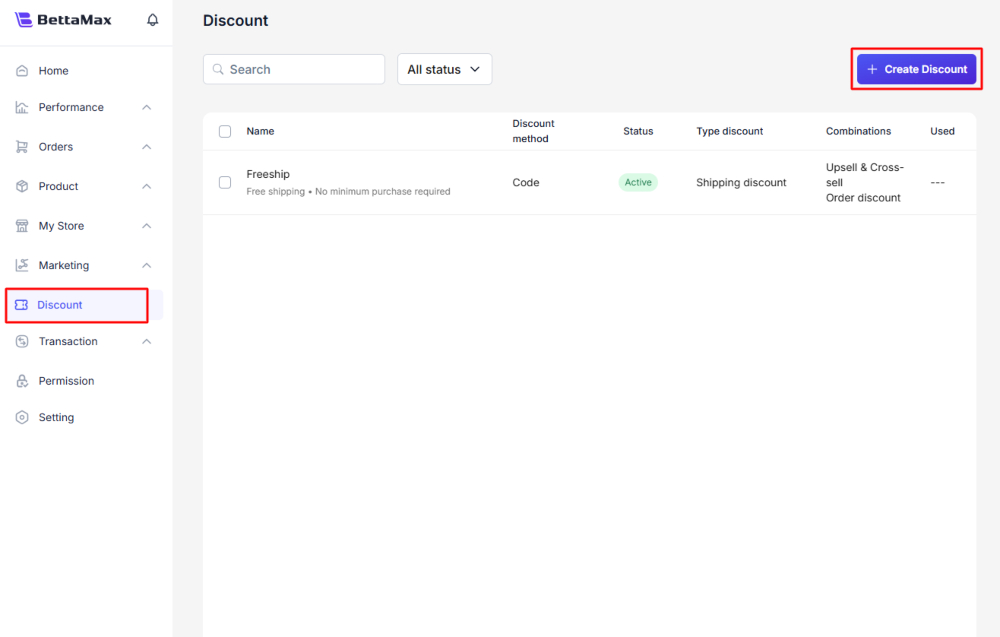
Step 1: Create a New Discount and select discount ype
Go to Discount: From the BettaMax admin dashboard, select Discount.
Create new: Click + Create Discount at the top right corner.
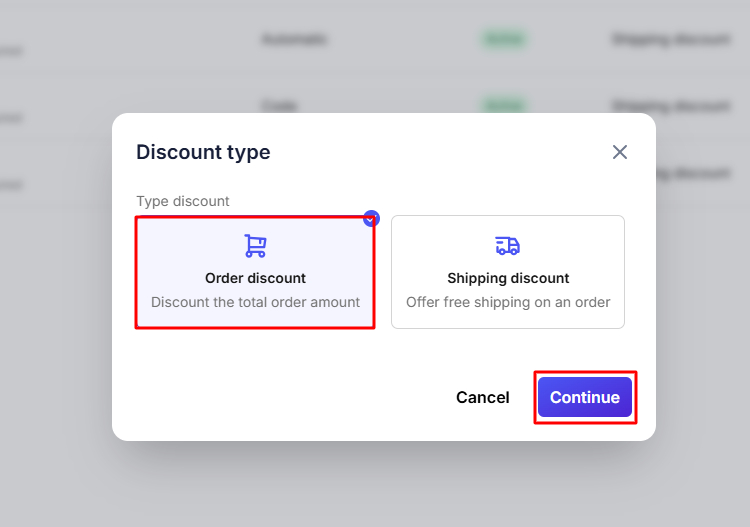
A pop-up will appear asking you to select the discount objective:
Order discount (applies a discount to the total order value)
Shipping discount (free shipping for the order)
Select Order discount, then click Continue.
Step 2: Set basic code details
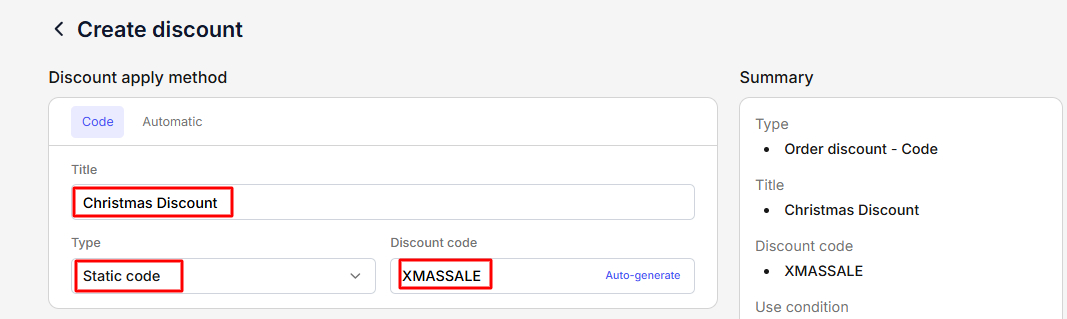
After choosing the discount type, you will be directed to the detailed setup page:
Discount apply method: Choose between Code or Automatic.
Title: Enter a suitable name for the discount.
Type: Select Static code.
Discount code: Enter the specific code customers will use during checkout. You may also click Auto-generate.
Step 3: Configure conditions and usage limits
This is the key part that helps you control voucher scope and budget:
Apply to: Choose All products or Specific product/collection.
Minimum Purchase Requirement: Set conditions for voucher validity:
None (no minimum requirement)
Minimum purchase amount (e.g., $9 USD)
Minimum quantity of items (e.g., 120 items)
Maximum discount uses: Control the total number of voucher uses or limit each customer to 1 use.
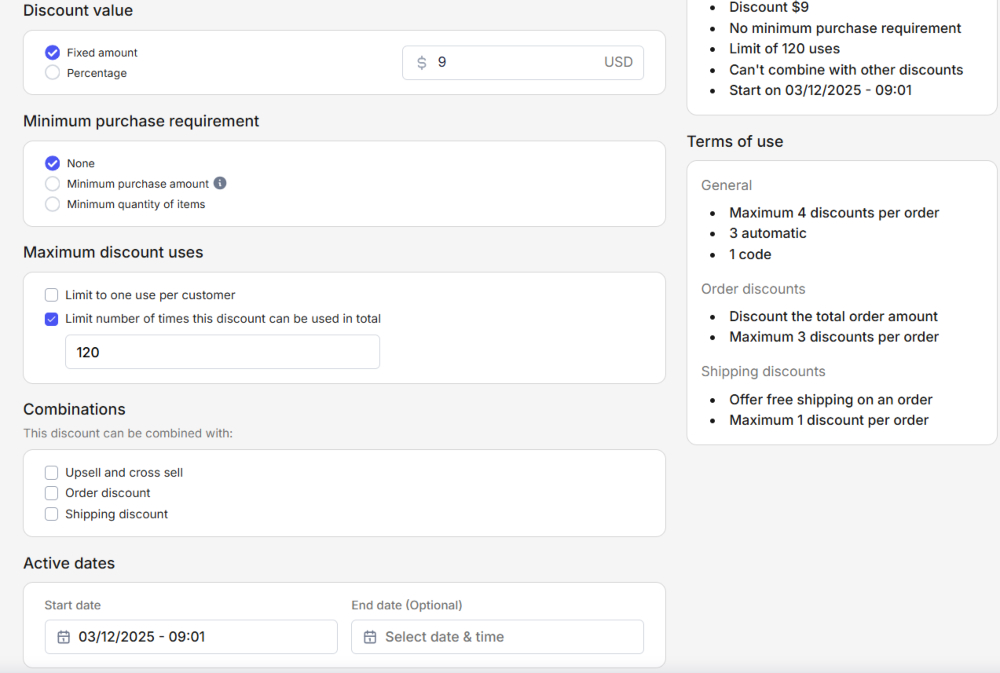
Combinations: Specify whether this discount can be combined with other promotions (Order, Shipping, Upsell).
Active dates: Set the Start date and optional End date.
Step 4: Test and validate the Voucher
To ensure the voucher is working correctly, you should test it on the online store. Follow these steps:
Go to your Online Store and add a product to the cart.
Proceed to Checkout.
In the Order Summary, enter the discount code you created (e.g: XMASSALE) into the Discount code field and click Apply.
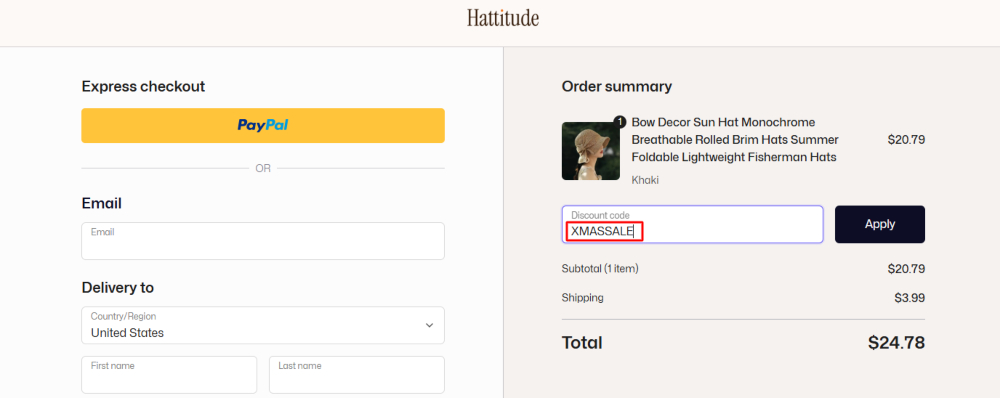
If the code is valid, a notification saying “Apply discount successfully!” will appear in the top-right corner along with TOTAL SAVINGS, confirming that your voucher is active and functioning properly.

Conclusion
BettaMax’s Voucher creation and management tool provides Sellers with a flexible and powerful marketing solution. Mastering how to configure conditions and usage limits is the key to running successful promotional campaigns, attracting new customers, and increasing average order value.
Start creating your first discount campaign today to maximize sales on the BettaMax platform