
The new feature “Create and Customize Advertorial Page” on BettaMax helps Sellers build attractive pre-lander pages, optimize conversion before leading customers to product pages or checkout.
This article introduces how to use this new feature, from creating pages, optimizing content to setting up CTA, helping you deploy Advertorial effectively and SEO standard.
Introduction to the Advertorial Page Feature on BettaMax
The Advertorial Page is a tool designed to help you build long, persuasive content pages that serve as pre-landers before leading customers to a product page or checkout page. Proper optimization of this page is essential to increase ad-to-purchase conversions.
This feature offers complete flexibility in both design and content, allowing Sellers to create attractive landing pages with in-depth product explanations, thereby increasing trust and encouraging purchase decisions.
Steps to Create and Customize Advertorial Page
Create a New Advertorial Page
This is where you set up the main content of your Advertorial page:
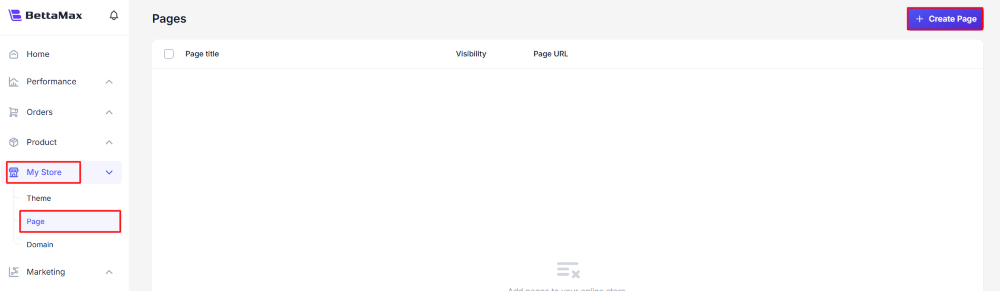
- Access the Pages section: From the BettaMax admin dashboard, go to My Store → Page.
Start creating a page: Click Create Page.
Fill in the title and content:
Enter the Page title (e.g., Advertorial Page).
Add the Content of the page, including text, images, or videos.
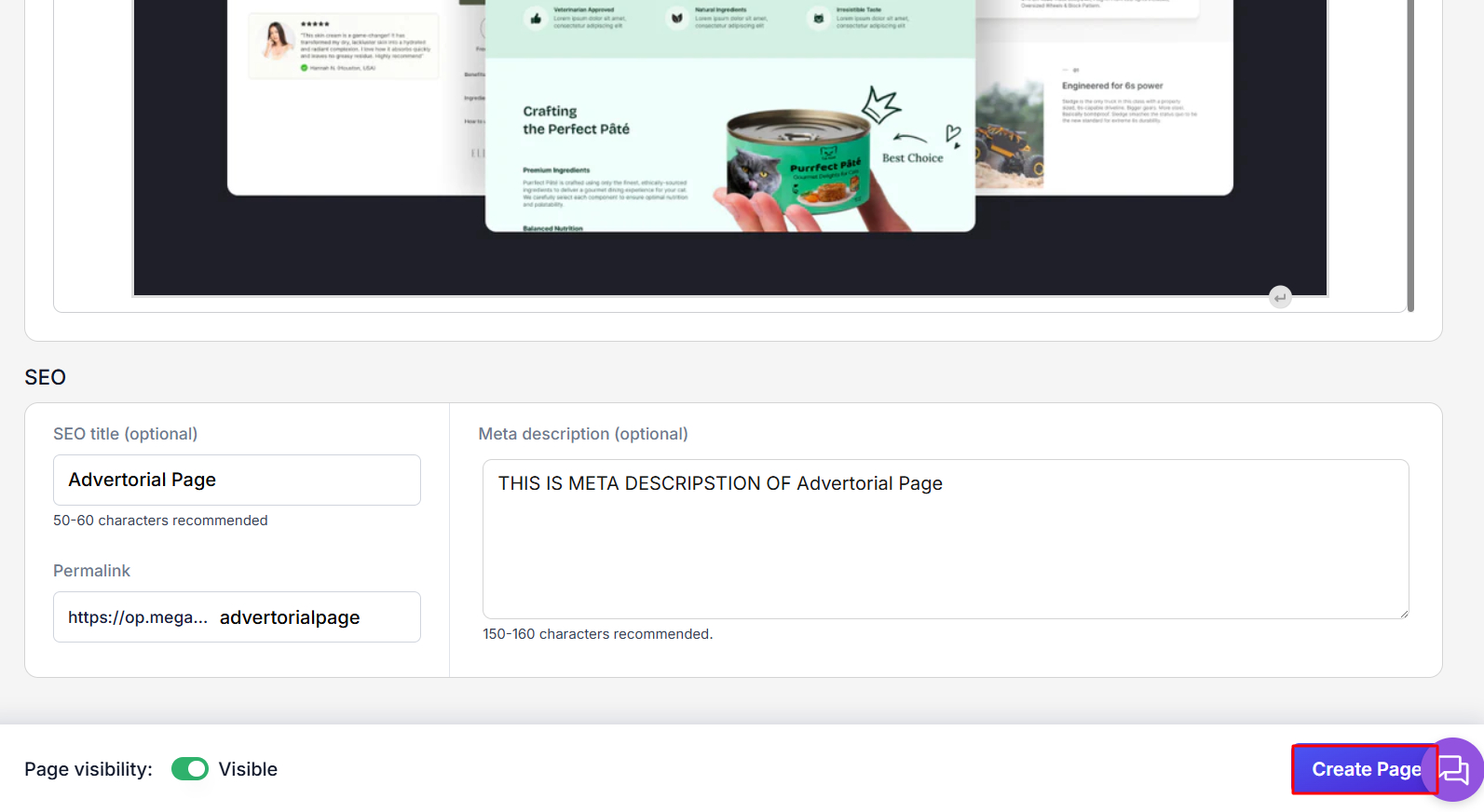
Optimize SEO: Fill in the SEO title and Meta description.

Finish: Click Create page. Your new Advertorial Page will be created successfully.
Customize the Advertorial Page Layout
After creating the content page, you need to customize its layout and components in the Theme editor:
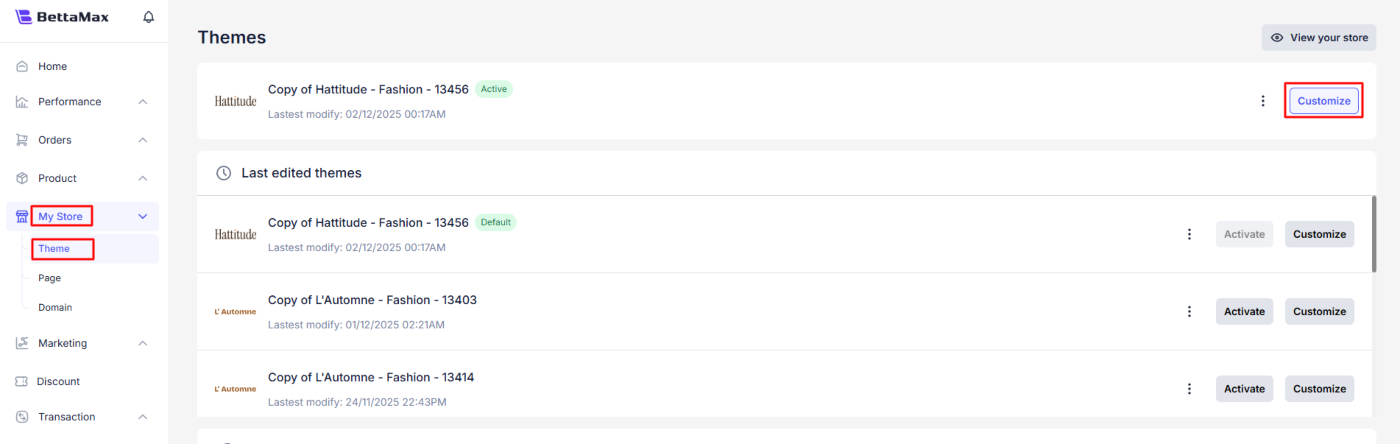
Go back to My Store → Theme. Click Customize on the active theme.
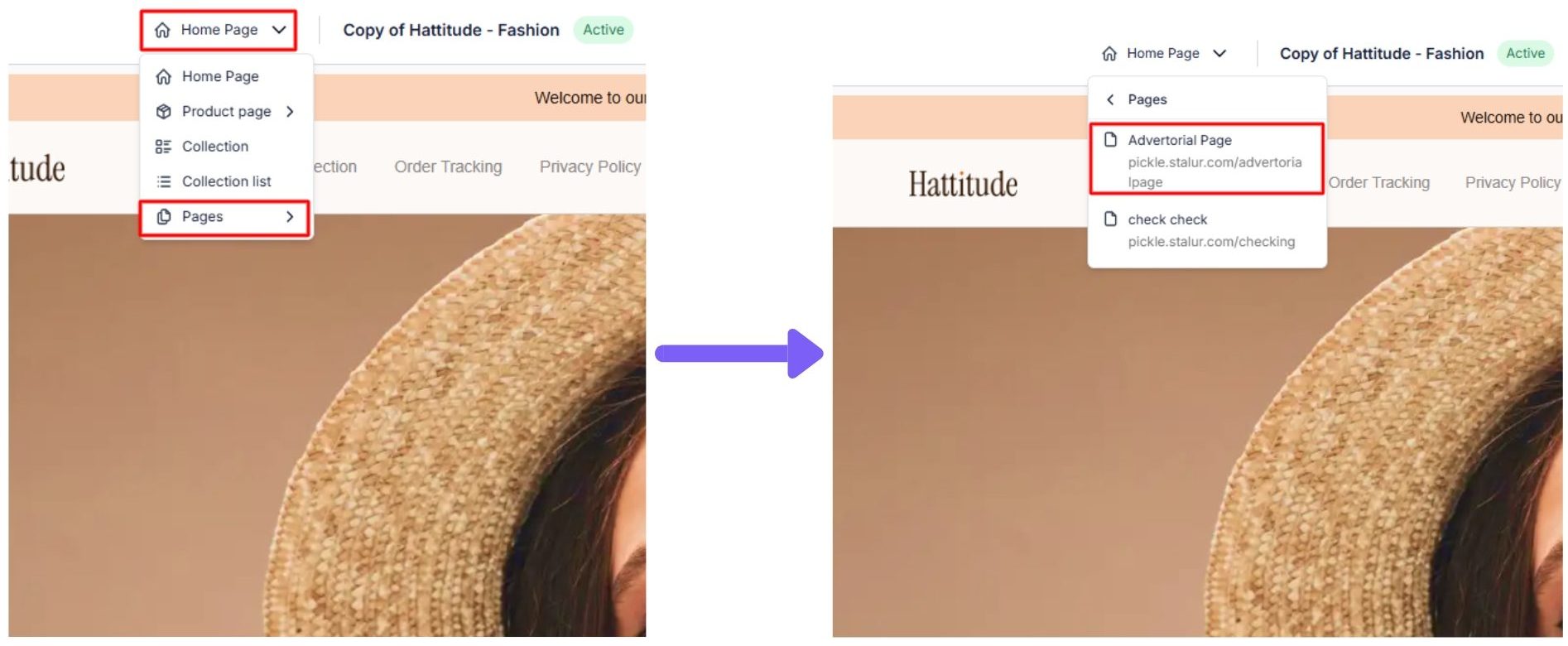
Select the page to edit: In the editor, open the dropdown menu at the top → choose Pages → select your Advertorial Page.
(1) Configure the Menu
To display your Advertorial Page in the navigation bar:
Select the Menu tabs component.
Click Add tab.
Enter the Tab title (e.g., Advertorial Page).
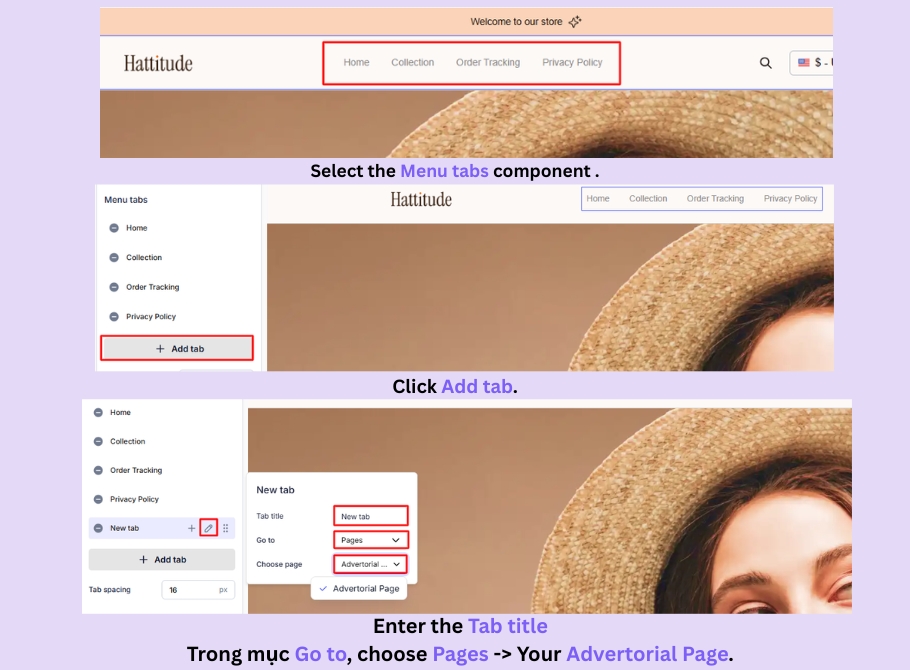
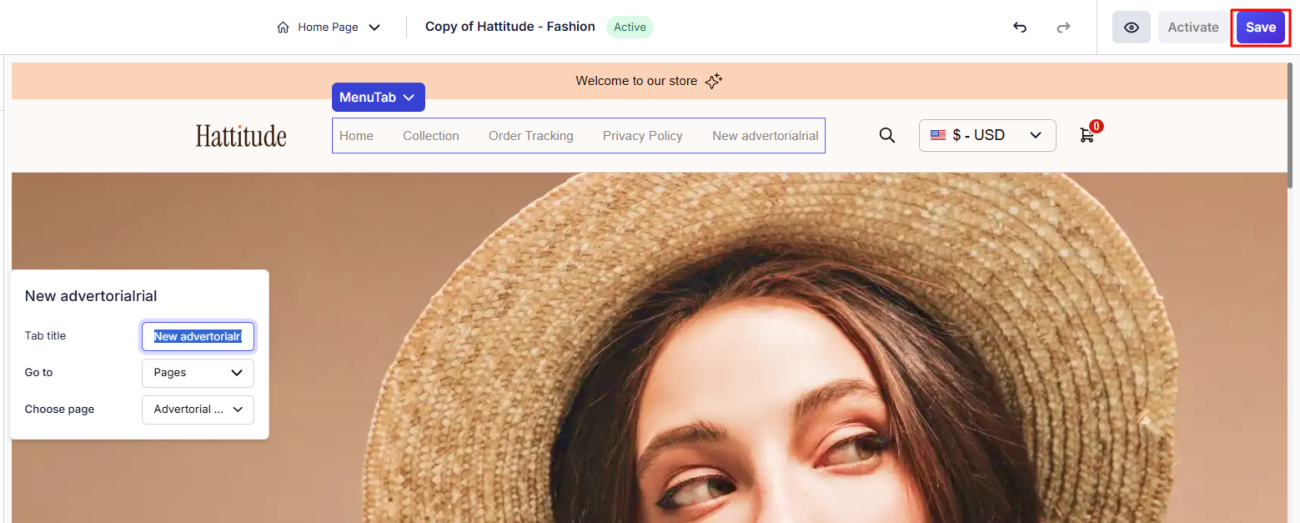
Under Go to, choose Pages → Your Advertorial Page.
Click Save.
(2) Add and Edit the Call-to-Action Button (CTA Button)
This is the most important part for converting customers from the Advertorial Page:
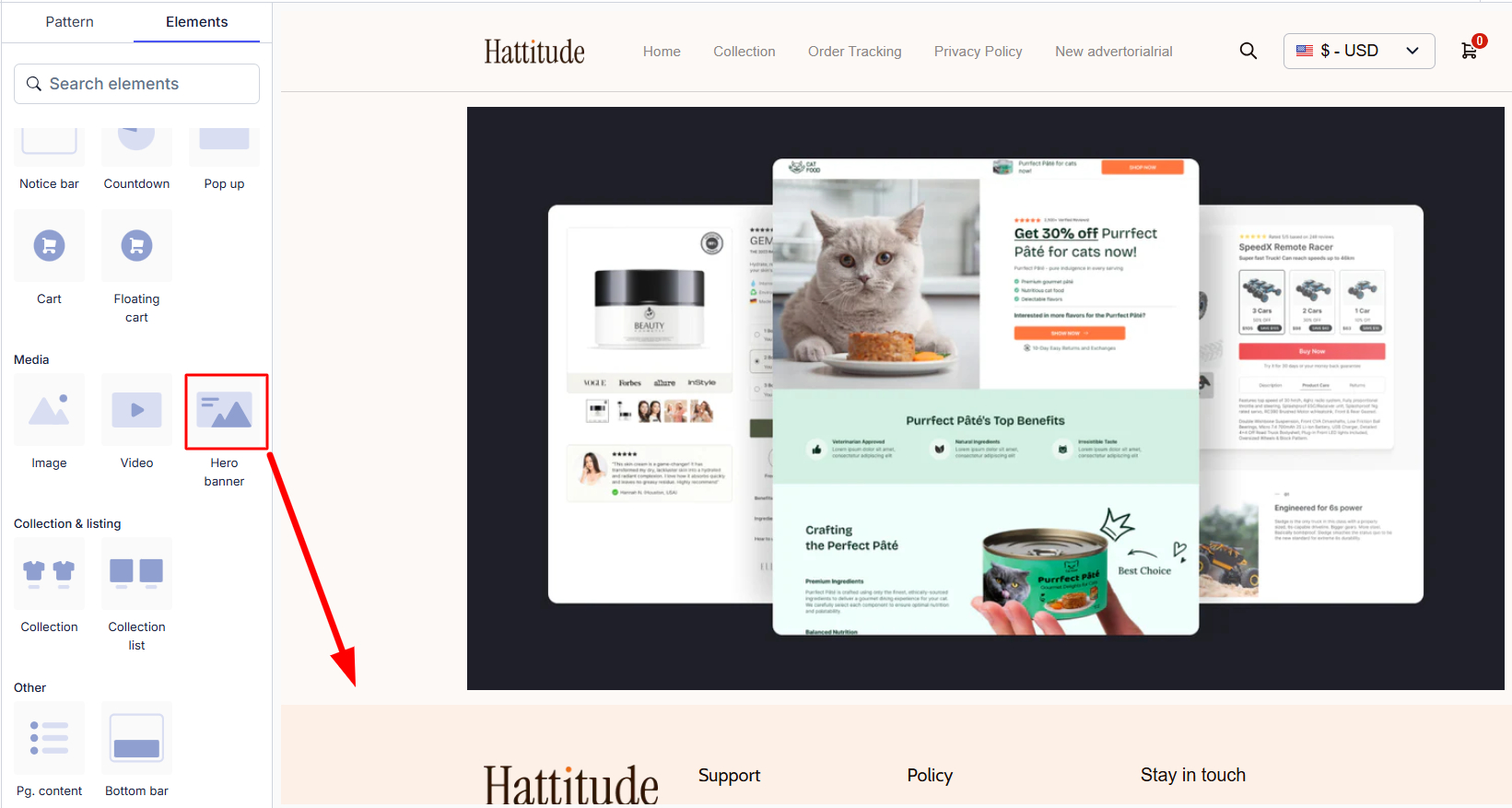
Add an element: Drag and drop the Button element to your desired position.
Set up navigation:
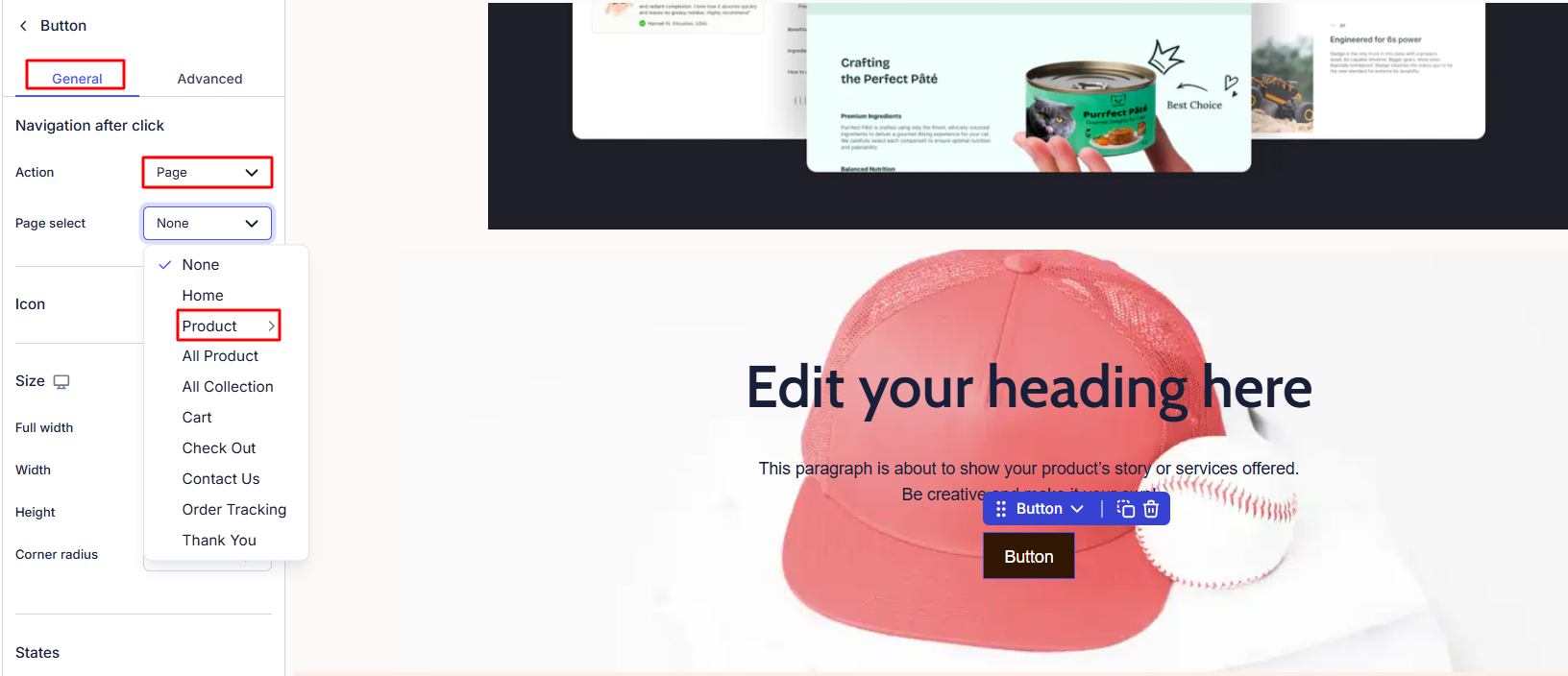
Click the Button and open the General tab.
Under Action, choose how the button behaves:
- Redirect to a Product Page: Select Page → Page select → Product → Choose your product.
- Redirect directly to Checkout: Choose Target URL and paste the product’s checkout link.
This strategy shortens the buying journey and typically increases conversions.
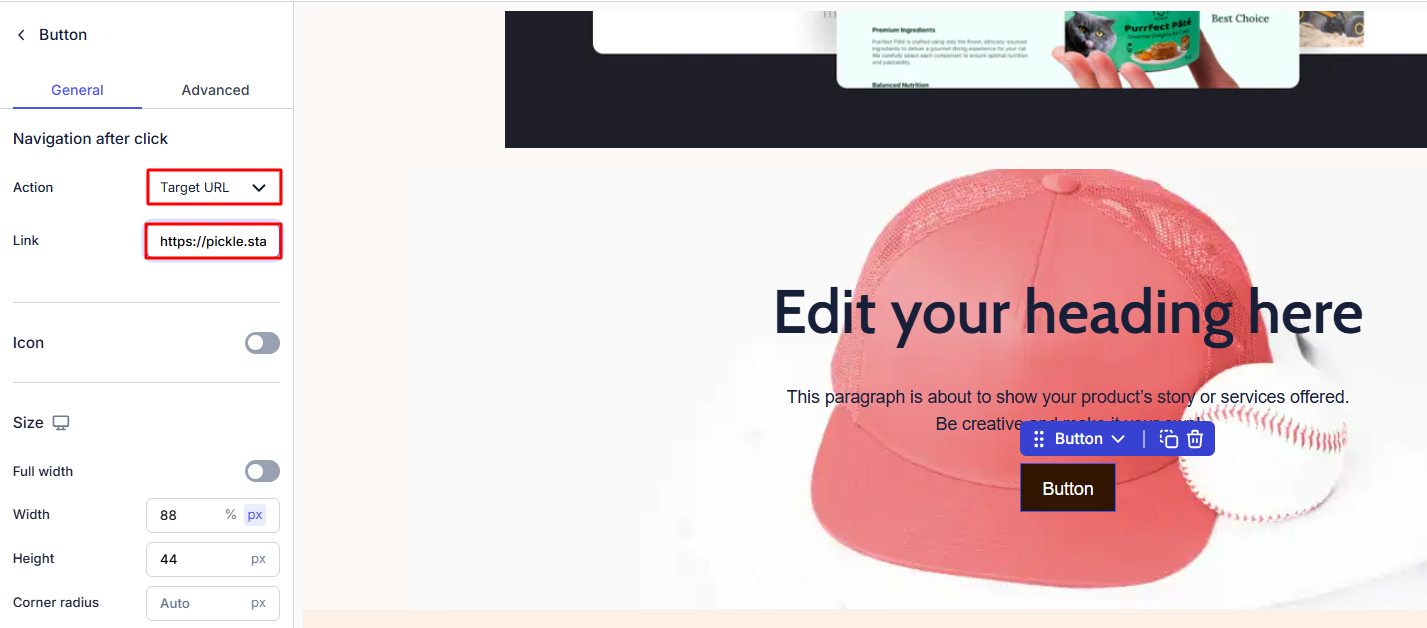
Button text: Rename the button with a clear call-to-action (e.g., Check it out, Buy now).
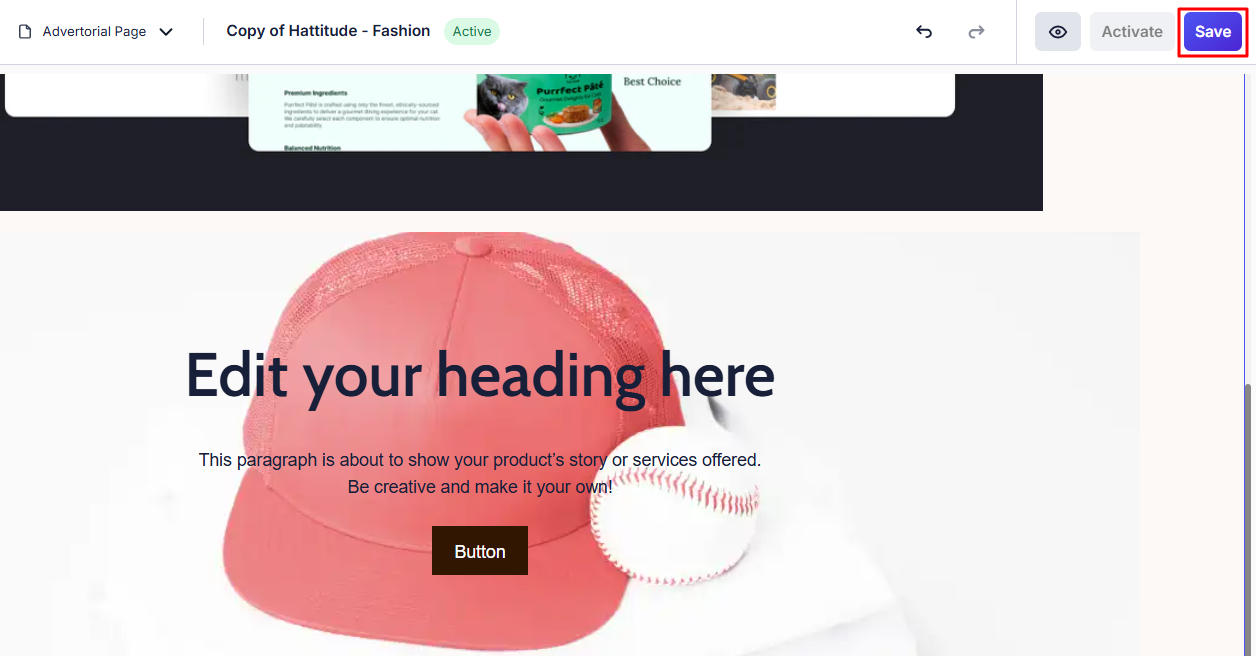
(3) Save: Once all customizations are done, click Save in the top-right corner.
Conclusion
By following these steps, you can create a professional Advertorial Page with persuasive content and properly configured CTA buttons that guide customers to the product page or directly to checkout.
Mastering the Advertorial Page tool allows BettaMax Sellers to optimize ad performance, strengthen customer trust, and achieve higher conversion rates. Start applying these steps now to build high-converting Advertorial Pages.